
Learning how to swap a face in another photo is easy and quick with VidMage Photo Face Swap. To swap faces in a photo, you need the original photo you want to edit and a clear face photo.
VidMage web supports PNG, JPG, JPEG, and GIF (static & animated), and the VidMage Mac app supports PNG, JPG, WEBP, and GIF (static).
How to Swap a Face in Another Photo Online
Follow these steps to learn how to swap faces in a photo online with VidMage:
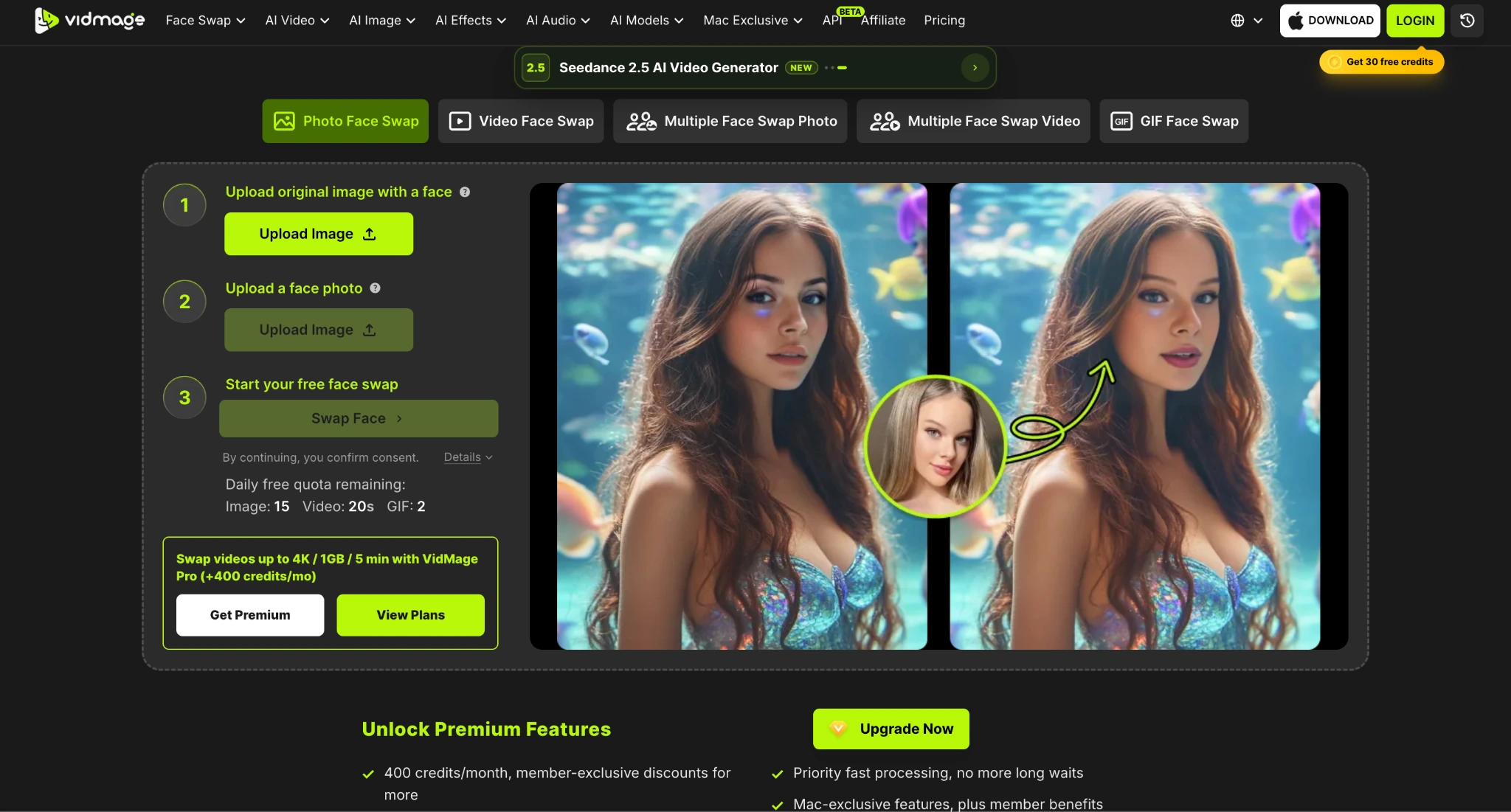
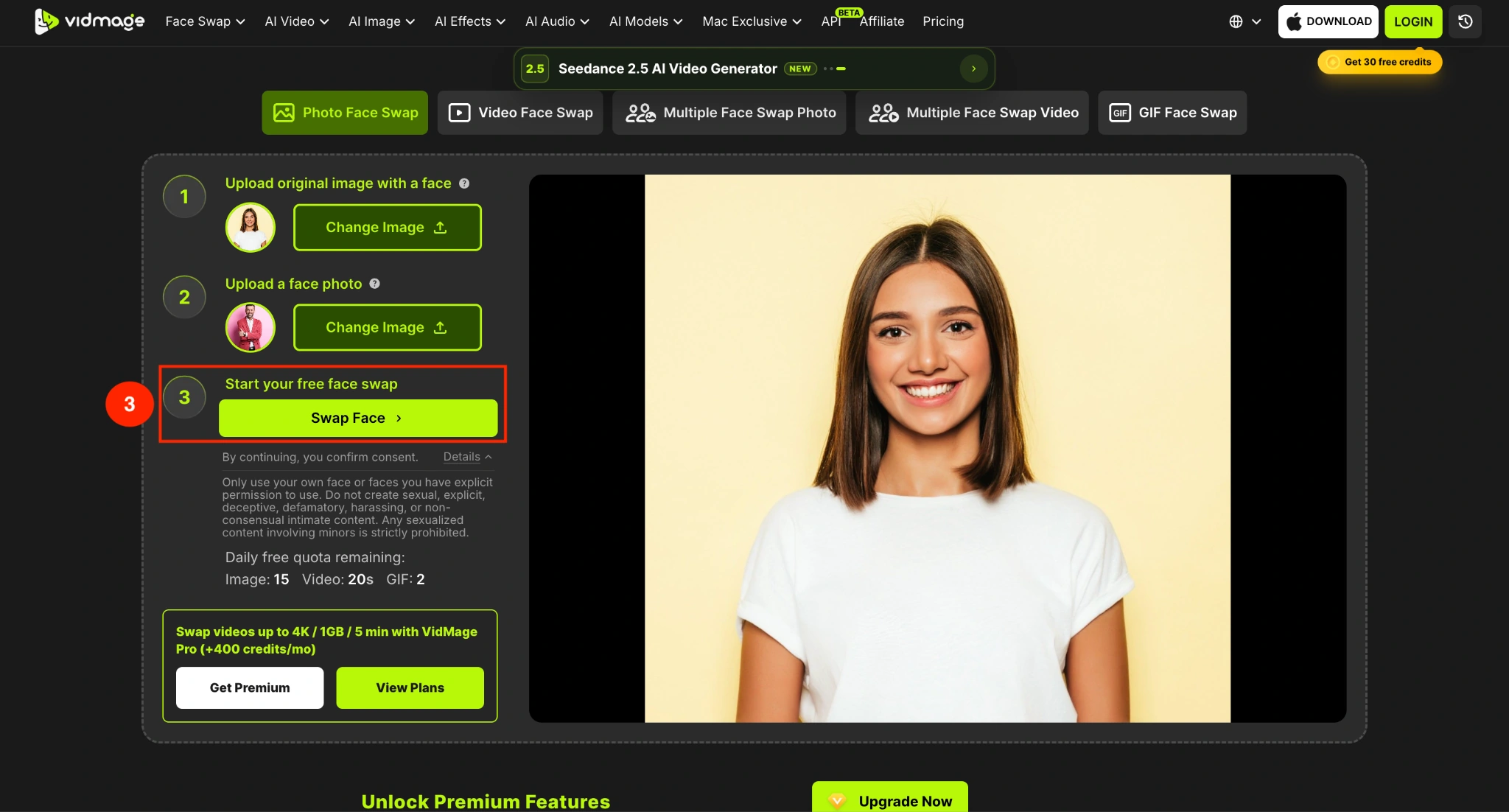
Step 1: Open the VidMage face swap page and click Upload original image with a face. Free users can upload up to 100 MB, and subscribers can upload up to 1024 MB.
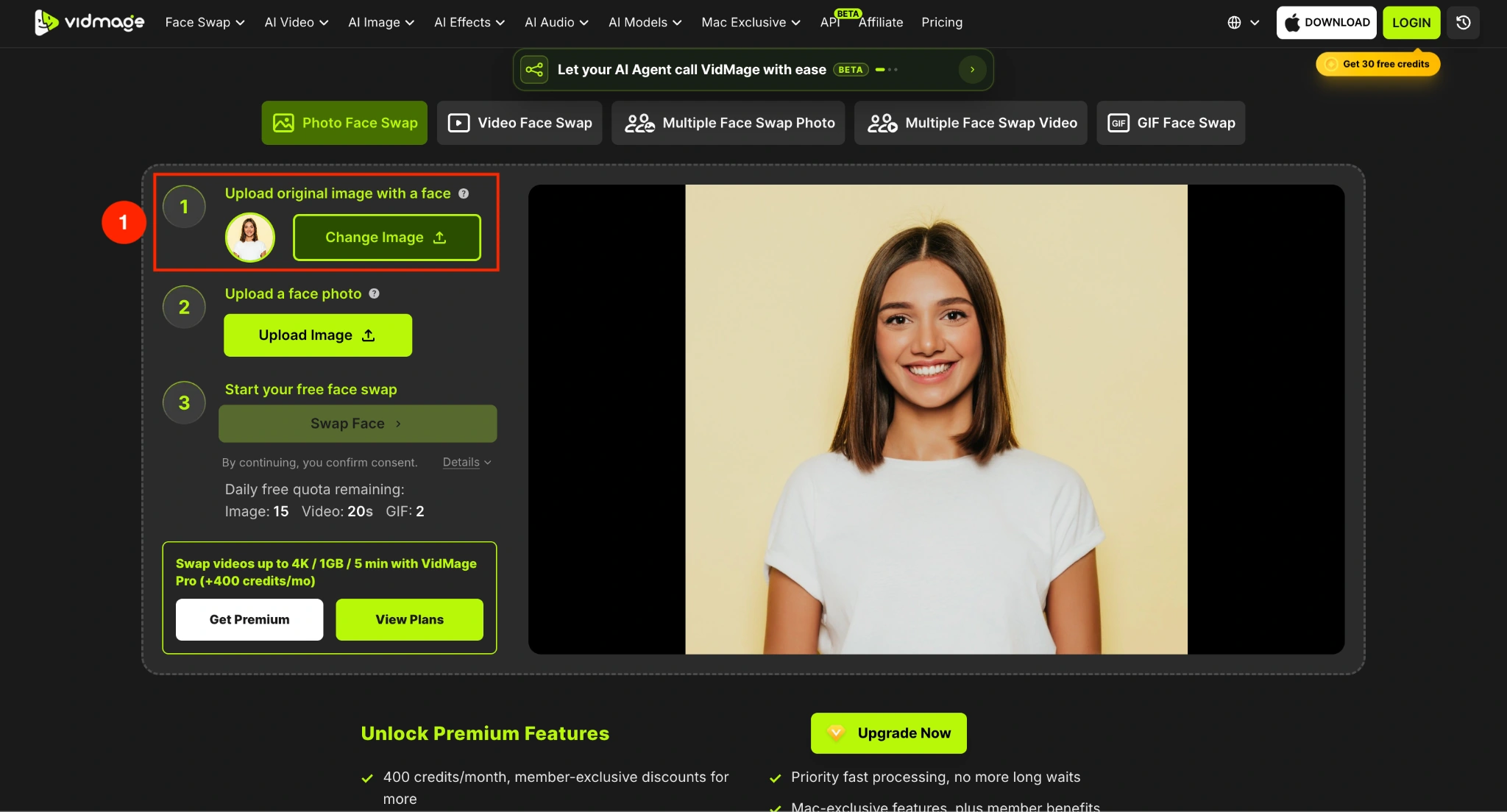
Step 2: Now, under the Upload a face photo option, upload the face you want to swap with the original. Make sure you upload clear, well-lit photos.
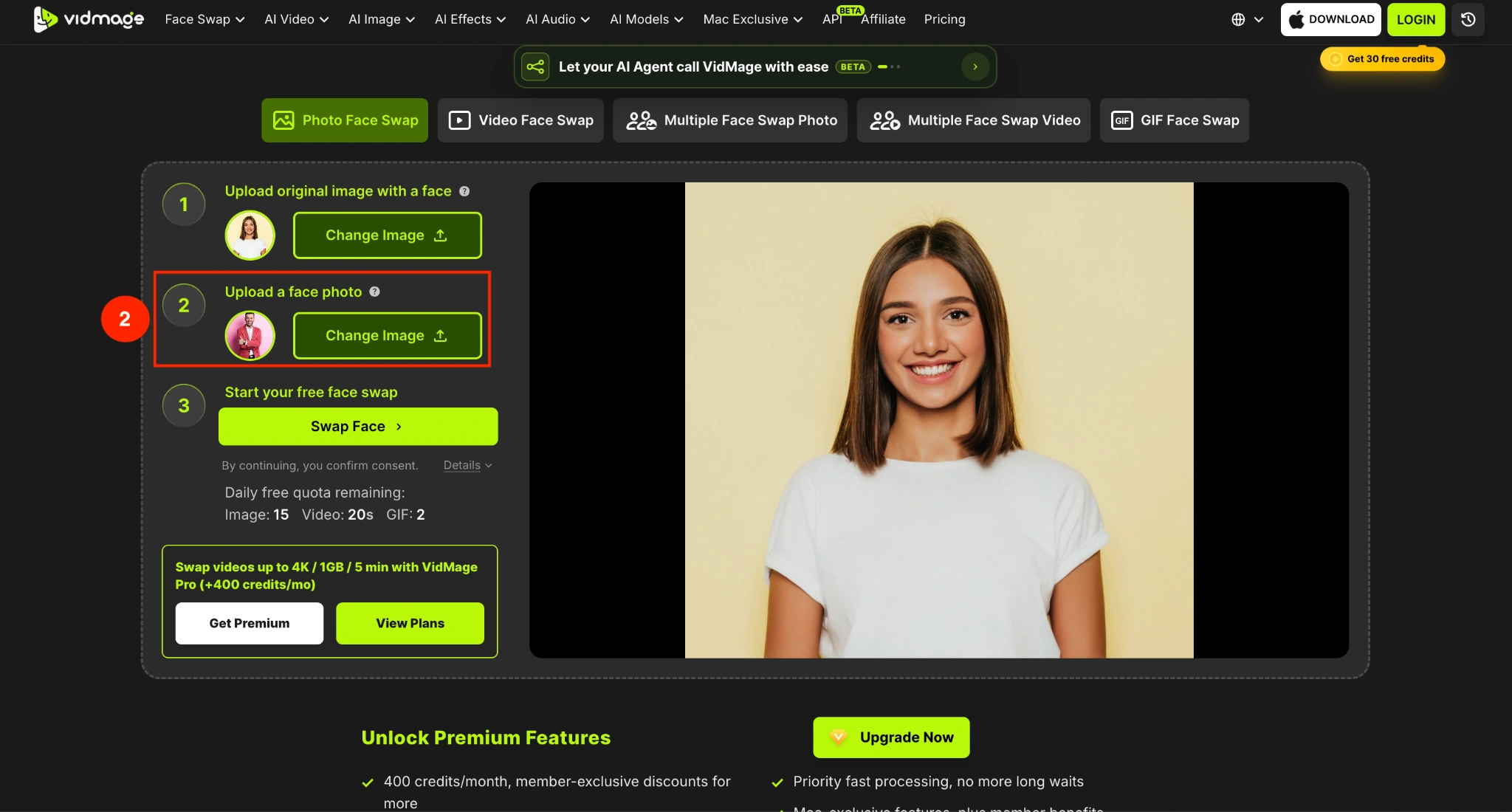
Step 3: After uploading both photos, click the “Swap Face” button to start the face-swapping process.
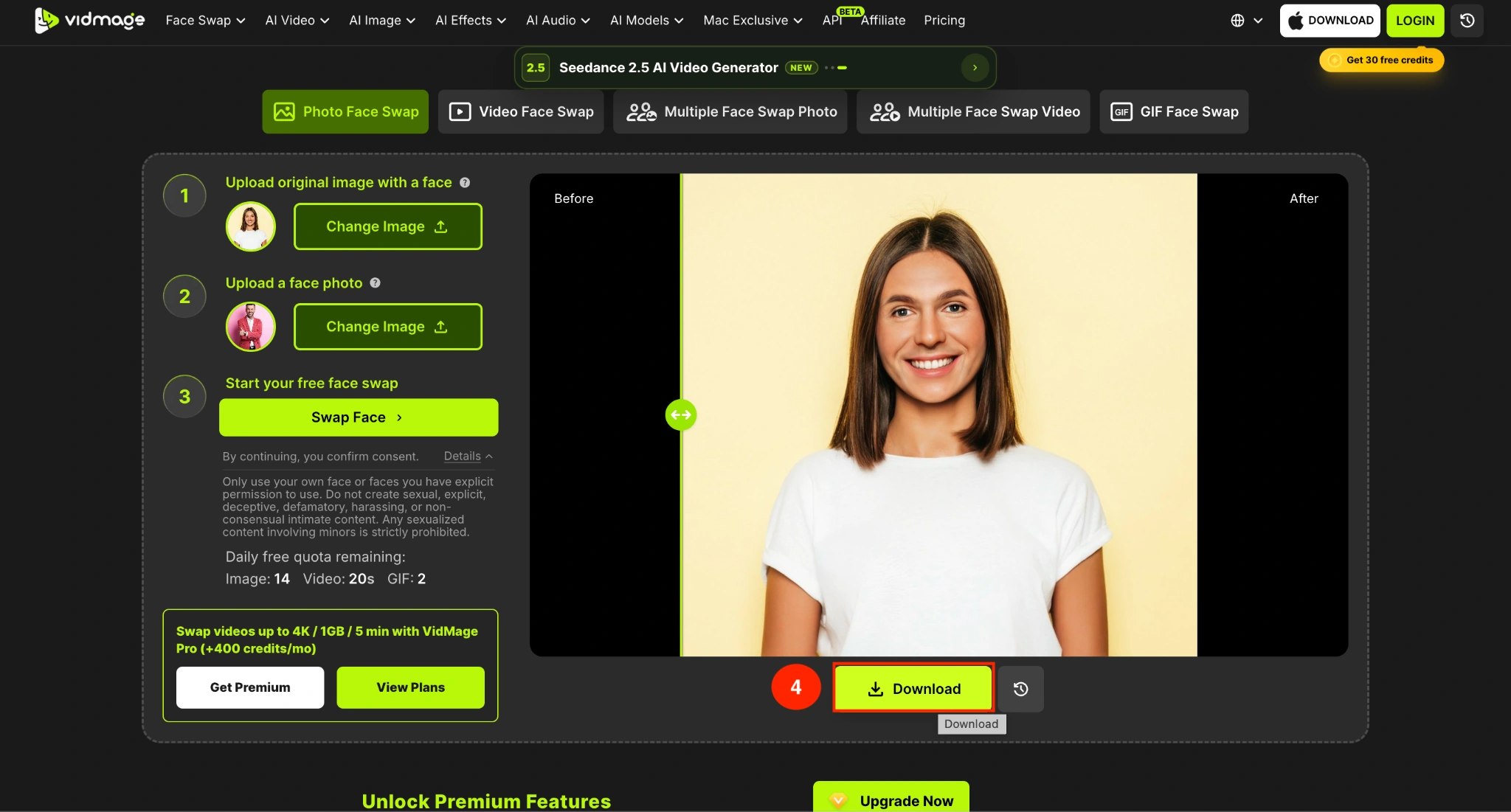
Step 4: In under 60 seconds, you will receive the swapped-face photo. Click the “Download” option to save the outcome. VidMage subscribers get up to 4K resolution exports.
How to Swap a Face in Another Photo on Mac (Apple Silicon M1 or Later)
Follow these steps to learn how to face-swap a photo offline on the Mac app:
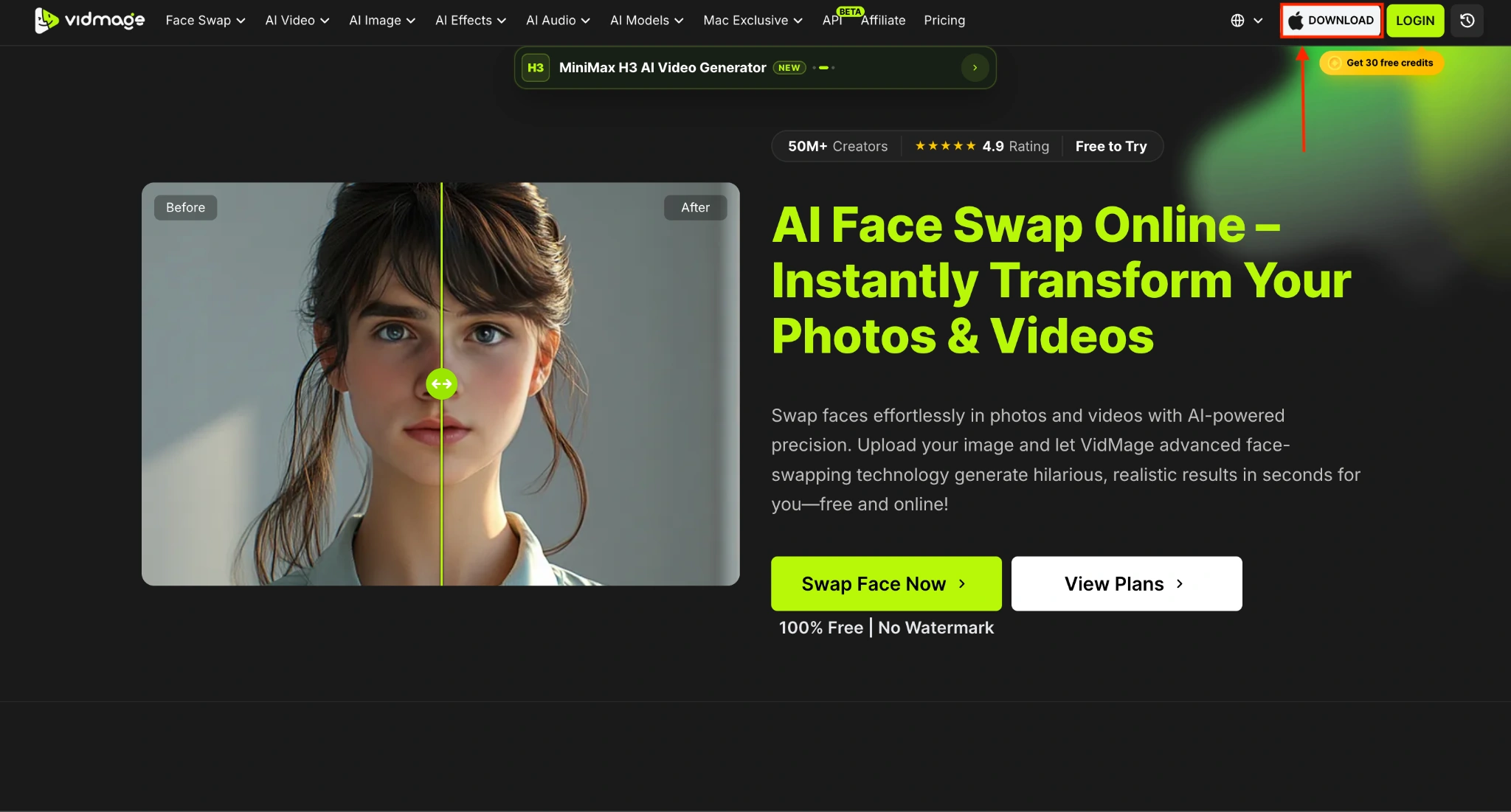
Step 1: Visit the official VidMage website and click the “Download” button on the upper right side. VidMage Mac app works best on Apple Silicon M1 or later.
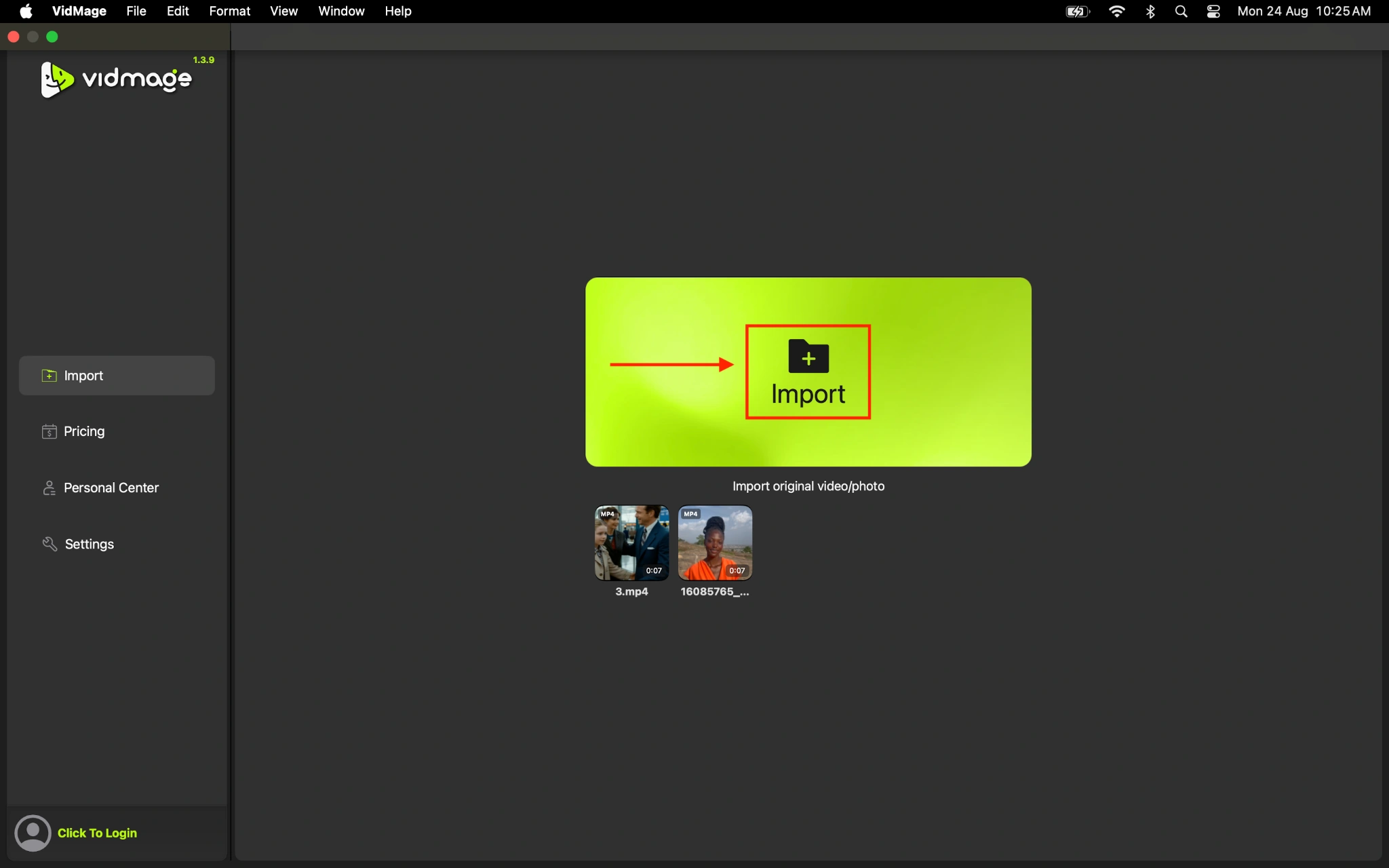
Step 2: Click the “Import” button and upload the original photo from your desktop. It works offline, and you can try face swap without creating an account. The VidMage Mac app does not have a size limit.
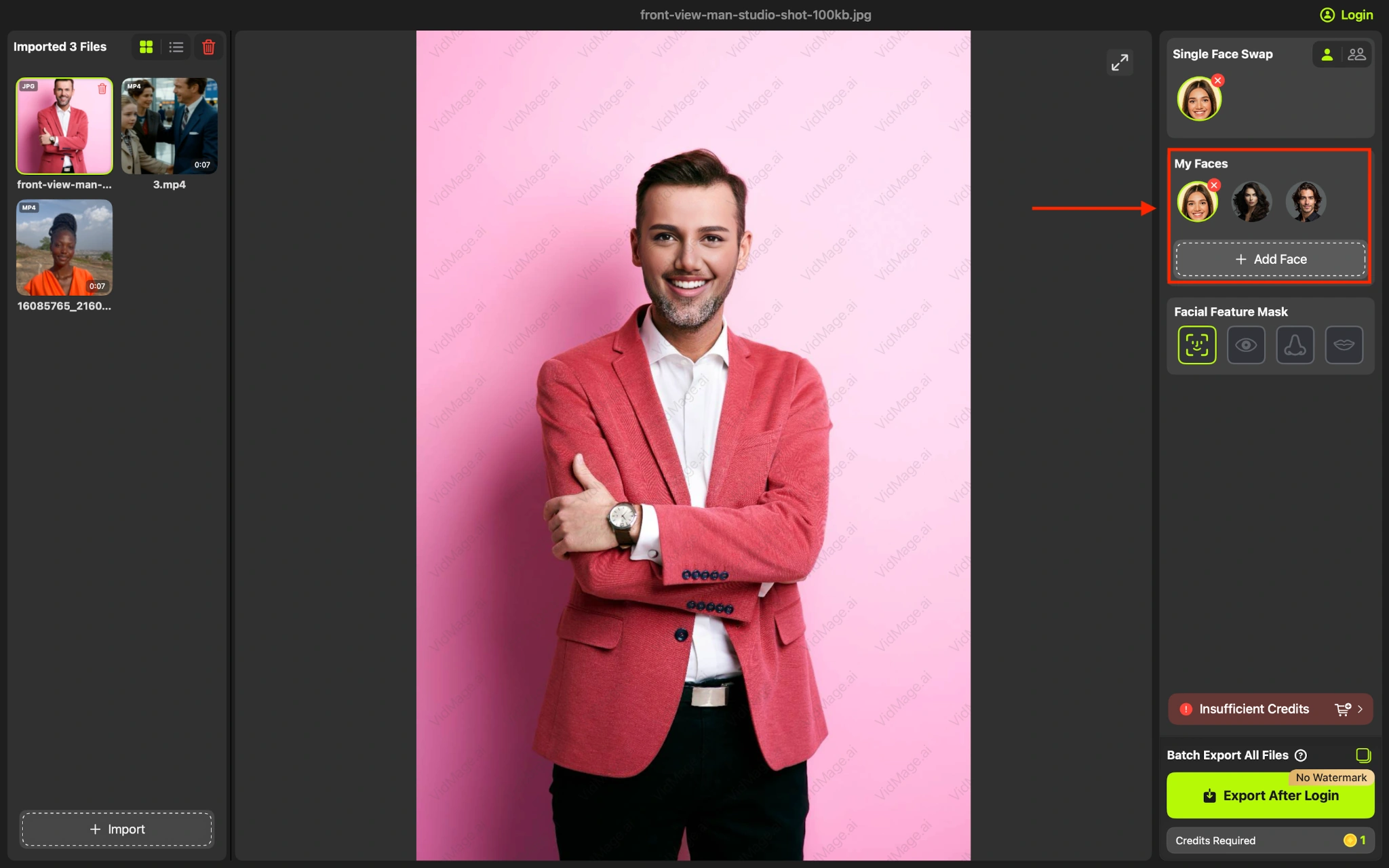
Step 3: Tap the “Add Face” option to choose the target face or upload from your system. VidMage will automatically swap the face.
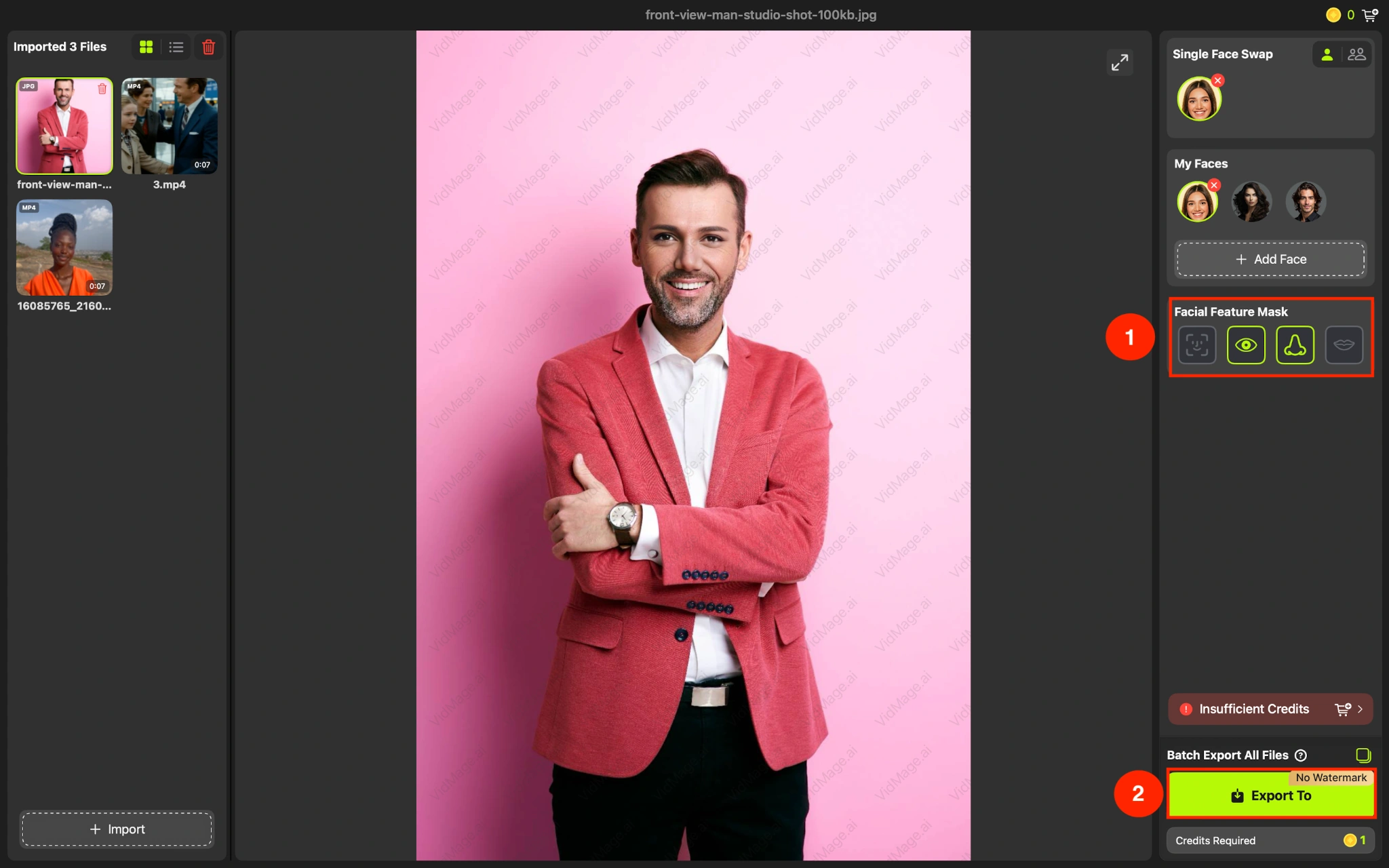
Step 4: You can also swap specific facial features, such as eyes, nose, or lips. Once done, click “Export To” to save the final output.
What Are the Tips for a Better Face Swap in Another Photo
The two main photos you choose have a greater impact on the results than anything you do afterward. Use these useful tips before you click the Swap Face button:
- Match the Face Angle: A front-facing source face works better when the original face is also facing forward. You should avoid pairing a straight-on face with a strong side profile.
- Match the Lighting: Try to use photos with similar light direction and brightness. A face lit from the left can look out of place in a target photo lit from the right.
- Use a Sharp Source Face: Avoid blurry, heavily compressed, or very small face photos. The face should have enough detail for VidMage to process clearly.
- Check the Target Photo First: If the target face is very small, heavily angled, or partly hidden, choose another photo rather than relying on the swap to fix it.
Troubleshooting for Better Face Swap Results
When learning how to face-swap in another photo online, you might encounter issues or not get good results. So here are some common problems and troubleshooting tips to overcome these problems and get better results:
The Swapped Face Looks Too Different From the Target Face
Check the source photo first. A large difference in face angle, expression, or lighting can make the inserted face look out of place. Try a source image that is closer to the target photo.
The Face Looks Blurry After the Swap
Use a high-resolution source photo with a sharp, clearly visible face. Avoid small, blurry, or heavily compressed images, as they provide less detail for the face swap. Don’t enlarge a low-quality image before uploading it.
The Face Looks Like It Was Pasted Onto the Photo
The swapped face may look out of place if the source and target photos have different lighting, face angles, or skin tones. Try a source photo with a similar angle and lighting to the target, then run the face swap again.
The Result Changes More Than Just the Face
Use a clear target photo and avoid images with heavy visual obstructions around the face. Also, check the generated image before downloading it to ensure the result matches your intended edit.
The Result is Still Not Right After Changing the Source Photo
Try a different pair of photos instead of repeatedly using the same source. Face swaps depend heavily on how well the two images match, so changing the source or target can produce a better result.
Try it with your own photos
Open the tool and follow the steps above.