

Replacing an entire head in a photo can be difficult when you need the hair, ears, hairline, and neck to look natural. VidMage Head Swap uses AI to replace the complete head while keeping the target person's body, clothing, pose, and background intact.
VidMage also supports video, so you can use the same type of head replacement on a moving clip. Let's now learn how to swap heads in a photo step by step.
How to Swap Heads in a Photo Online
You only need a target photo and a clear reference head to get started. Here's how to swap heads in a photo with VidMage:
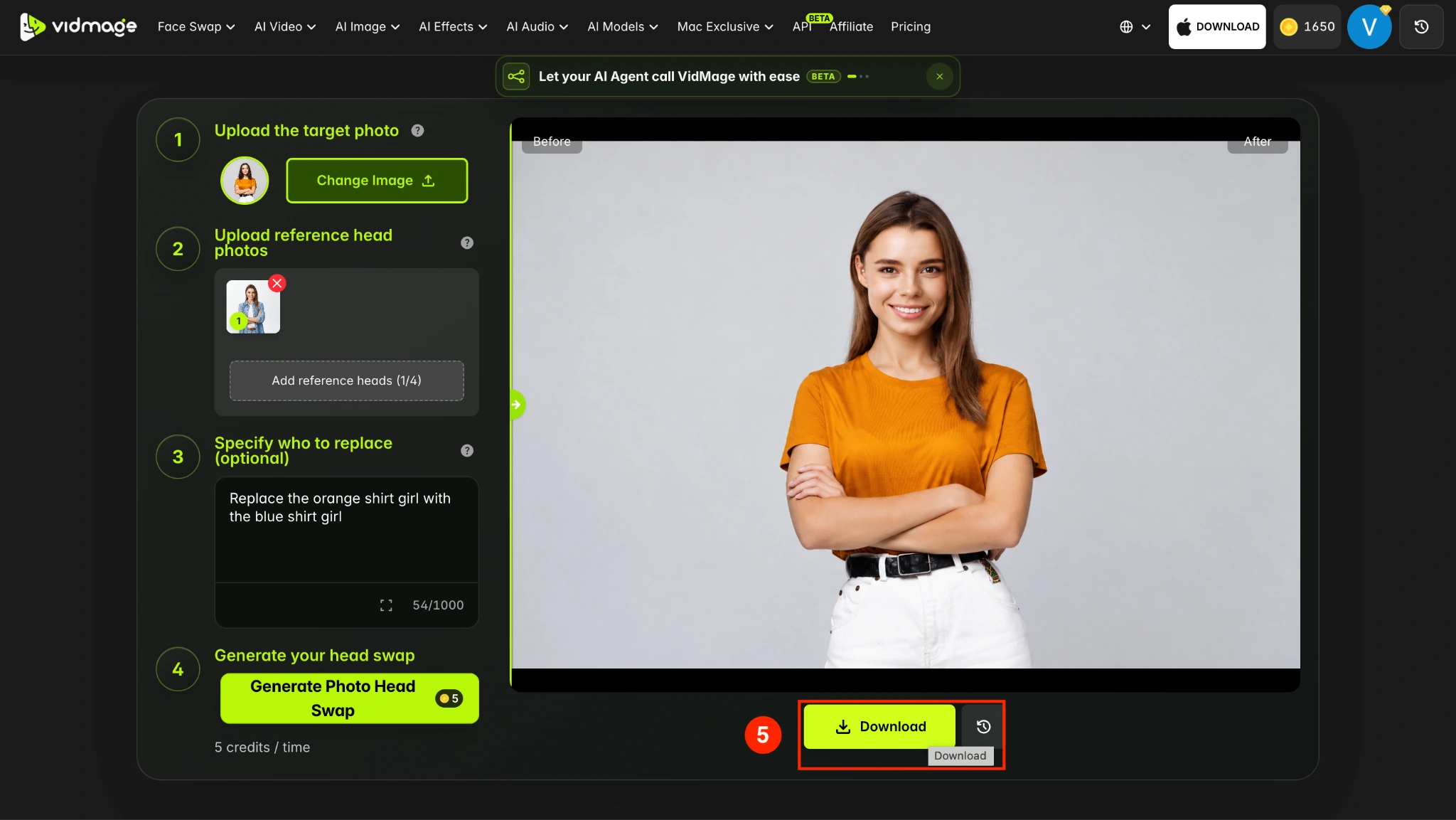
Step 1: Open the VidMage Head Swap tool and choose Photo Head Swap. Select the upload option and add the photo you want to replace.
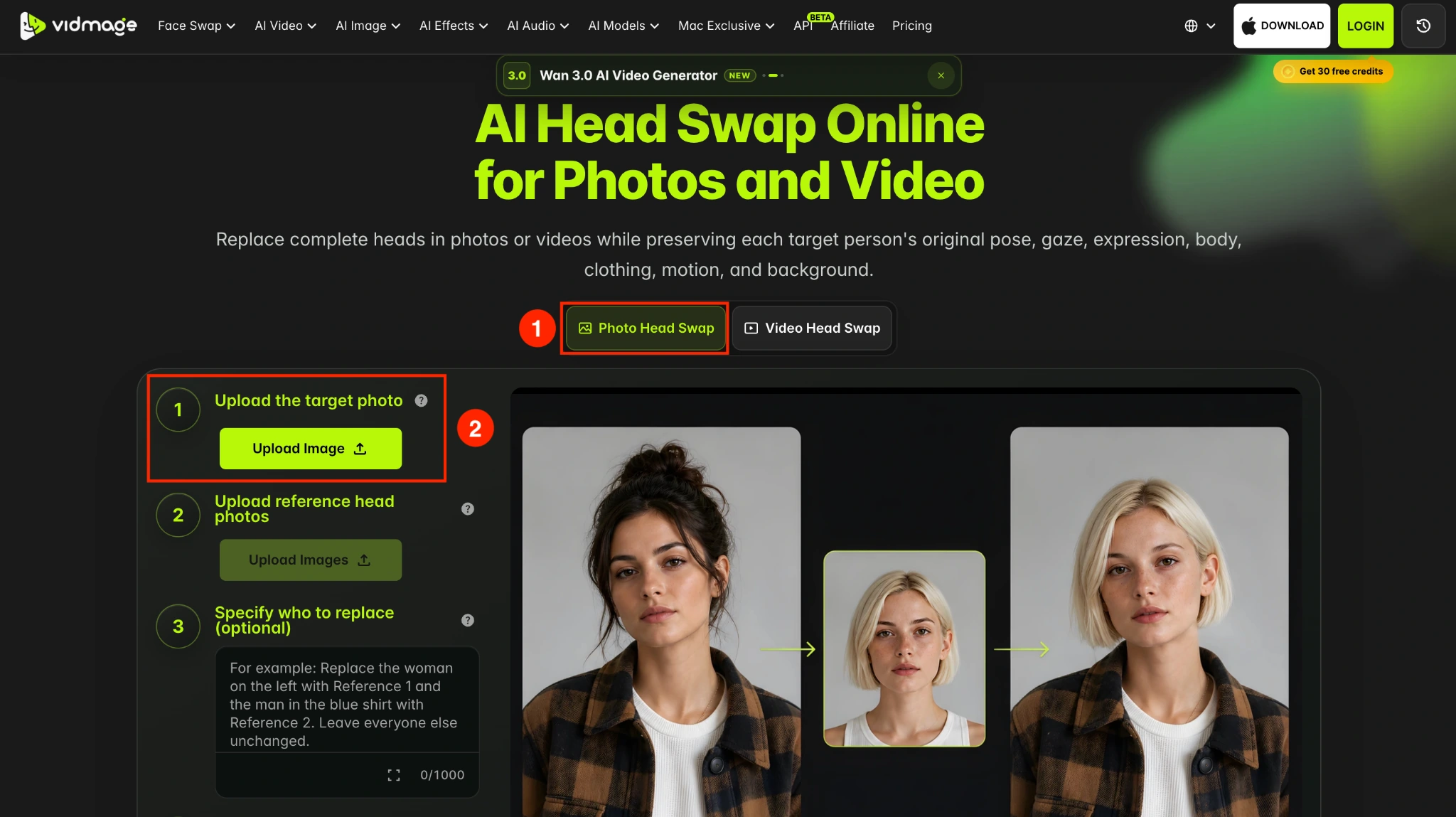
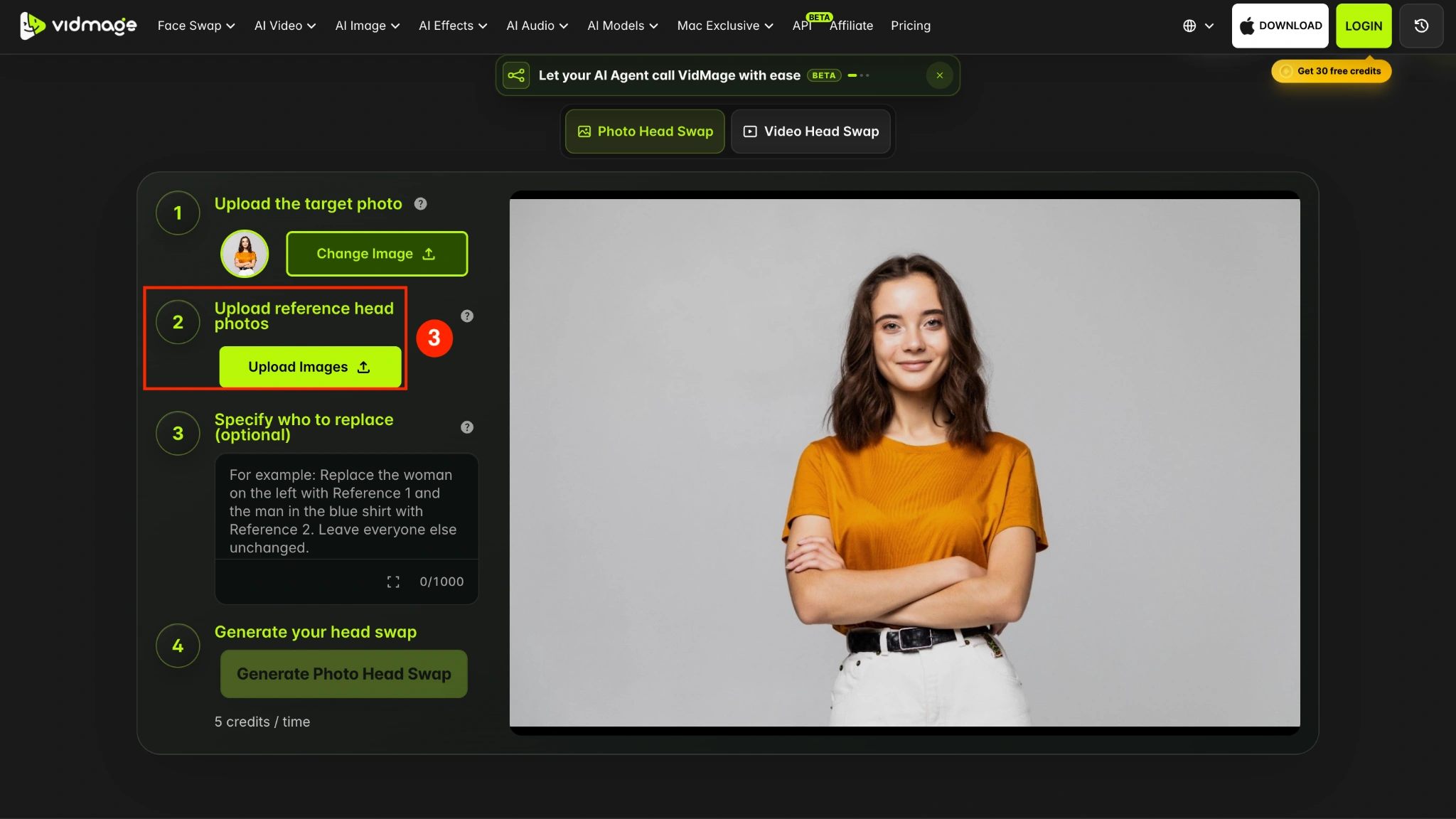
Step 2: Upload a clear image containing the head you want to place into the target photo. You can upload up to 4 photos for reference.
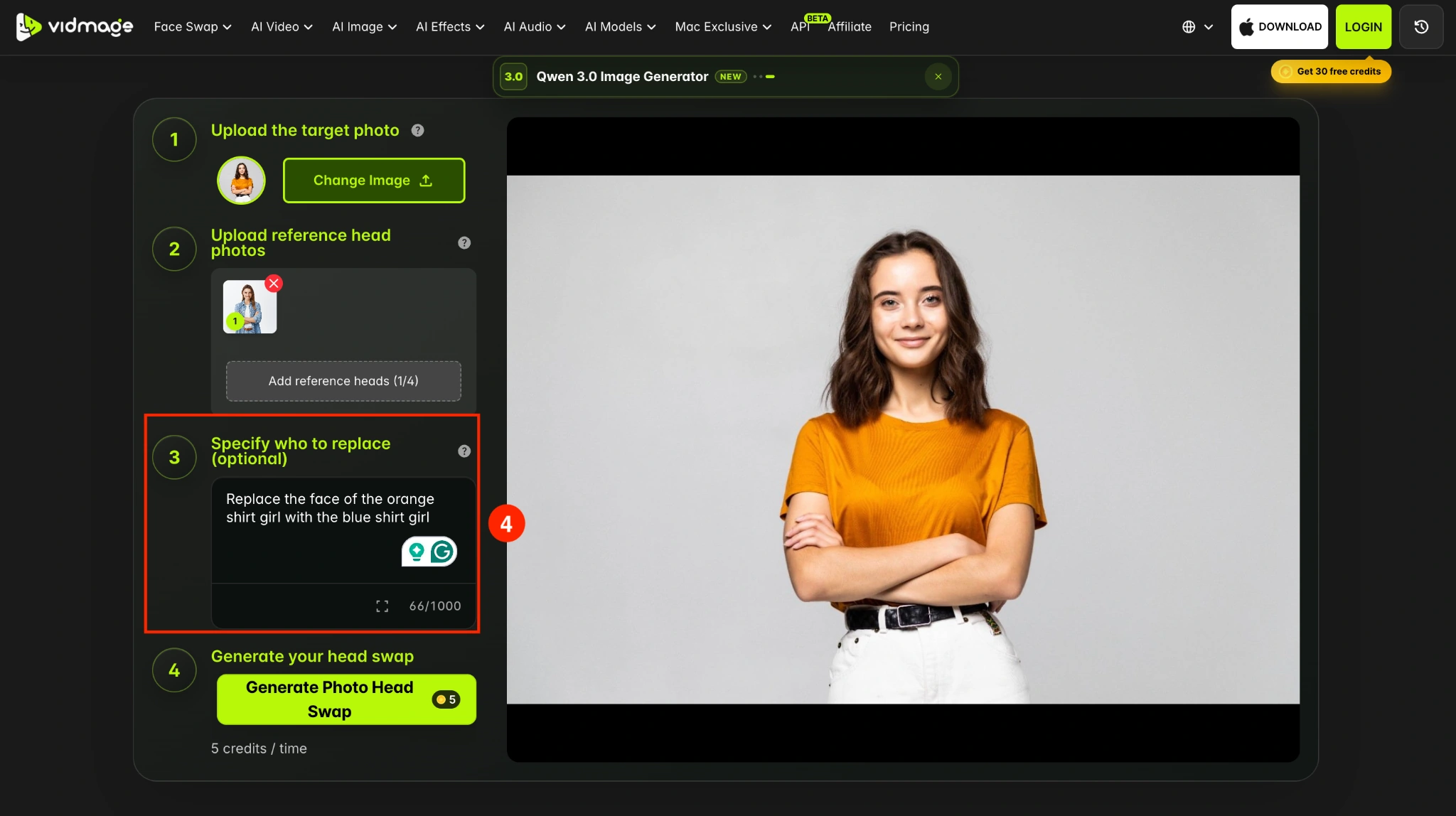
Step 3: Tell VidMage which person to replace if necessary. The VidMage Head Swap tool includes an optional Specify who to replace field. If the target image contains more than one person or the intended subject is not obvious, use this field to identify the person whose head should be changed.
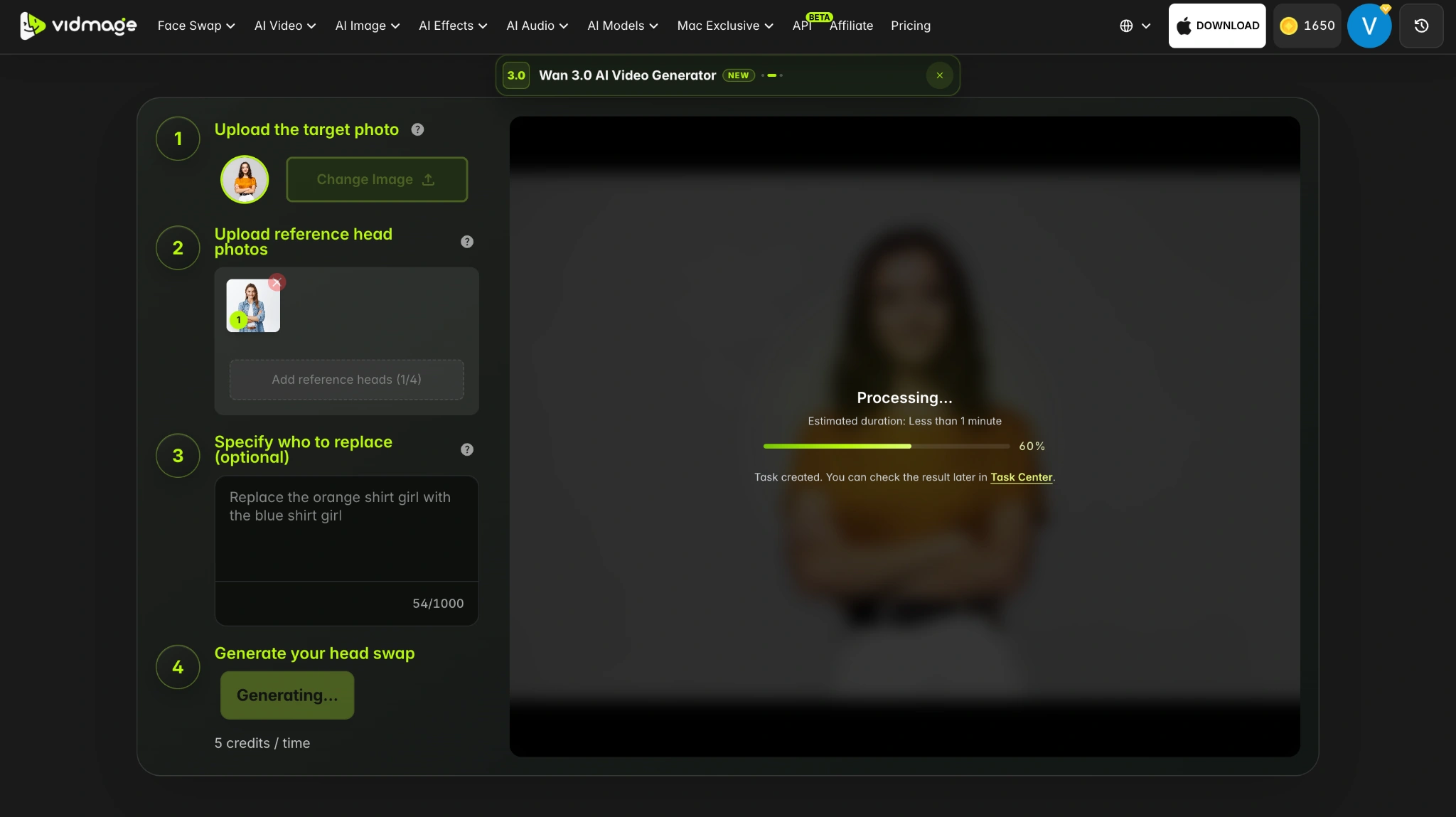
Step 4: Click Generate Photo Head Swap. You will require 5 coins to generate the head swap.
Step 5: Review the hairline, ears, jaw, and neck area before saving. If you're satisfied, click Download to save the image.
How to Swap Heads in a Video
You can also use VidMage to replace a complete head in a video while keeping the original scene and movement. Here's how to do it:
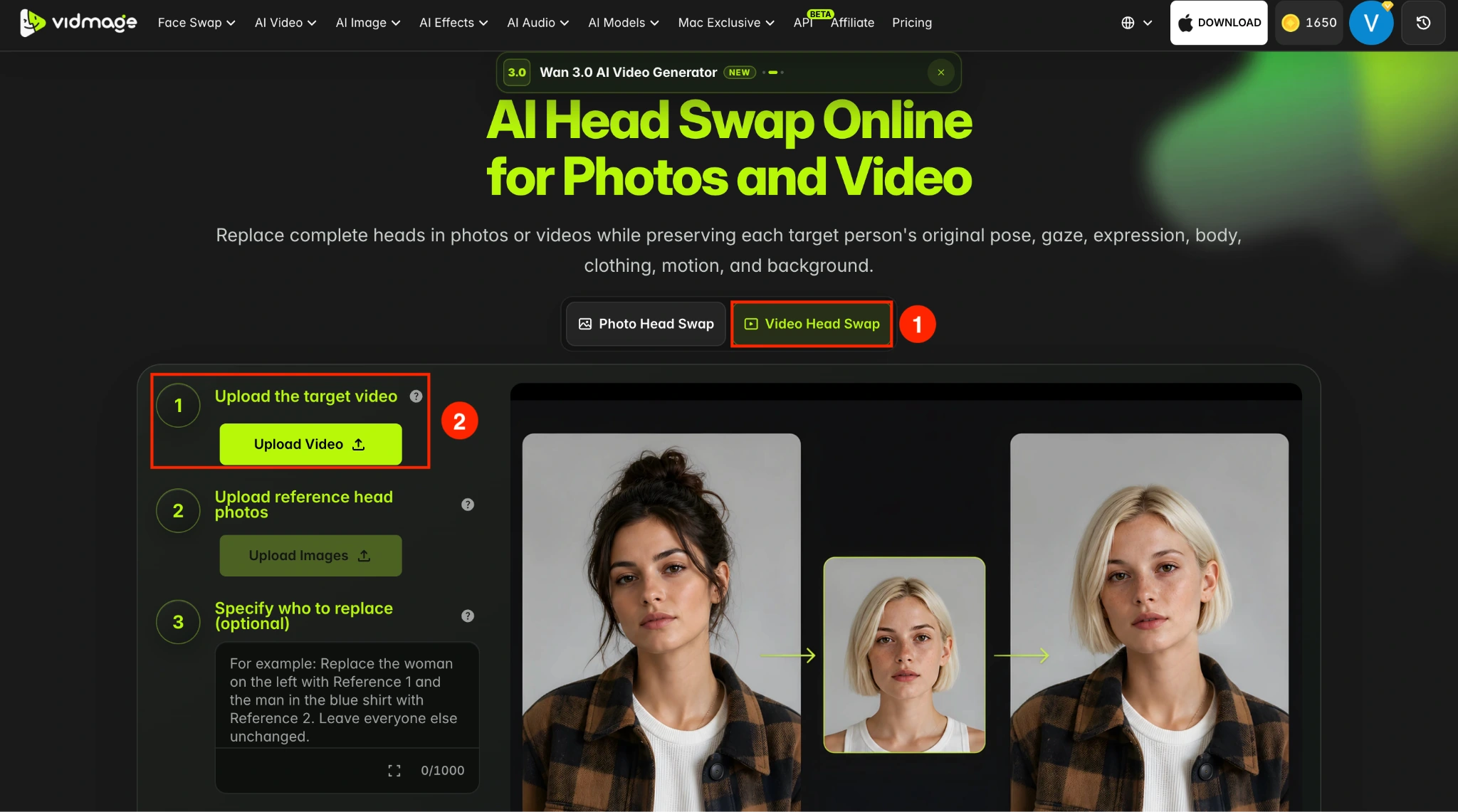
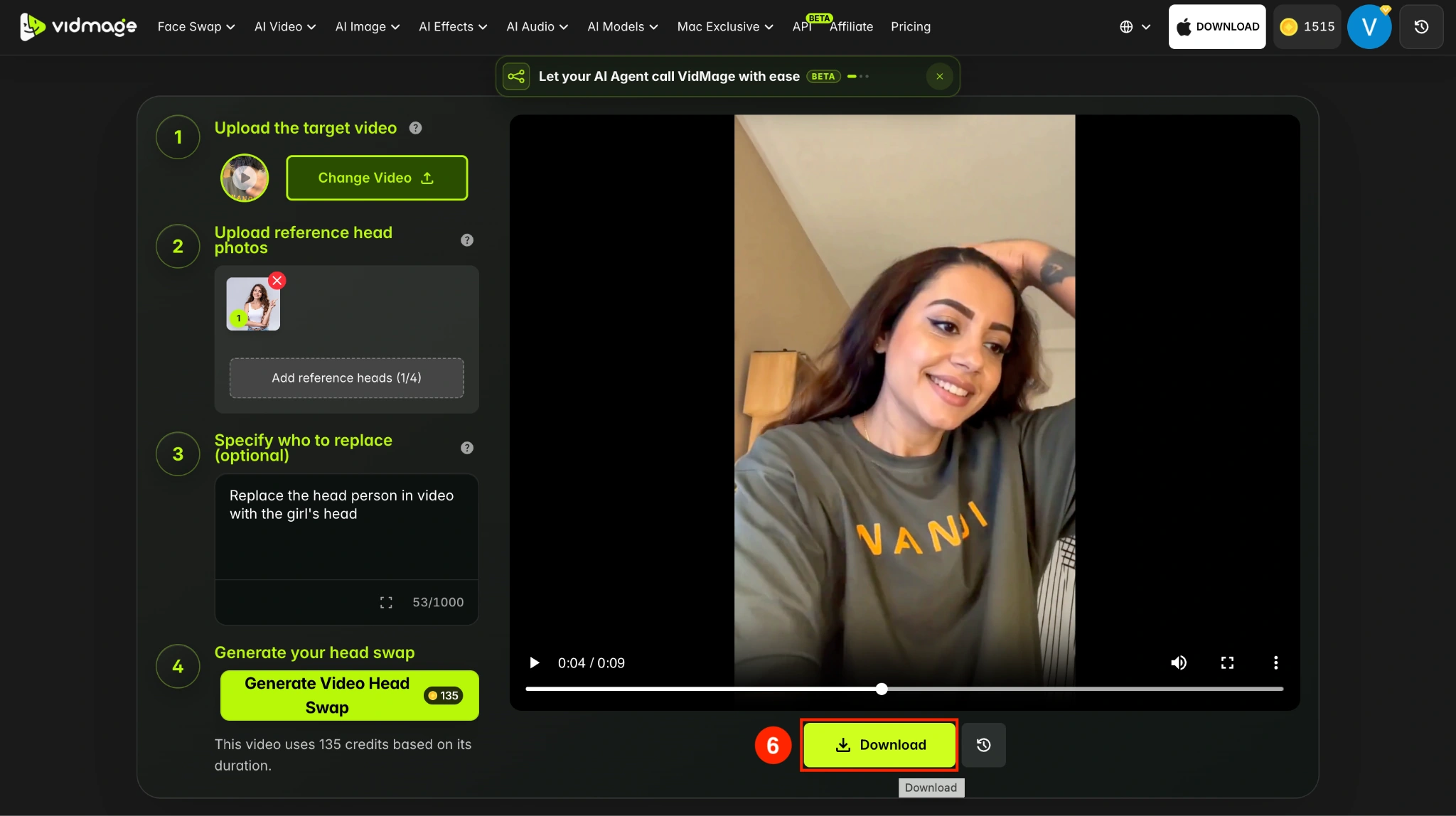
Step 1: Open the VidMage Head Swap tool and switch to Video Head Swap. Upload the video you want to edit. VidMage supports MP4, MOV, and M4V files.
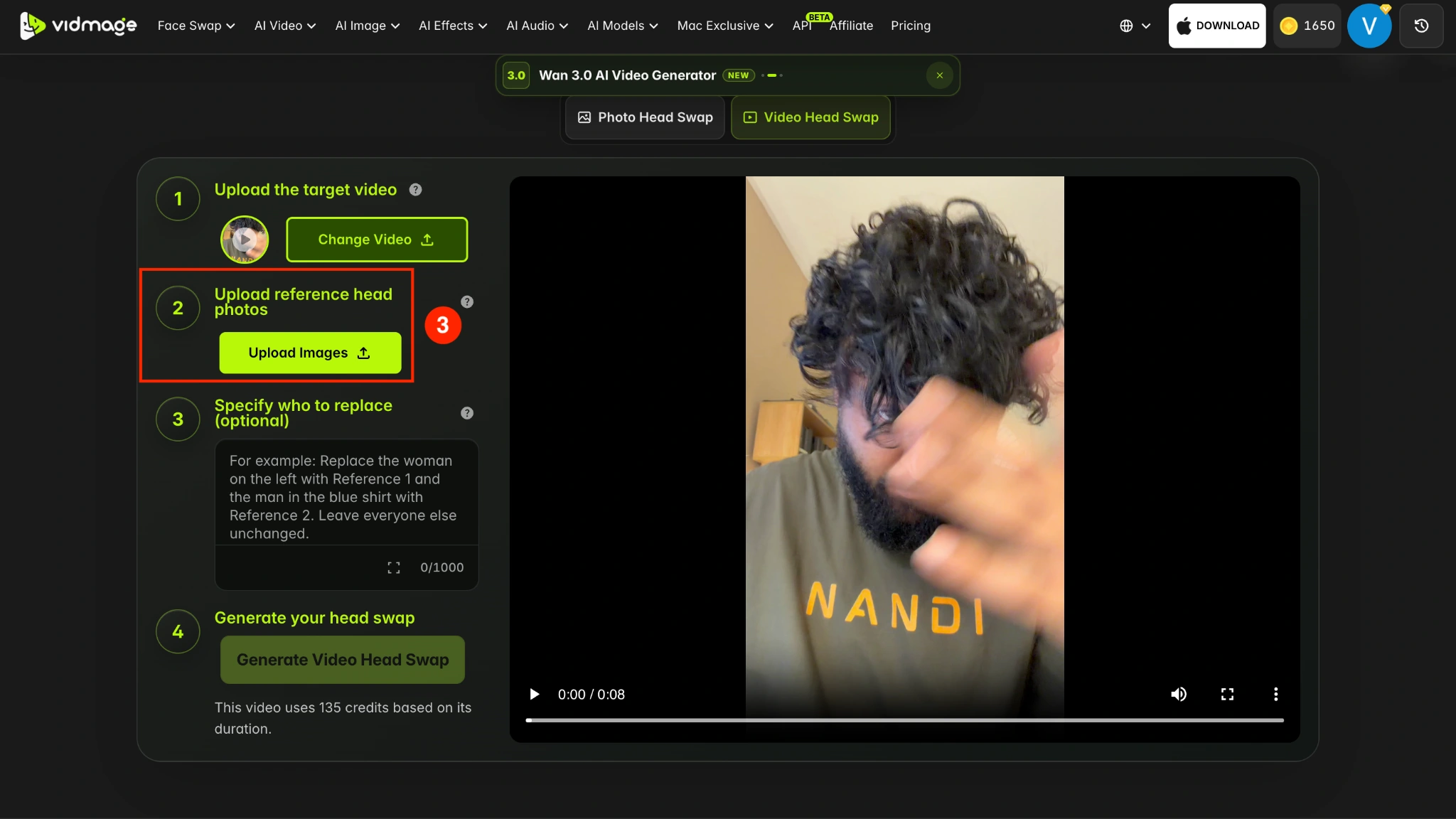
Step 2: Add a reference photo showing the head you want to use. Choose a clear image where the hair, hairline, and neck are easy to see.
Step 3: If needed, use the Specify who to replace the field and click Generate Video Head Swap. VidMage replaces the selected head while retaining the target video's body, clothing, movement, camera framing, and background.
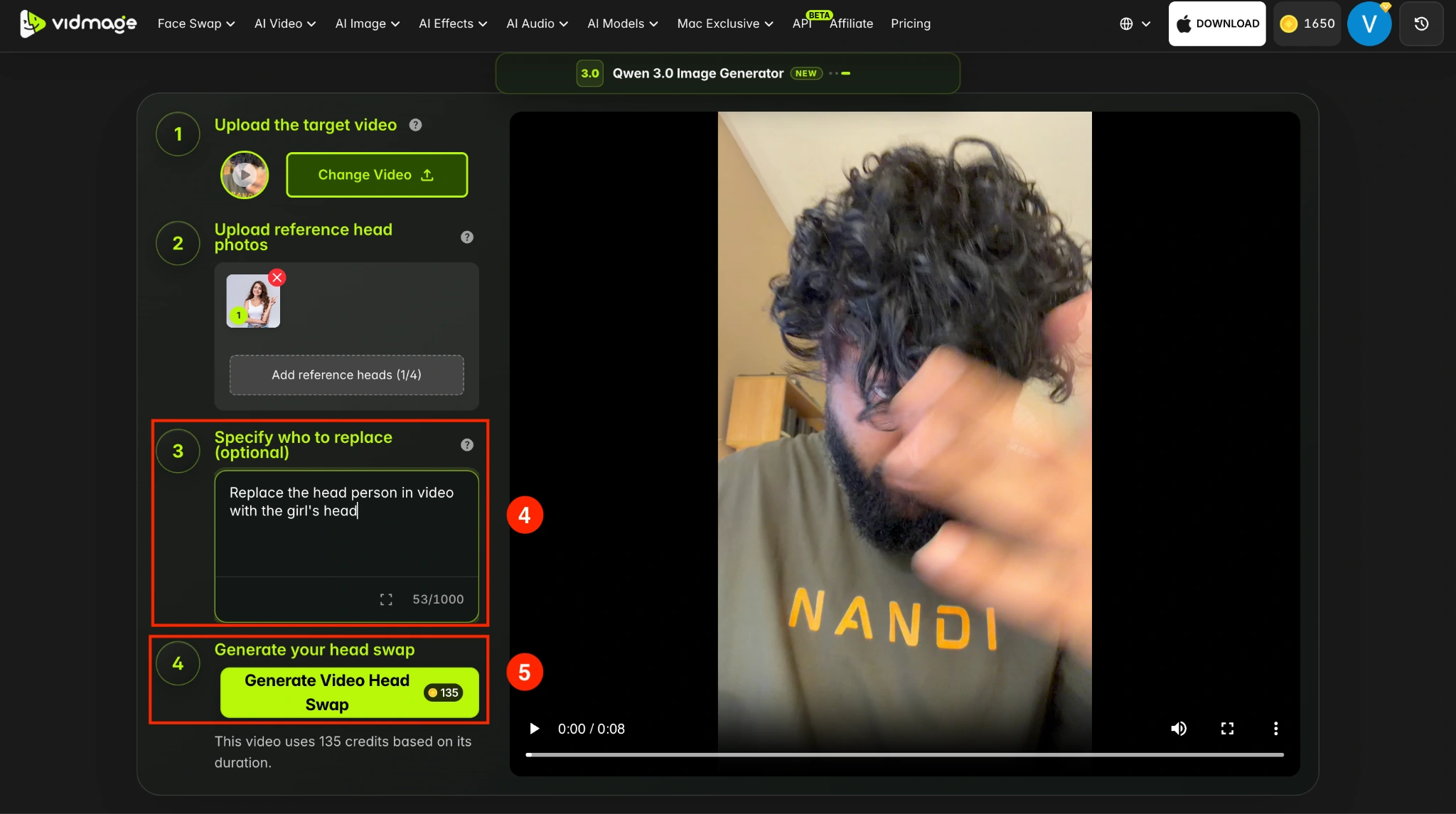
Step 4: Preview the finished video and check that the head, hairline, and neck remain natural throughout the clip. If the result looks good, download the video.
Head Swap vs. Face Swap: What is the Difference
A head swap changes more than just facial features.
A face swap generally replaces the face while keeping the original hairstyle and overall head outline. A head swap, by contrast, replaces the entire head, including the face, hair, hairline, ears, and visible neck.
Choose Head Swap when you want the hairstyle or head shape to change along with the person's facial identity.
How to Get a Better AI Head Swap Result
The images you provide directly affect the quality of the head replacement. For a cleaner AI head swap tutorial result:
- Use a sharp, high-quality target image.
- Choose a clear reference head photo.
- Keep the head angle similar in both images.
- Use photos with comparable lighting.
- Make sure the hairline and neck are visible.
- Avoid hats or objects covering the head.
- Avoid heavily blurred or obstructed faces.
- Use a reference head that is large and clear enough for the AI to analyze.
Different camera angles can make the replacement look less natural. Matching the angle and light direction helps VidMage align the new head with the existing body more effectively.
Head Swap File Formats and Credits
VidMage supports different file types for photo and video head swaps.
For Photo Head Swap, you can upload:
- JPG
- JPEG
- PNG
- WEBP
For Video Head Swap, supported formats are:
- MP4
- MOV
- M4V
A successful Photo Head Swap costs 5 credits. The cost of a Video Head Swap depends on the clip duration, and the total is displayed before you start generation.
VidMage automatically deletes uploaded photos and videos within 2 hours after processing. According to VidMage, it does not use uploaded files to train its AI models or share them with third parties.
Try Head Swap
Open the tool and follow the steps above.