

Want to know how to face swap multiple photos at once without editing each image separately? VidMage Batch Face Swap lets you face-swap multiple photos at once by uploading a batch of images and a single target face. You can do it online for free and without creating an account.
Free users can process up to 5 images per batch, while subscribers can upload up to 50 images at once. VidMage supports JPG, JPEG, PNG, and WEBP files.
How to Face Swap Multiple Photos at Once with VidMage
Follow these steps to learn how to batch face swap multiple images:
Step 1: Open the VidMage Batch Face Swap tool and choose Batch Original Face Swap.
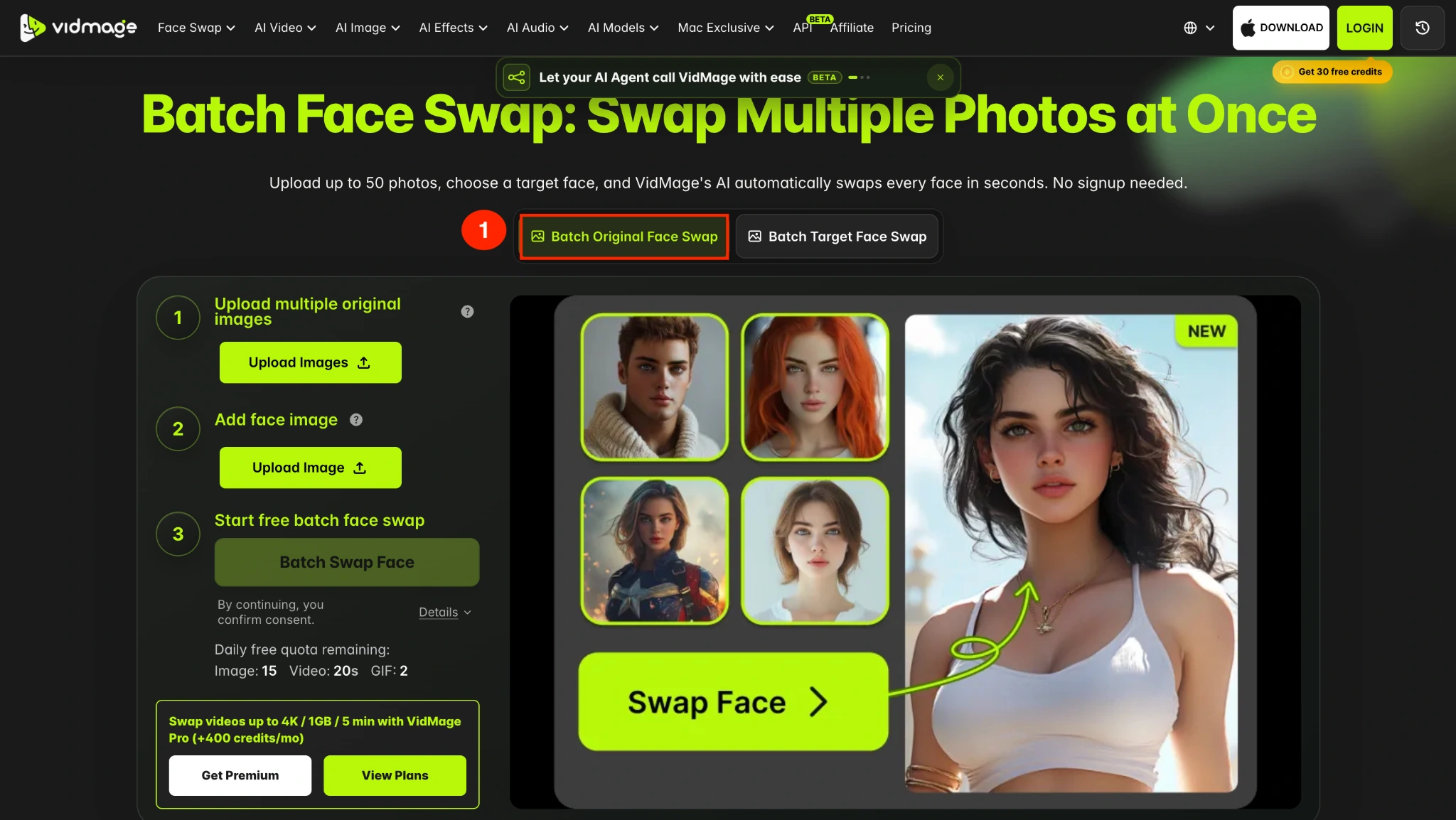
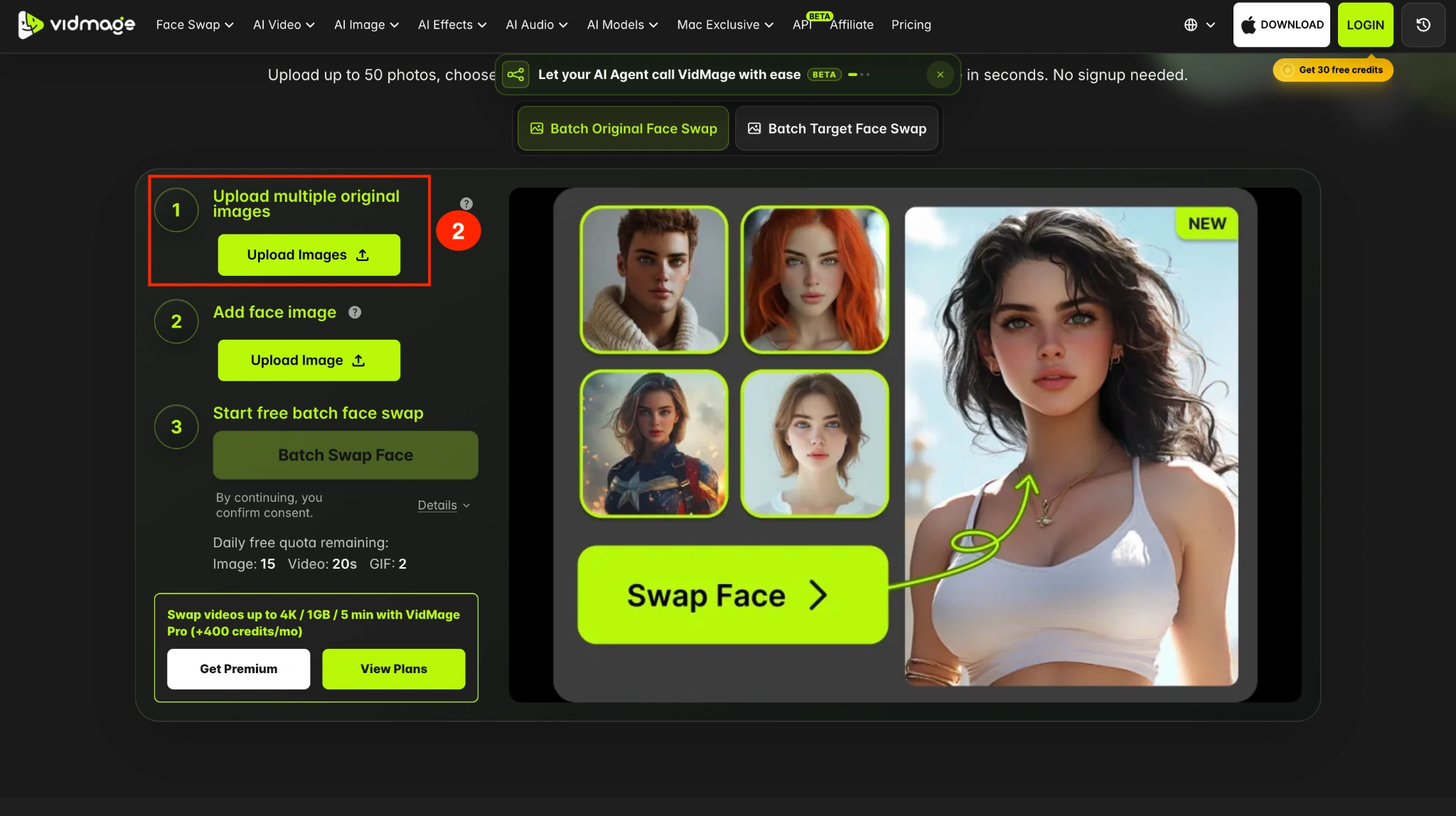
Step 2: Click Upload Images and select the photos you want to edit. These are the original images where you want the face replaced.
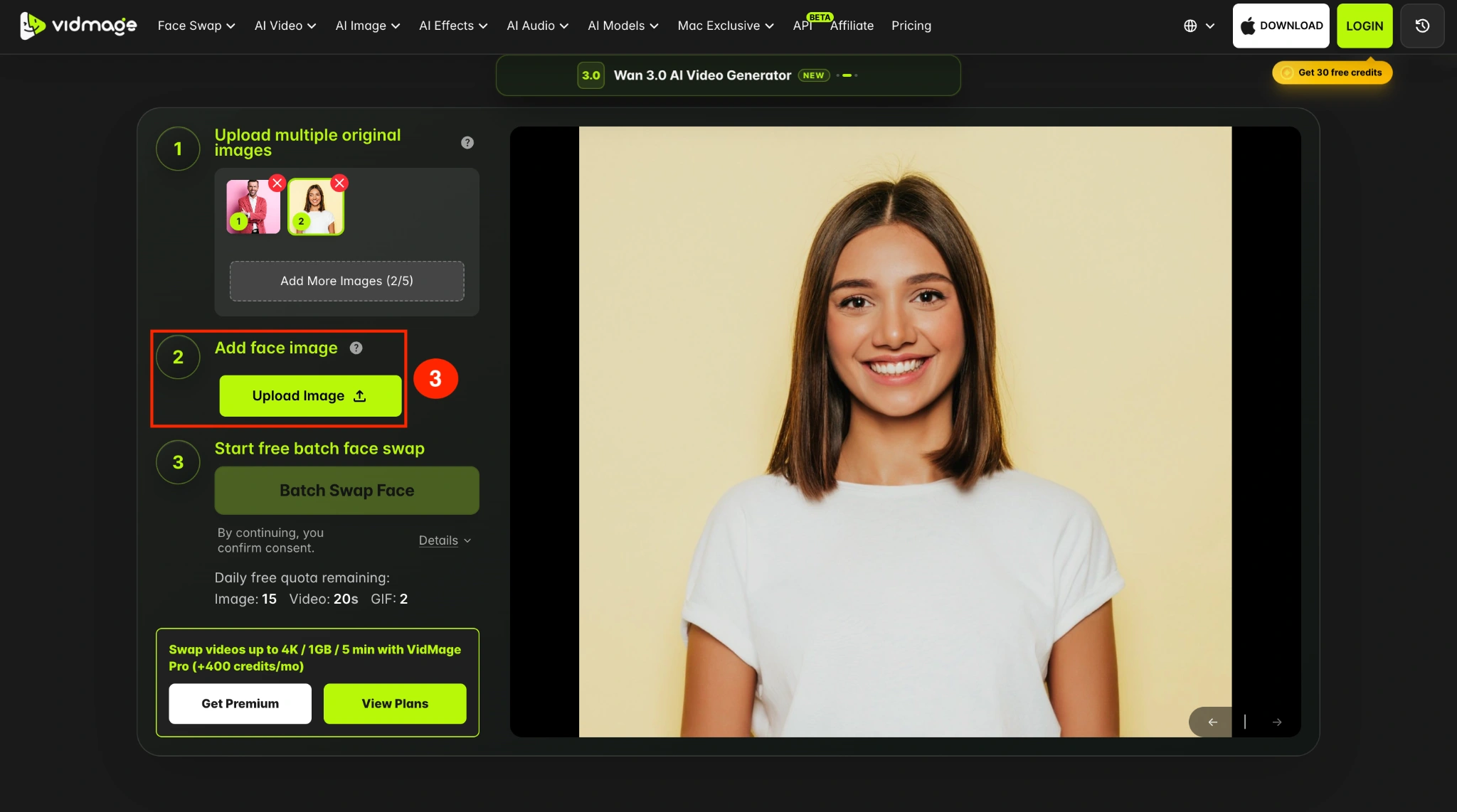
Step 3: Click Upload Image under the face option, then add the photo that contains the face you want to use. VidMage automatically detects the faces in your uploaded images, so you do not need to select each face manually.
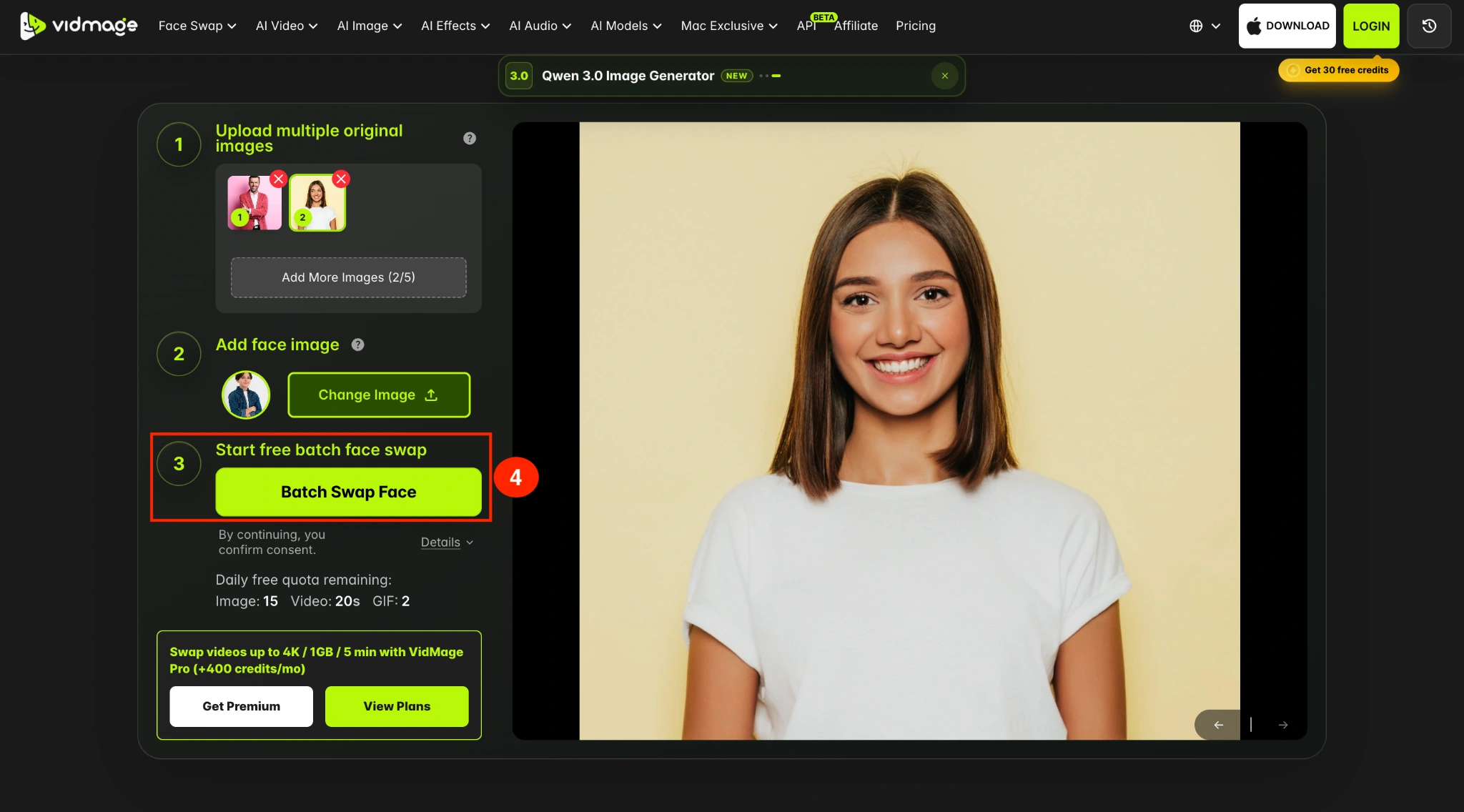
Step 4: After you upload your original images and target face, click Batch Swap Face. VidMage processes the images together and replaces the detected face in each photo with your selected target face.
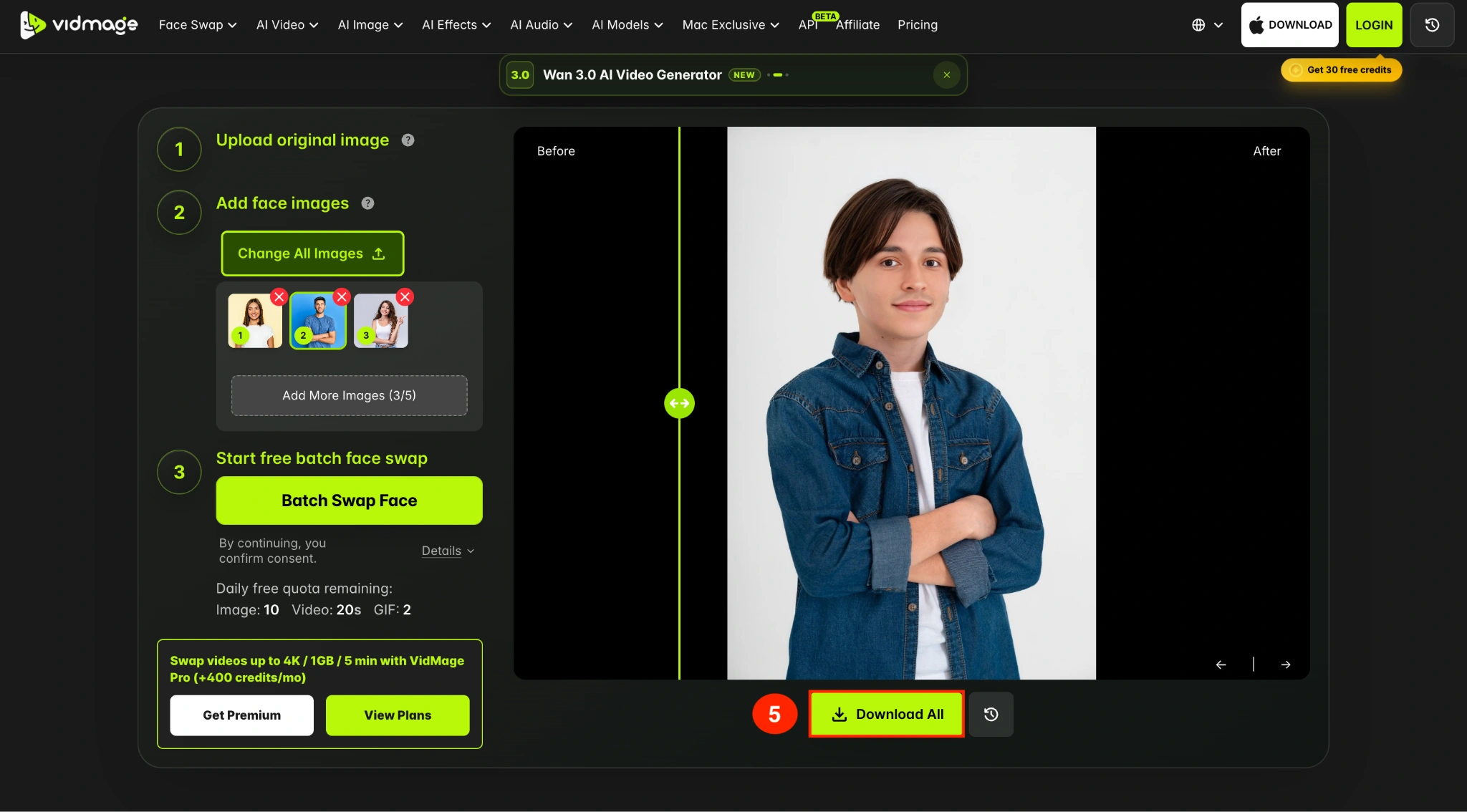
Step 5: After processing is complete, review the generated images and download the results.
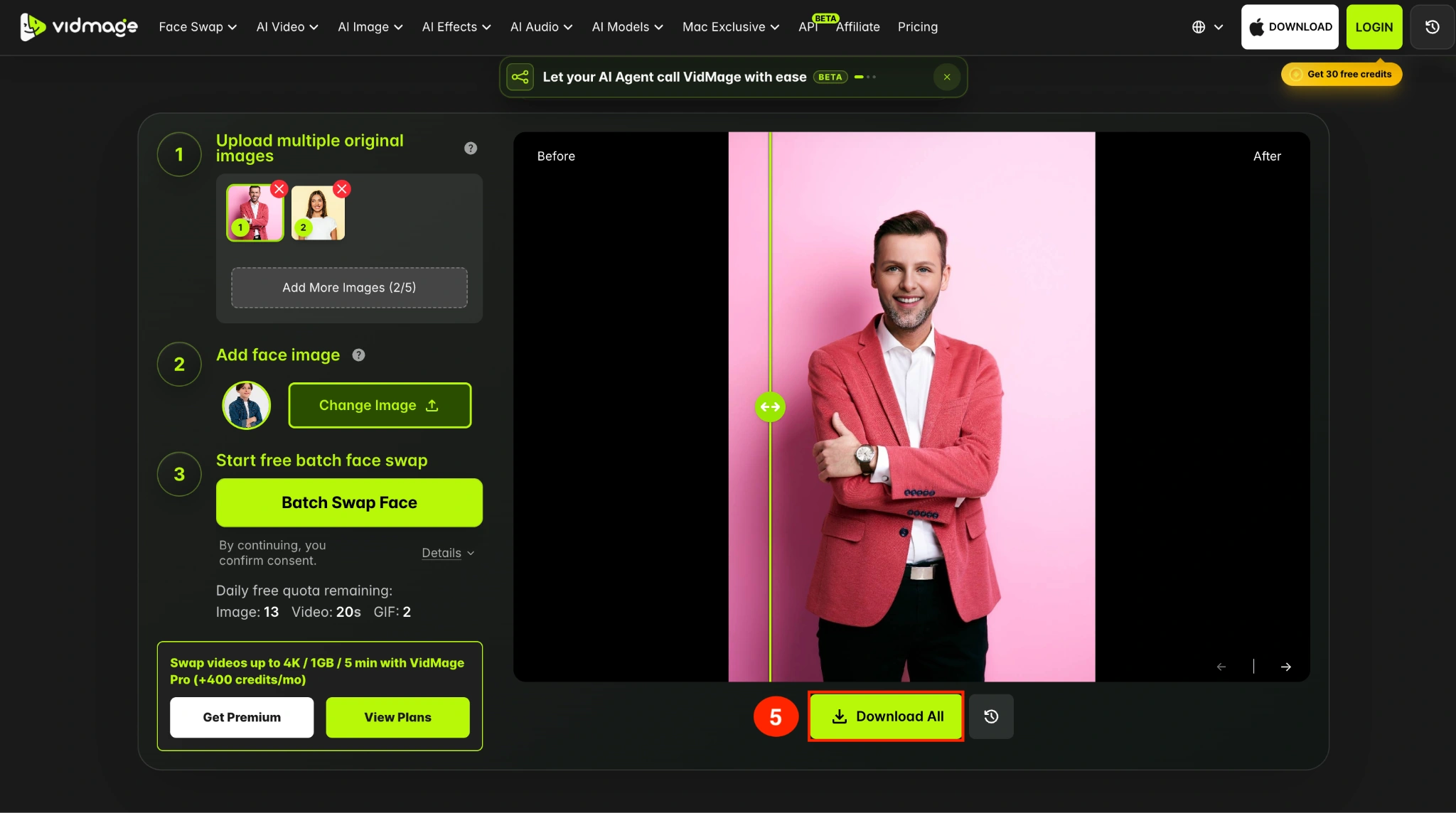
How to Replace One Face Across Multiple Photos
The Original Batch mode is designed for replacing one person's face across several images.
For example, you can upload multiple photos showing different versions of the same person and apply a single target face to the entire batch. This saves you from uploading and processing every photo separately.
For the most consistent results, keep the target face clear and use original photos in which the face is visible and reasonably well-lit.
How to Use Target Batch Face Swap in VidMage
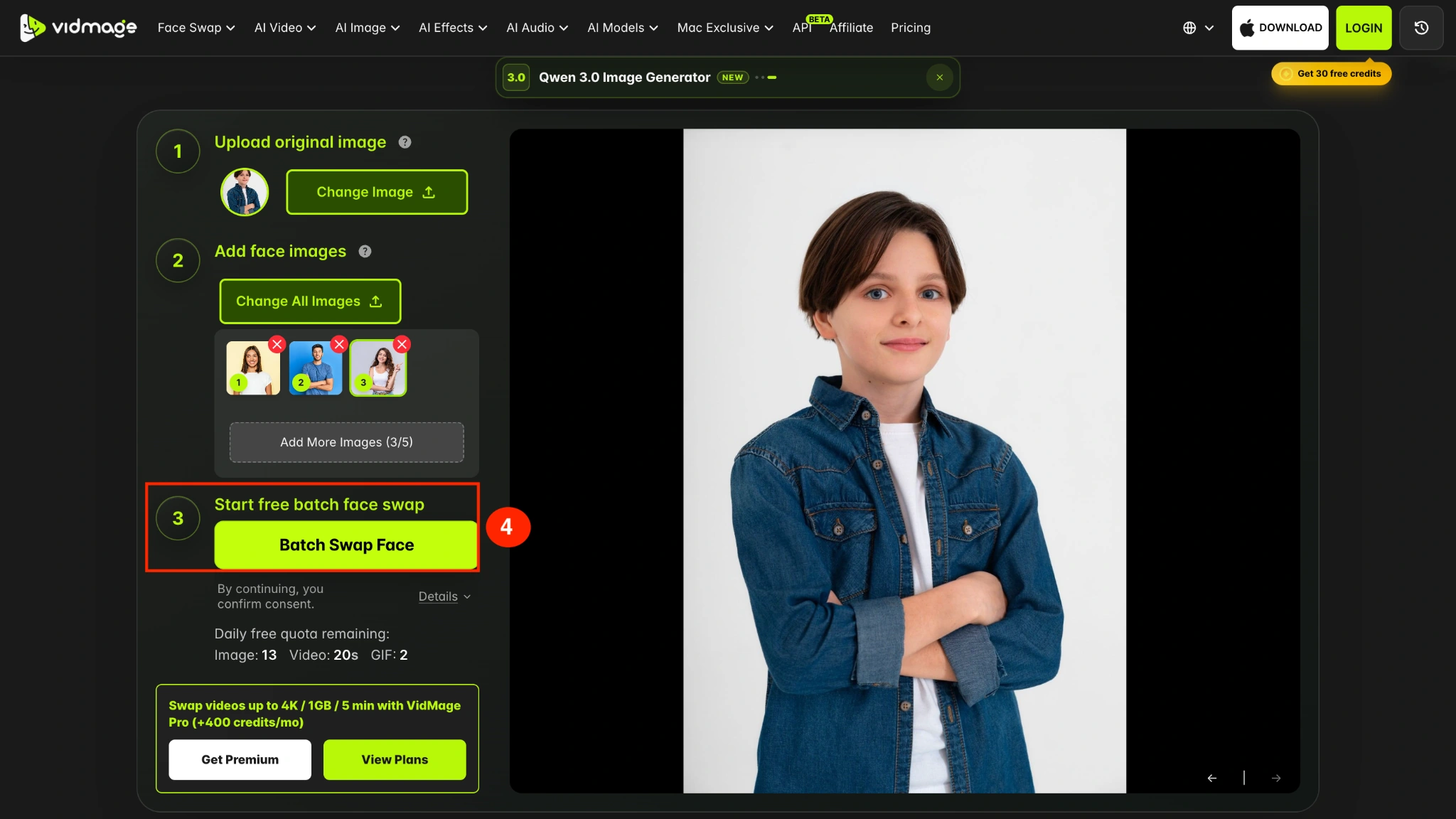
VidMage also lets you use Target Batch Face Swap to apply different faces to the same base image. Instead of uploading several original photos, you upload one base image and multiple target face photos.
Step 1: Open the VidMage Batch Face Swap tool and choose Batch Target Face Swap.
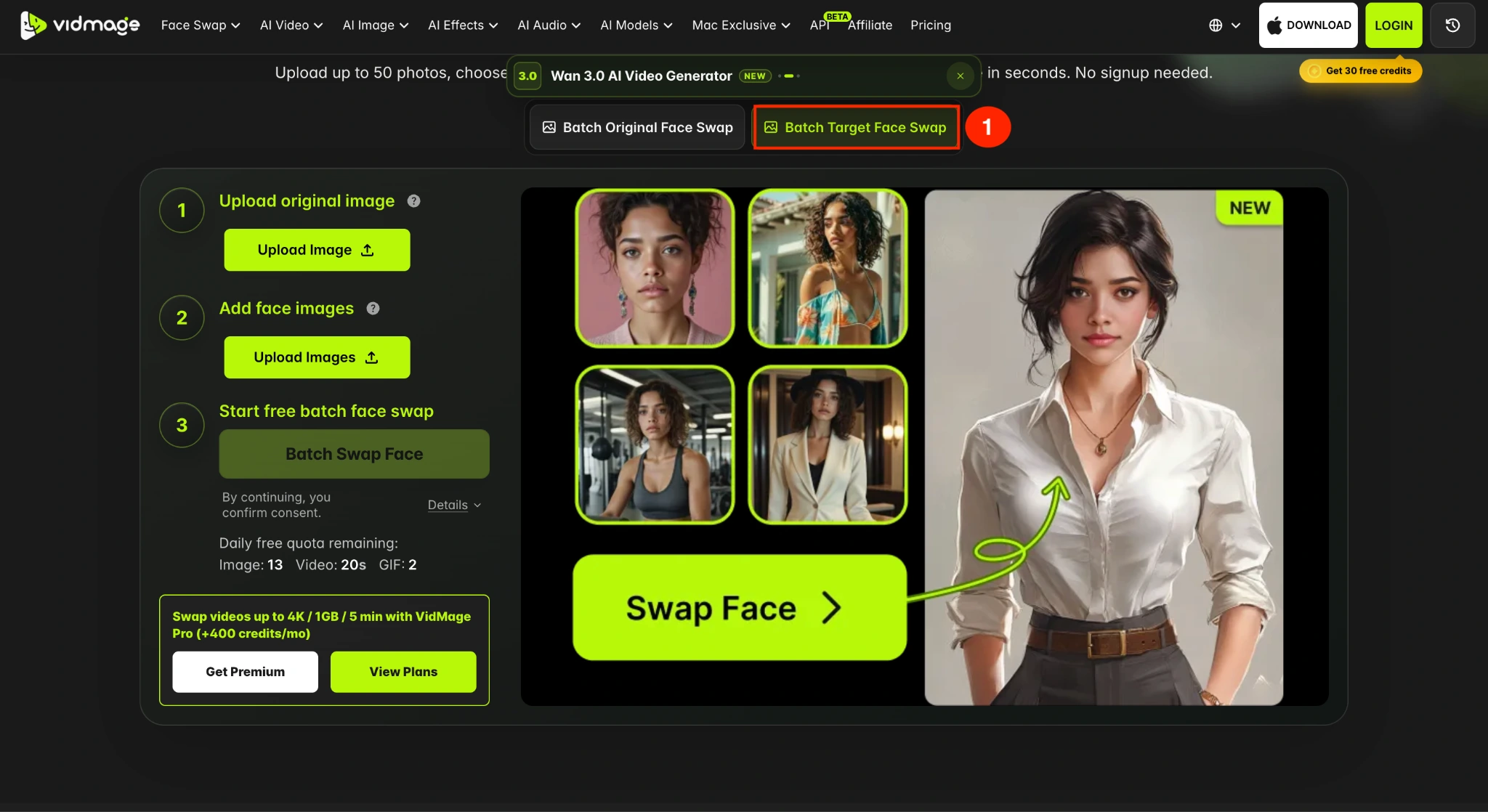
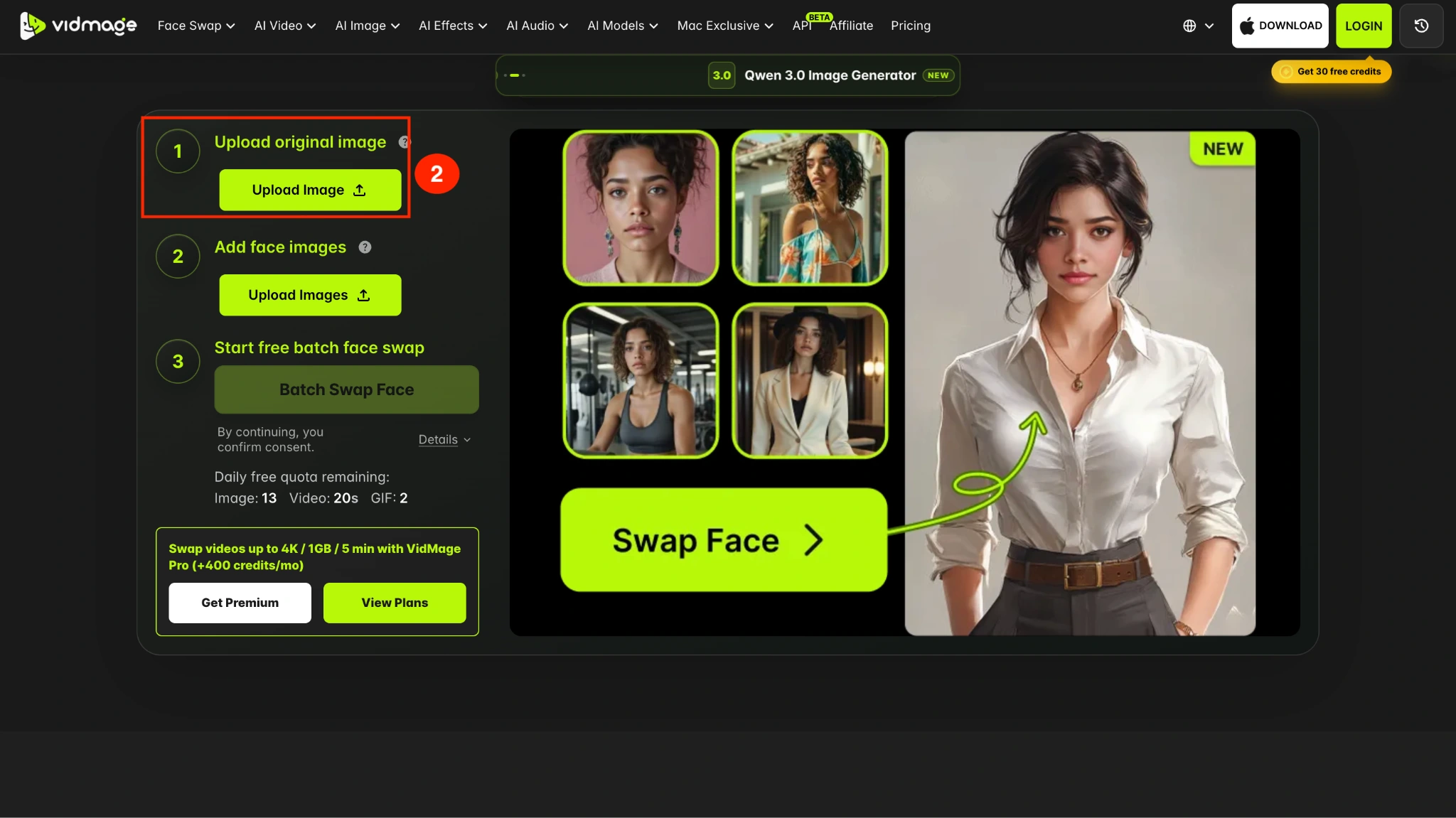
Step 2: Click Upload Image and select the photo you want to use as the base image. This is the image where the different target faces will be applied.
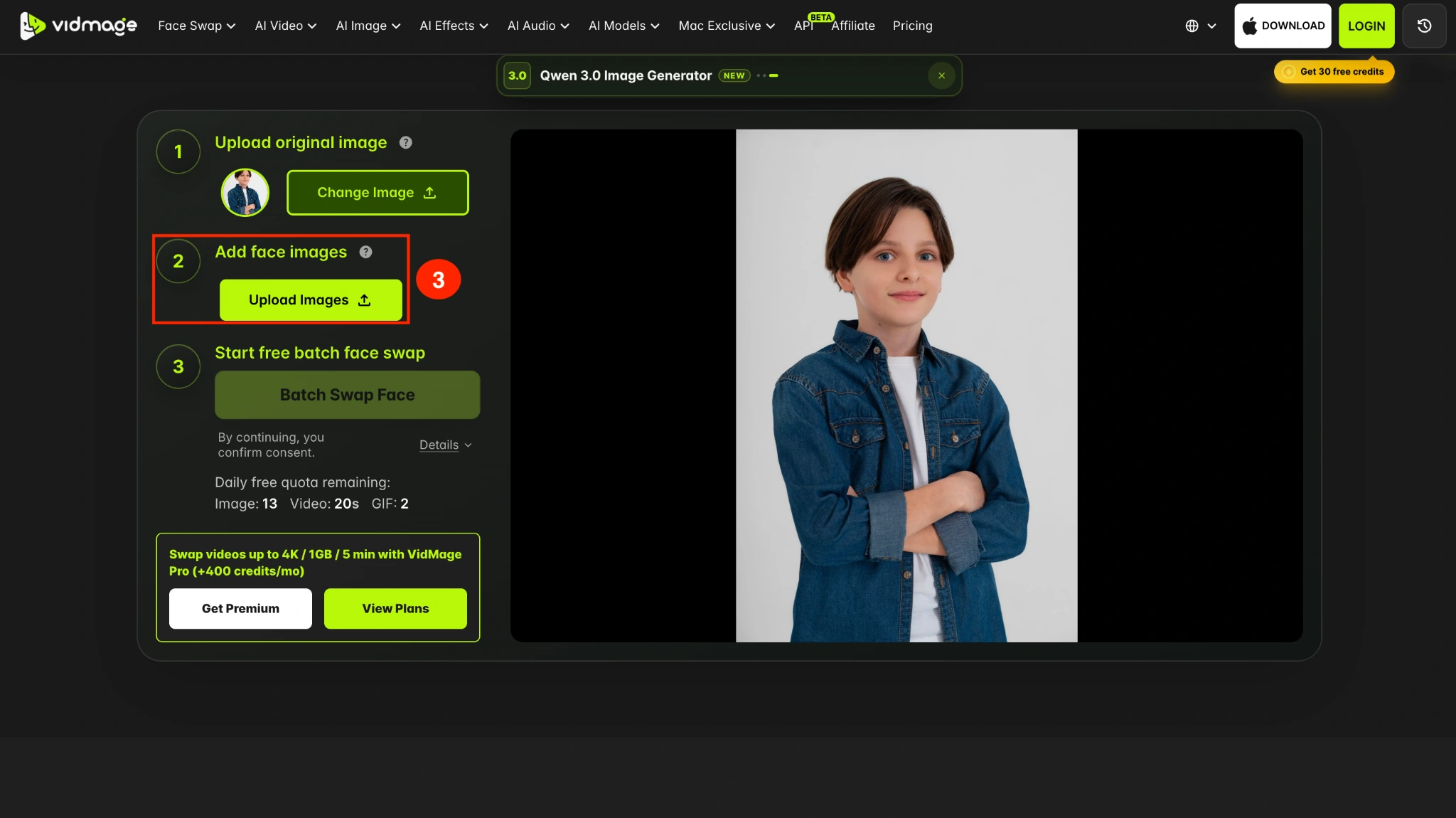
Step 3: Add the face images you want to use with the base image. You can upload multiple clear face photos instead of adding them one at a time.
Step 4: After uploading the base image and target faces, click Batch Swap Face. VidMage processes the faces in the batch and creates a separate swapped result for each target face.
Step 5: When processing is complete, review the generated images and download them individually or together as a ZIP file.
Use Target Batch when: You want to create multiple versions of one image using different faces.
Use Original Batch when: You want to replace the face across multiple different photos with one target face.
Tips for Better Batch Face Swap Results
The quality of your input photos can affect the final results. Before you start a batch face swap, keep these points in mind:
- Use a clear target face: A sharp, front-facing portrait with good lighting gives VidMage more facial detail to work with.
- Match the face angle: A target face that is facing forward may work better with original photos where the detected faces are also relatively front-facing.
- Keep lighting reasonably similar: Large differences in brightness or light direction can make the swapped face look less natural.
- Avoid heavily obscured faces: Sunglasses, hands, hair, or other objects covering much of the face can make face detection and replacement more difficult.
- Check your batch before processing: Remove blurry or unsuitable photos to avoid wasting a batch on images unlikely to produce good results.
What Happens to Uploaded Photos
For the online Batch Face Swap tool, the uploaded images are automatically deleted from its servers within 2 hours of processing. It also states that uploaded photos are not used to train its AI models or shared with third parties.
The VidMage Mac app uses local processing instead, so your images remain on your device during the batch operation.
Try Batch Face Swap
Open the tool and follow the steps above.