
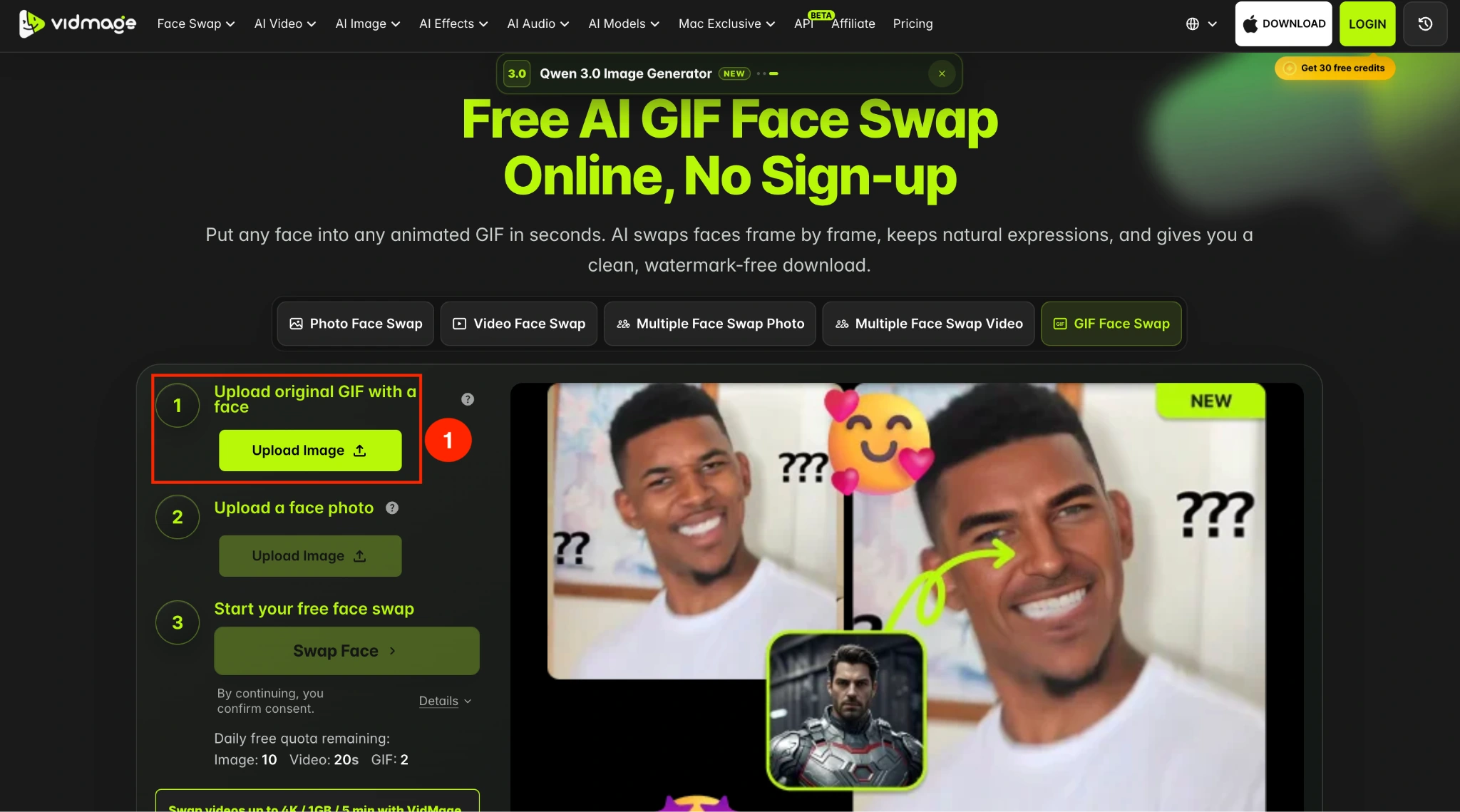
Learning how to face swap a GIF is simple with VidMage GIF Face Swap. Upload an animated GIF, add a photo of the face you want to use, and let VidMage replace the face across the animation. You can do an animated GIF face swap online without signing up.
VidMage supports GIF files up to 50 MB, and the free tier includes 2 GIF face swaps per day.
How to Face Swap a GIF with VidMage
Follow these steps to learn how to swap faces in a GIF:
Step 1: Open VidMage GIF Face Swap and click Upload Image under the original GIF option. Choose the animated GIF you want to edit from your device.
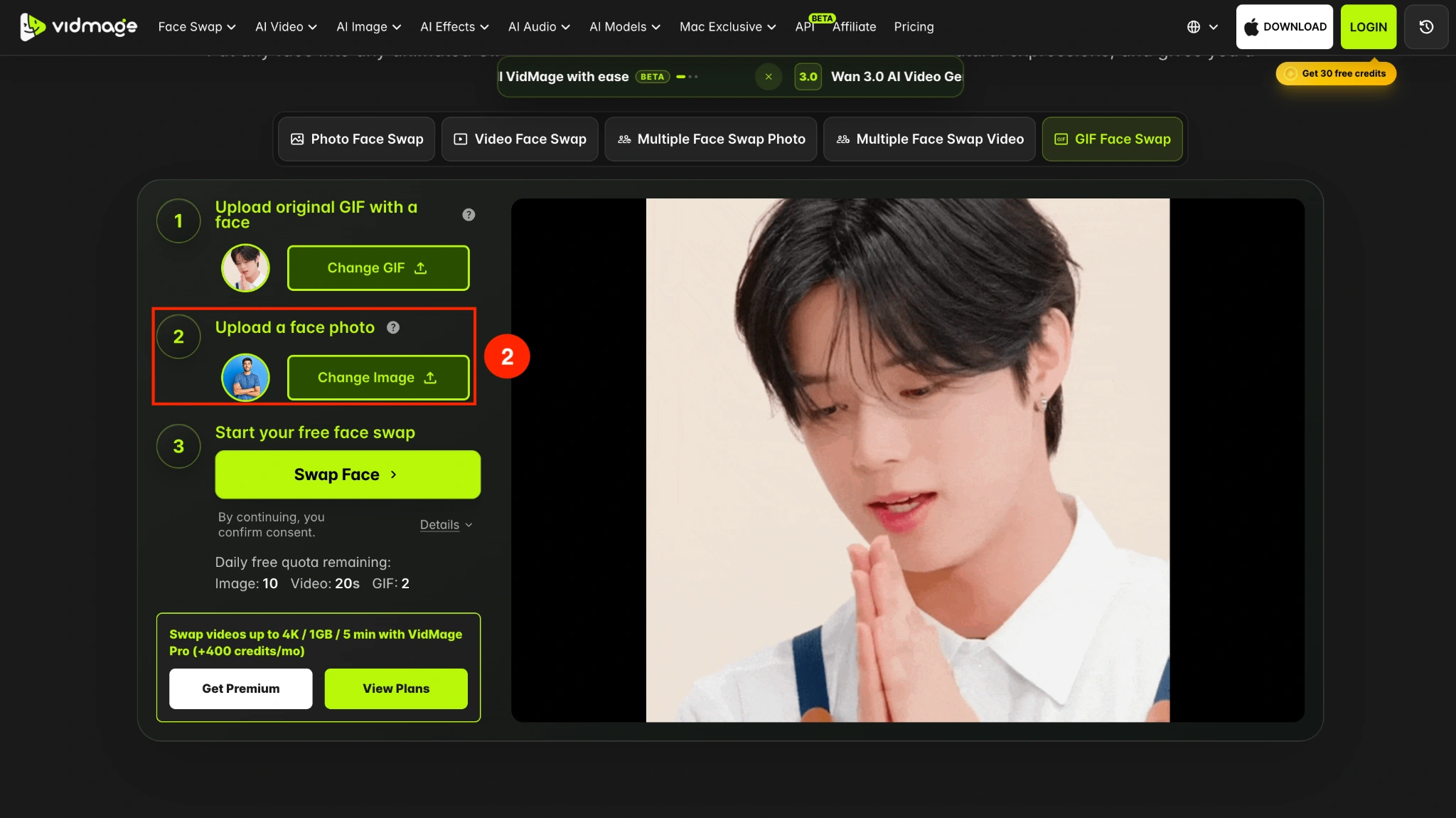
Step 2: Click the second Upload Image option and select a photo of the face you want to add to the GIF. For better results, use a clear, front-facing photo with good lighting.
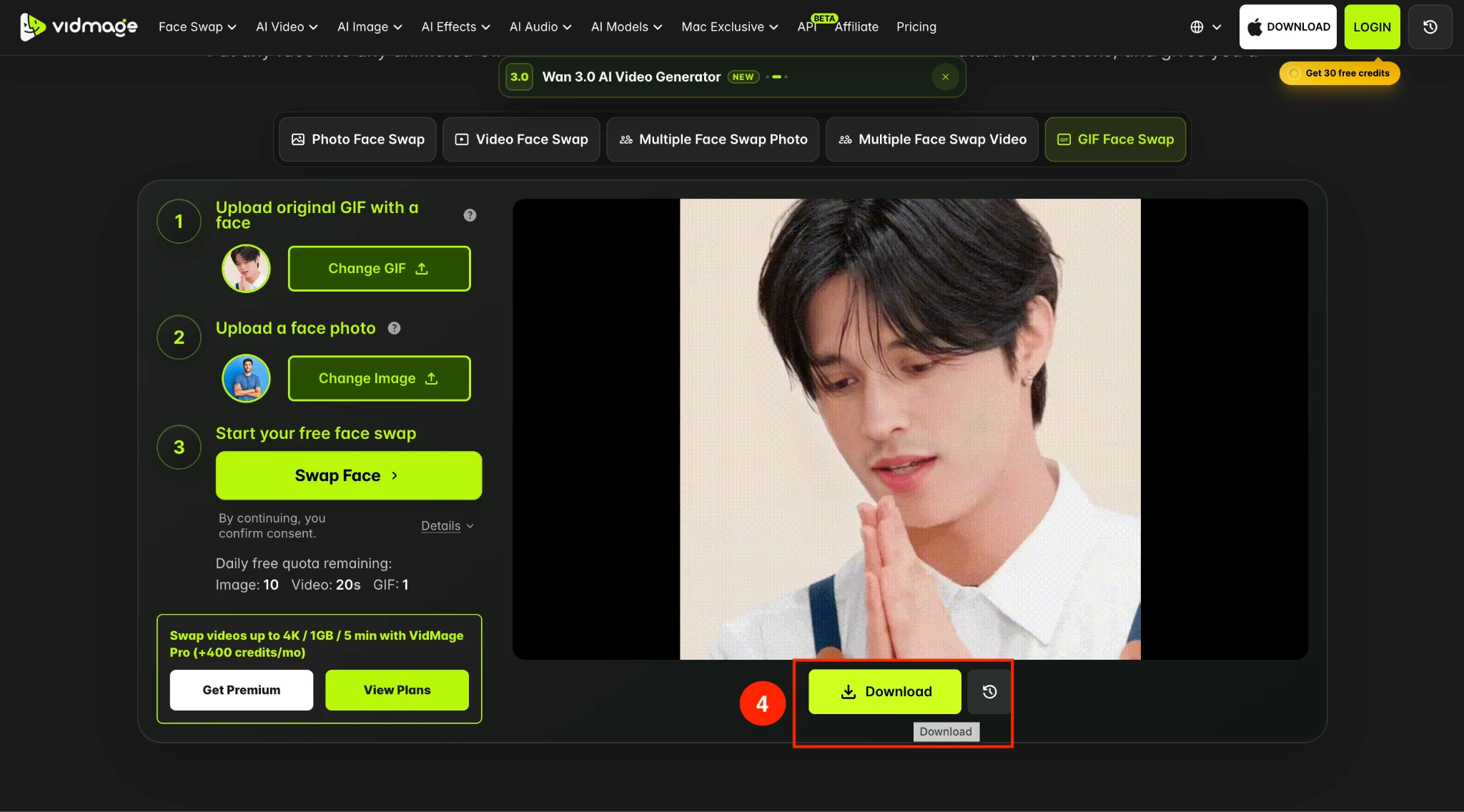
Step 3: After uploading both files, click Swap Faces. VidMage processes the animation frame by frame, replacing the original face while preserving the GIF's movement and expressions.

Step 4: Once processing is complete, preview the result and download your new GIF.
How to Face Swap a GIF Offline on Mac?
For users who prefer not to upload their files, VidMage also offers GIF face swapping through its Mac app (Apple Silicon and later).
Step 1: Download the VidMage Mac app and click the Plus icon to upload a GIF.
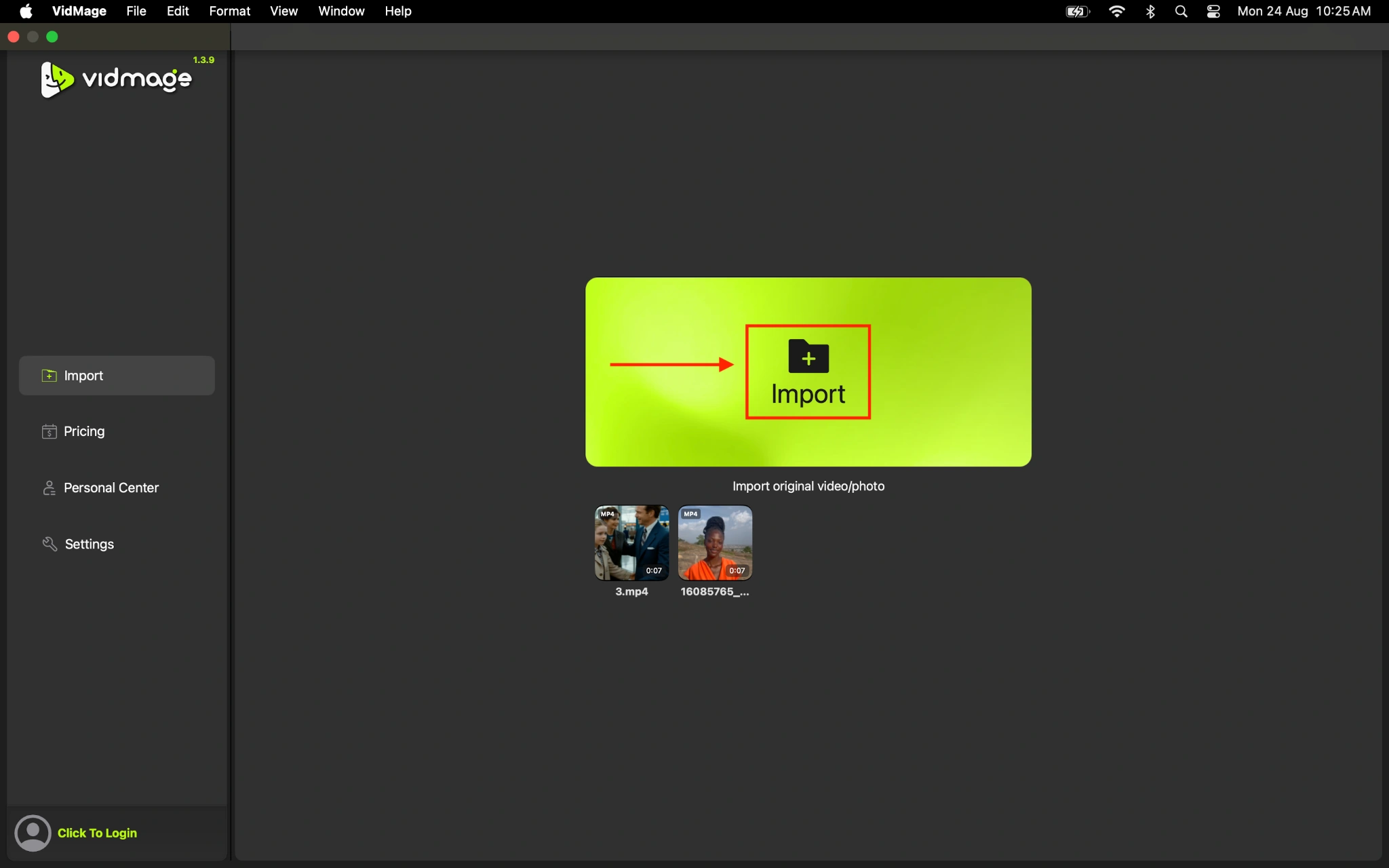
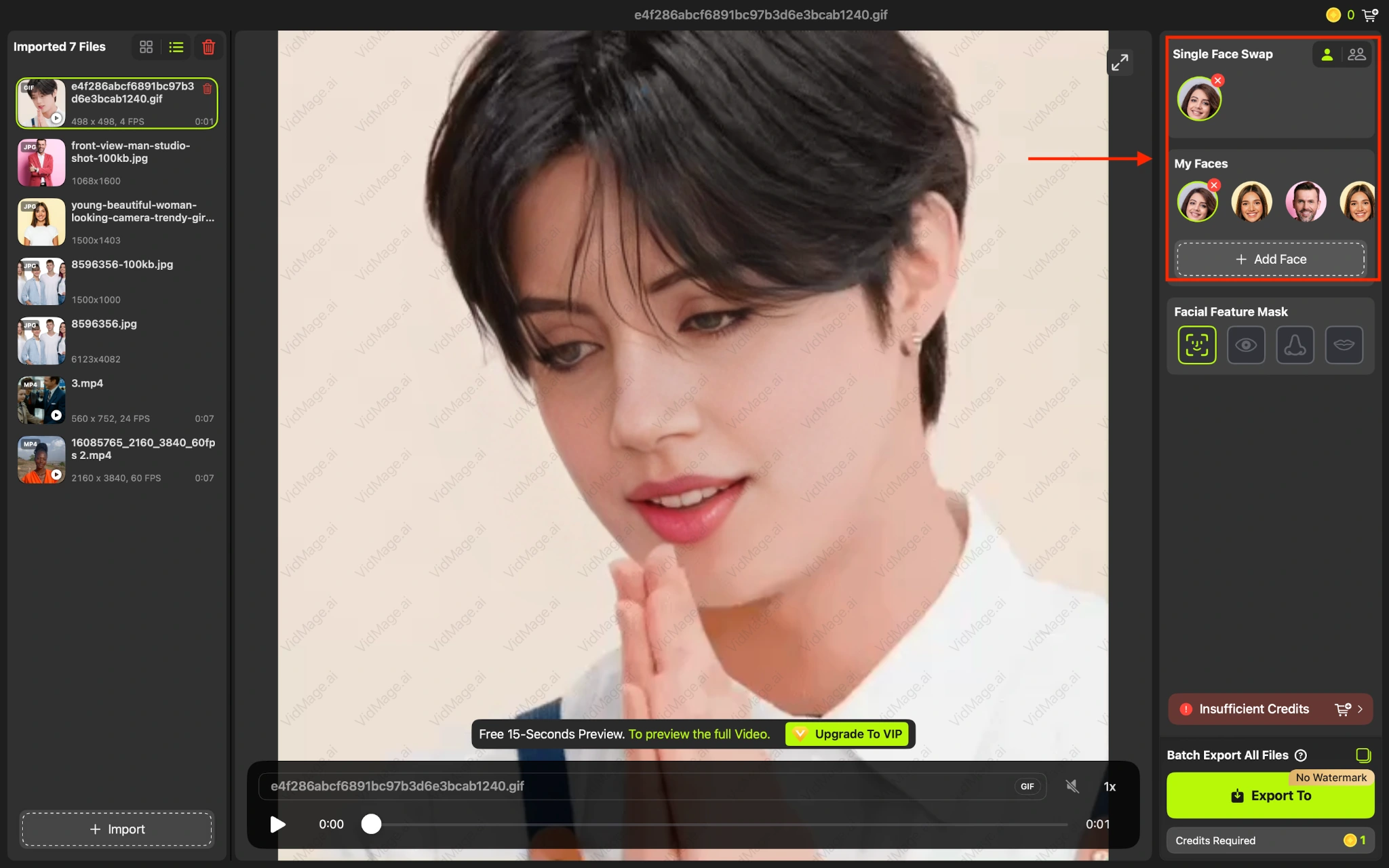
Step 2: Once uploaded, click on the Add Face option to upload the face.
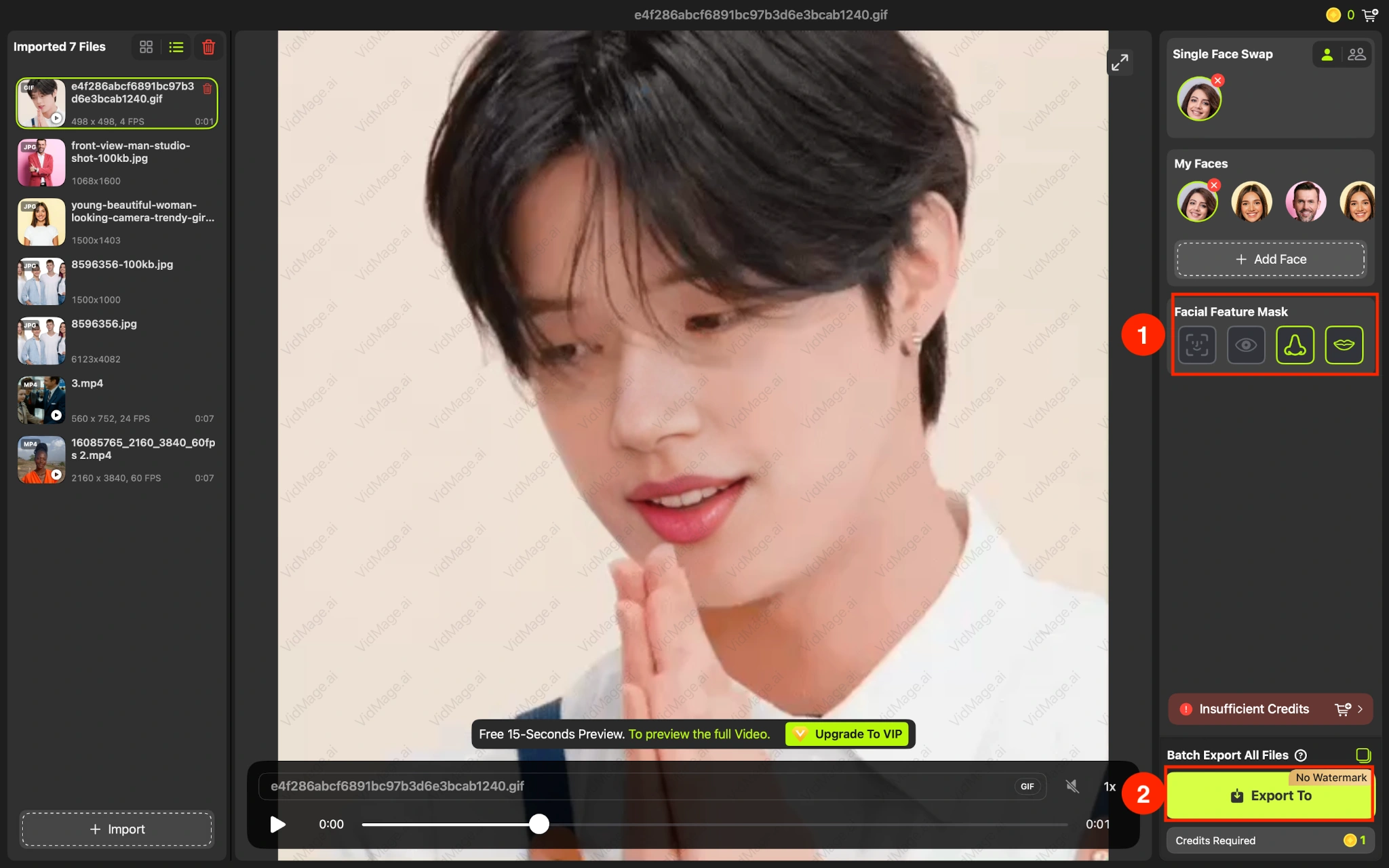
Step 3: You can also swap specific facial features such as the nose, lips, and eyes. Once done, click the Export to button and save the GIF.
What Photos Work Best for an Animated GIF Face Swap
The quality of the face photo can affect the result across the entire animation. For a cleaner animated GIF face swap:
- Use a sharp, high-resolution face photo.
- Choose a front-facing face with clearly visible features.
- Use even lighting and avoid heavy shadows.
- Avoid sunglasses, hats, or other objects that cover the face.
- Choose a GIF where the original face is reasonably clear throughout the animation.
A short GIF with a clearly visible face is generally easier to process consistently across its frames.
Where to Use Animated GIF Face Swap
- Turn reaction GIFs into personalized memes by putting your face into funny or trending moments.
- Make social content more engaging by adding your face to popular GIFs used on Instagram, TikTok, and other platforms.
- Send personalized reactions instead of relying on the same standard GIFs in chats and messages.
- Repurpose your GIFs for short-form videos by converting them into video clips for Reels, TikTok, or Shorts.
- Create themed content for events such as birthday celebrations, invitations, or inside jokes with friends.
Try GIF Face Swap
Open the tool and follow the steps above.