
Learning how to morph two faces together is simple with VidMage. The AI blends facial features from two uploaded photos into one combined result rather than completely replacing one face with another. You can morph faces online without installing software or creating an account.
VidMage also supports GIFs and videos for face morphing, with output available as an image, a GIF, or a video, depending on the input.
How to Morph Two Faces Together Online
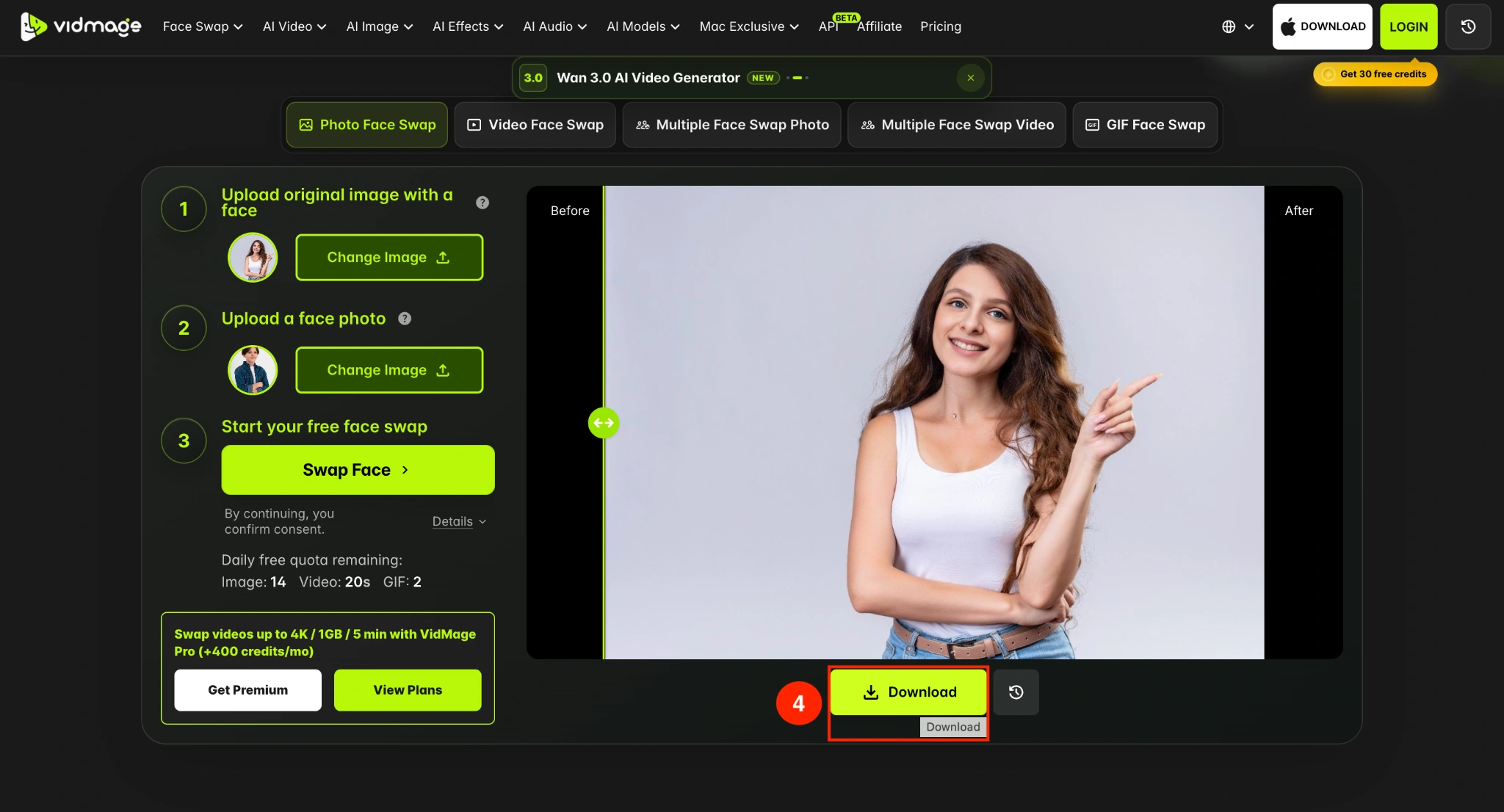
Follow these steps to learn how to blend two faces with VidMage:
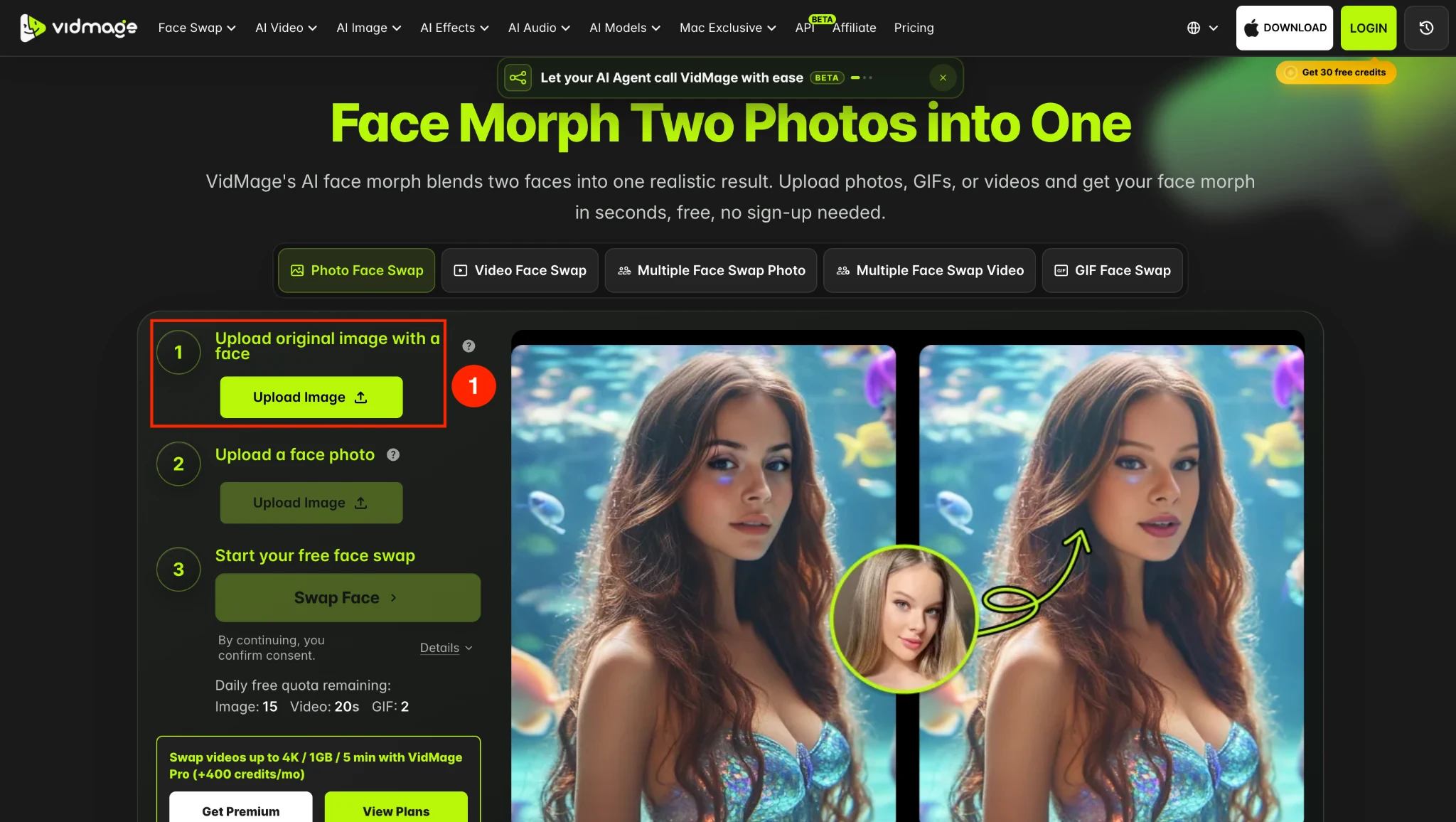
Step 1: Open the VidMage Face Morph tool and click the upload option for the first image.
VidMage supports PNG, JPG, JPEG, WEBP, and GIF files for this upload. You can also use a video or GIF as the first source when creating an animated face morph.
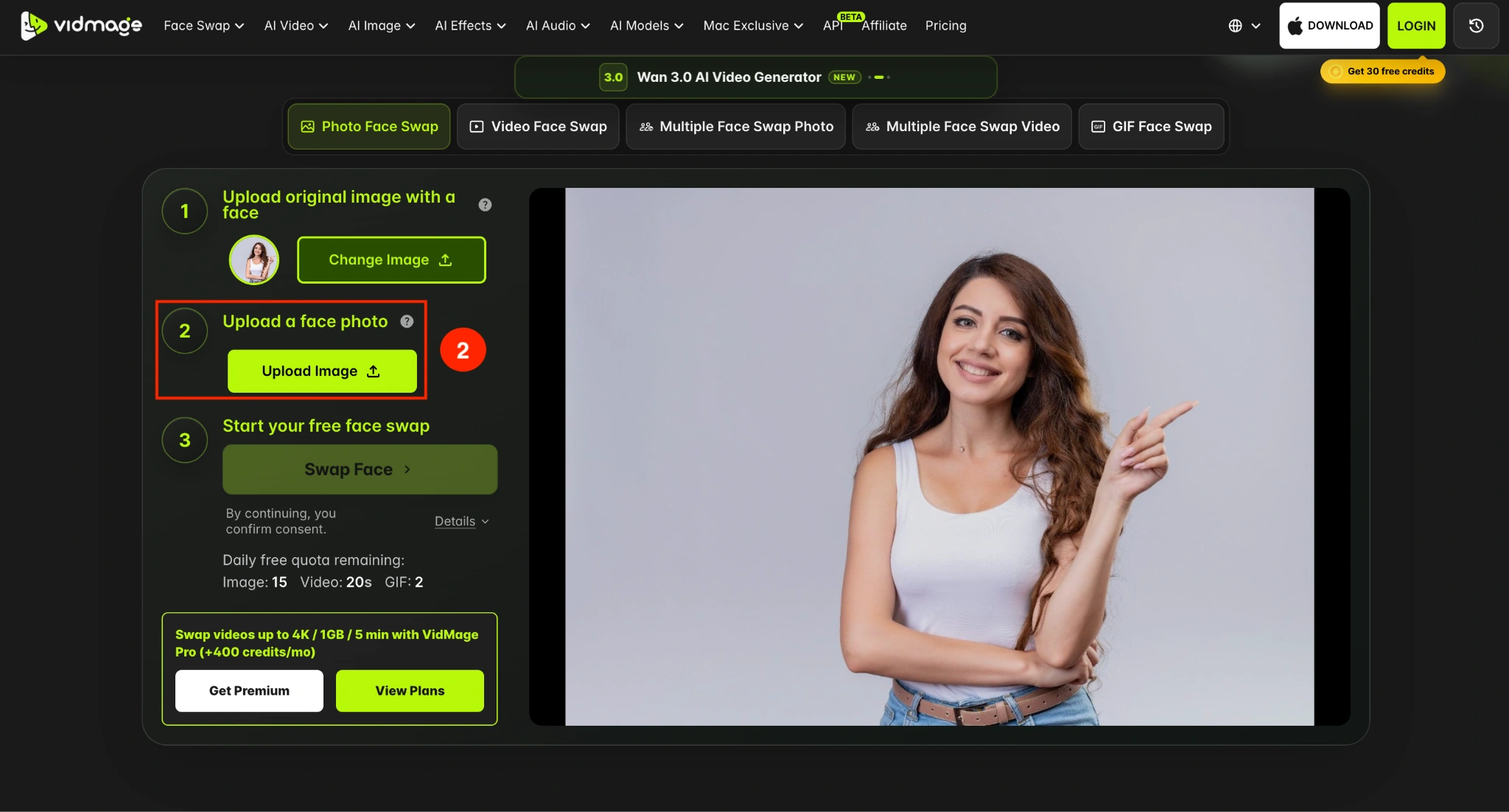
Step 2: Upload the second photo that contains the face you want to combine with the first.
VidMage automatically detects the faces, so you do not need to crop or select facial features manually.
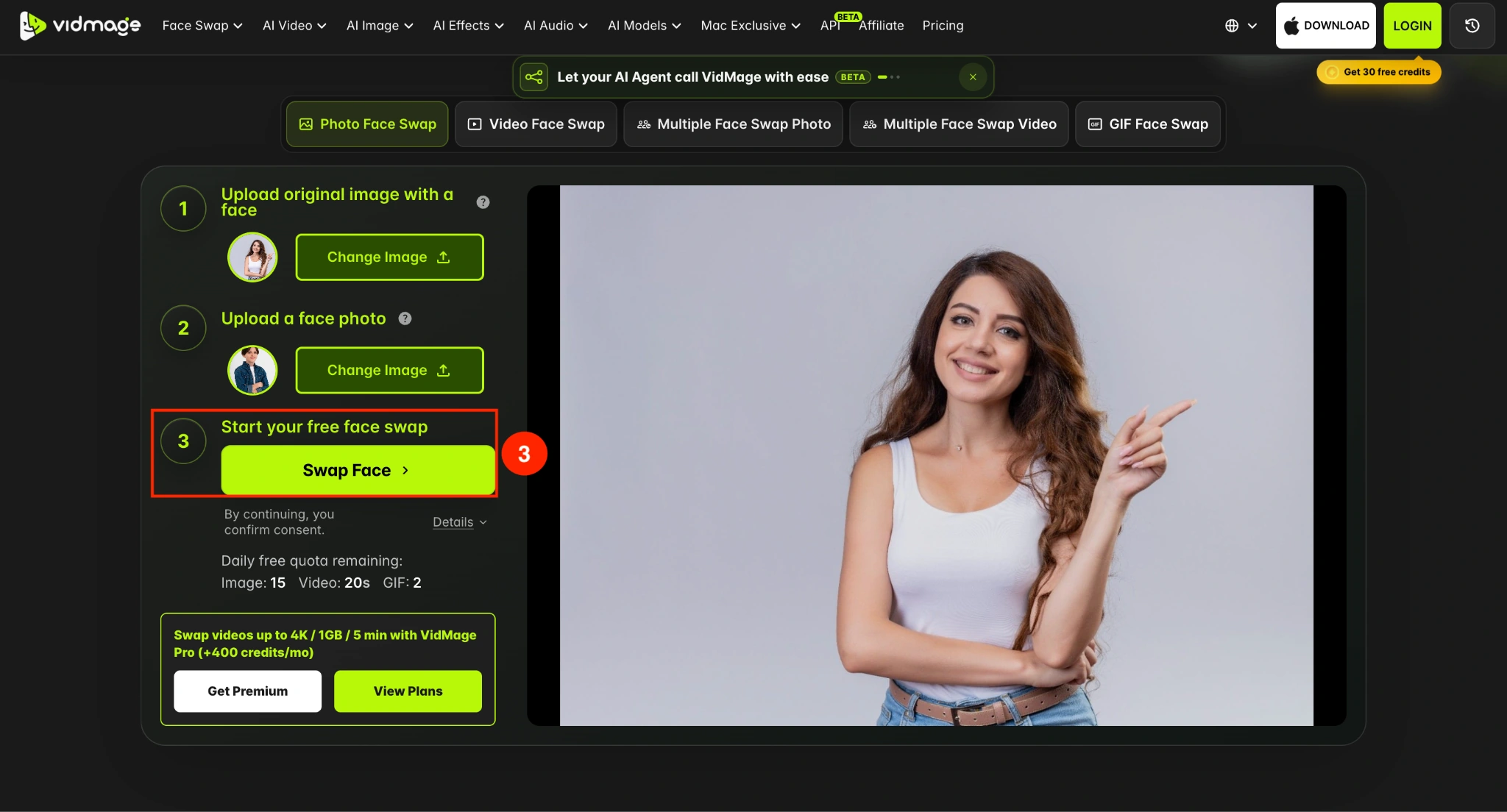
Step 3: After you upload both images, click Swap Face. VidMage's AI analyzes the facial features in both uploads and creates a single blended result.
Step 4: After the result is generated, preview it and click Download to save it.
How to Morph Two Faces on Mac Offline
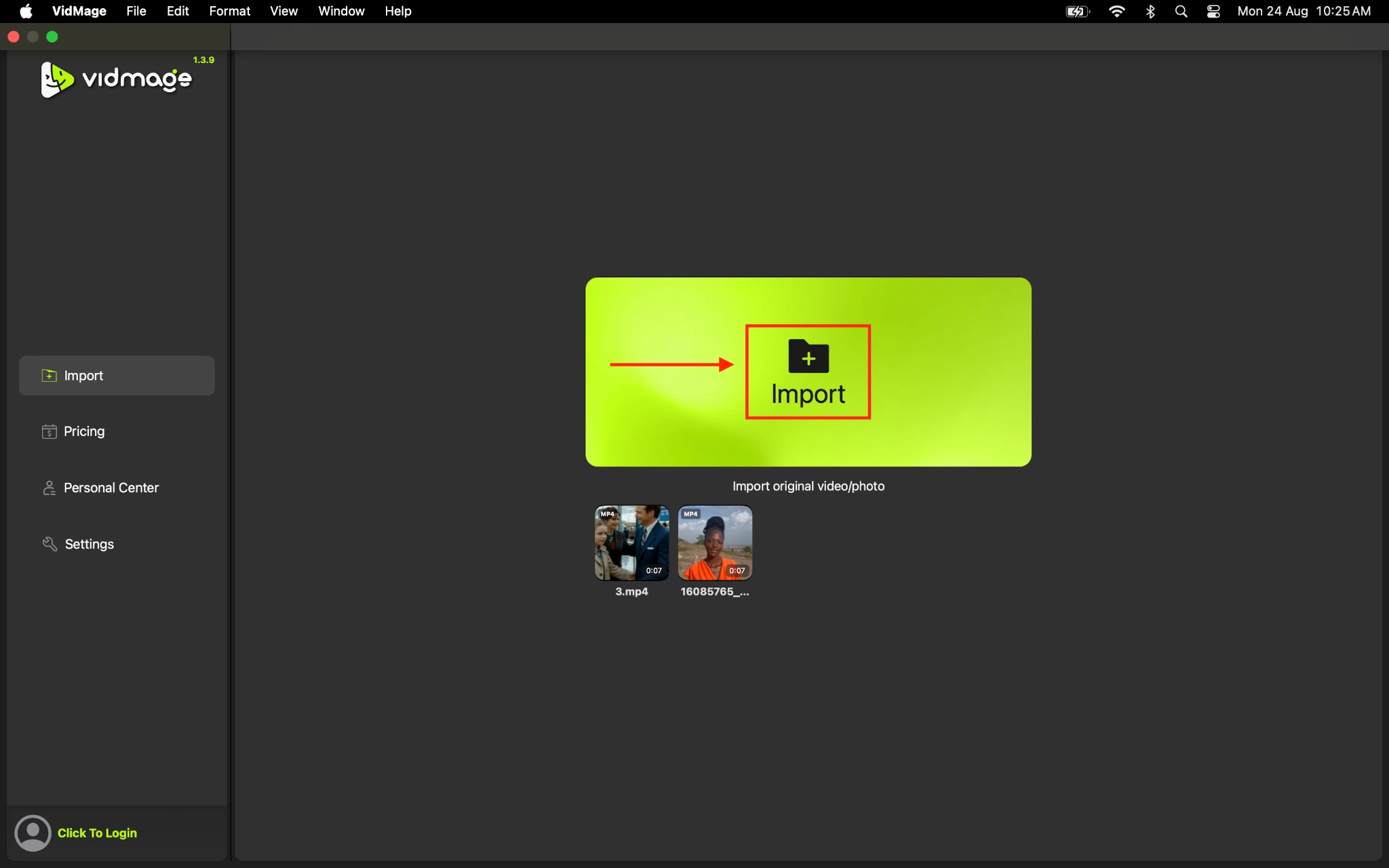
VidMage also offers local face morphing through its Mac app. The app processes your images on your device, so you do not need to upload them to the cloud. Follow these steps to morph two faces offline on Mac:
Step 1: Download and open the VidMage Mac app, then click the Import button to upload the original photo.
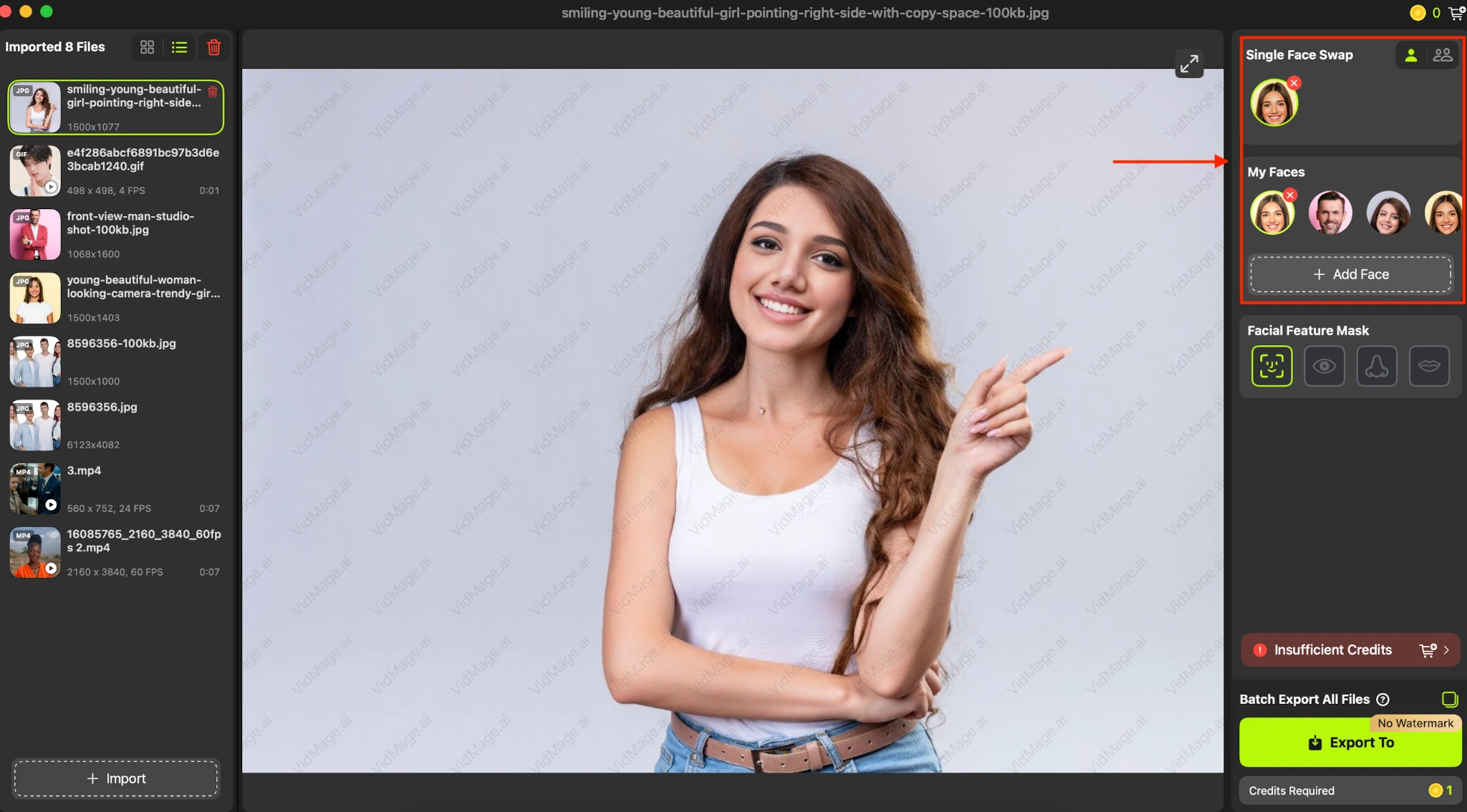
Step 2: Add a target face with whom you want to morph the original face photo. VidMage automatically morphs faces.
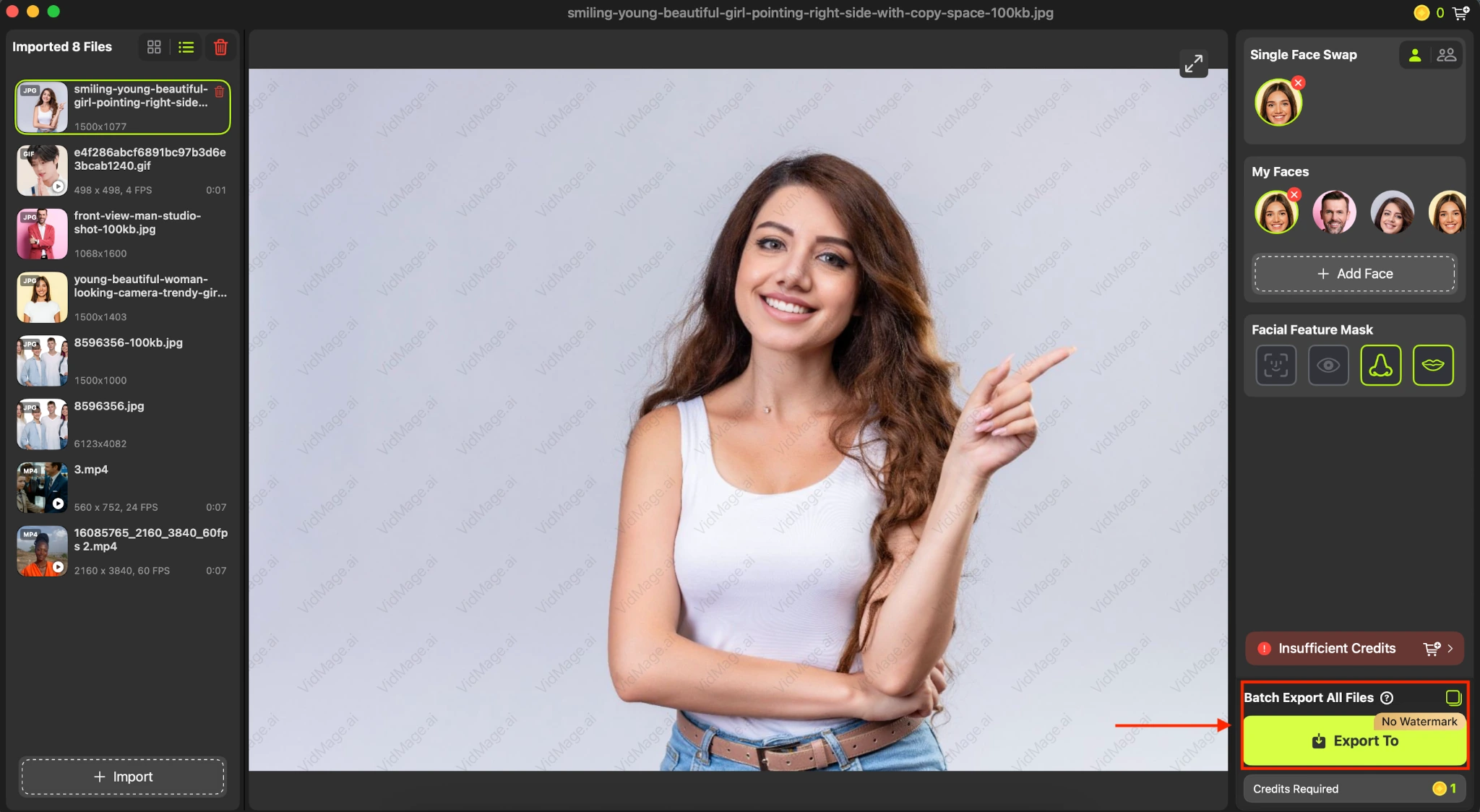
Step 3: Once the face morph is ready, use the export option to save the blended face to your Mac.
How to Get a Better Face Morph Result
The two source images have a major impact on how natural the final blend looks. For a better face morph tutorial result:
- Choose clear, high-resolution photos.
- Use faces with similar head angles.
- Prefer front-facing or mostly front-facing portraits.
- Use photos with even, consistent lighting.
- Keep the eyes, nose, and mouth clearly visible.
- Avoid heavy shadows or objects covering the face.
VidMage specifically recommends clear, front-facing portraits for the first and second uploads because they give the AI cleaner facial information to align and blend.
Face Morph vs. Face Swap: What's the Difference
Face morphing and face swapping produce different results.
With a face swap, one person's face is replaced with another person's face. With a face morph, the facial characteristics of both images are combined to create a new blended face.
For example, blending two people's photos creates a hybrid result, while swapping one person's face into another photo is intended to preserve the identity of the uploaded target face.
How to Create Different Face Morphs
Once you understand how to morph two faces together, you can use the same workflow for different creative combinations.
You can blend:
- Two people's faces
- Friends or family members
- A human face with an animal image
- Two reference faces for creative edits
VidMage states that its face morph tool can blend human faces with animal images and supports creative combinations beyond standard portraits.
Face Morph File Formats and Free Usage
VidMage's face morph workflow supports multiple input formats.
For the first upload, supported formats include PNG, JPG, JPEG, WEBP, GIF, M4V, MP4, and MOV. The second upload supports PNG, JPG, JPEG, WEBP, and GIF.
The free plan provides 15 face morph results per day, with no sign-up required and no watermark on the free results.
Try Face Morph
Open the tool and follow the steps above.