

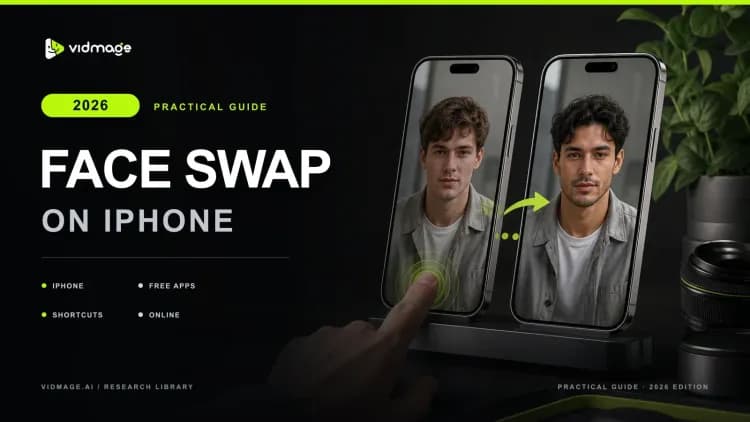

Most face-swapping tools either push you to download an app or add a watermark to everything you export. VidMage skips both. Open VidMage in Safari, upload your photo or video, and the AI generates a realistic face swap in seconds, free with no sign-up and no watermark on the result. This guide covers how to face swap on iPhone using VidMage in your browser.
How to Face Swap a Photo on iPhone?
By following these steps, you can learn how to face swap on an iPhone without downloading the app:
Step 1: Open Safari on your iPhone and go to VidMage's Face Swap page. Tap "Photo Face Swap" on the homepage.
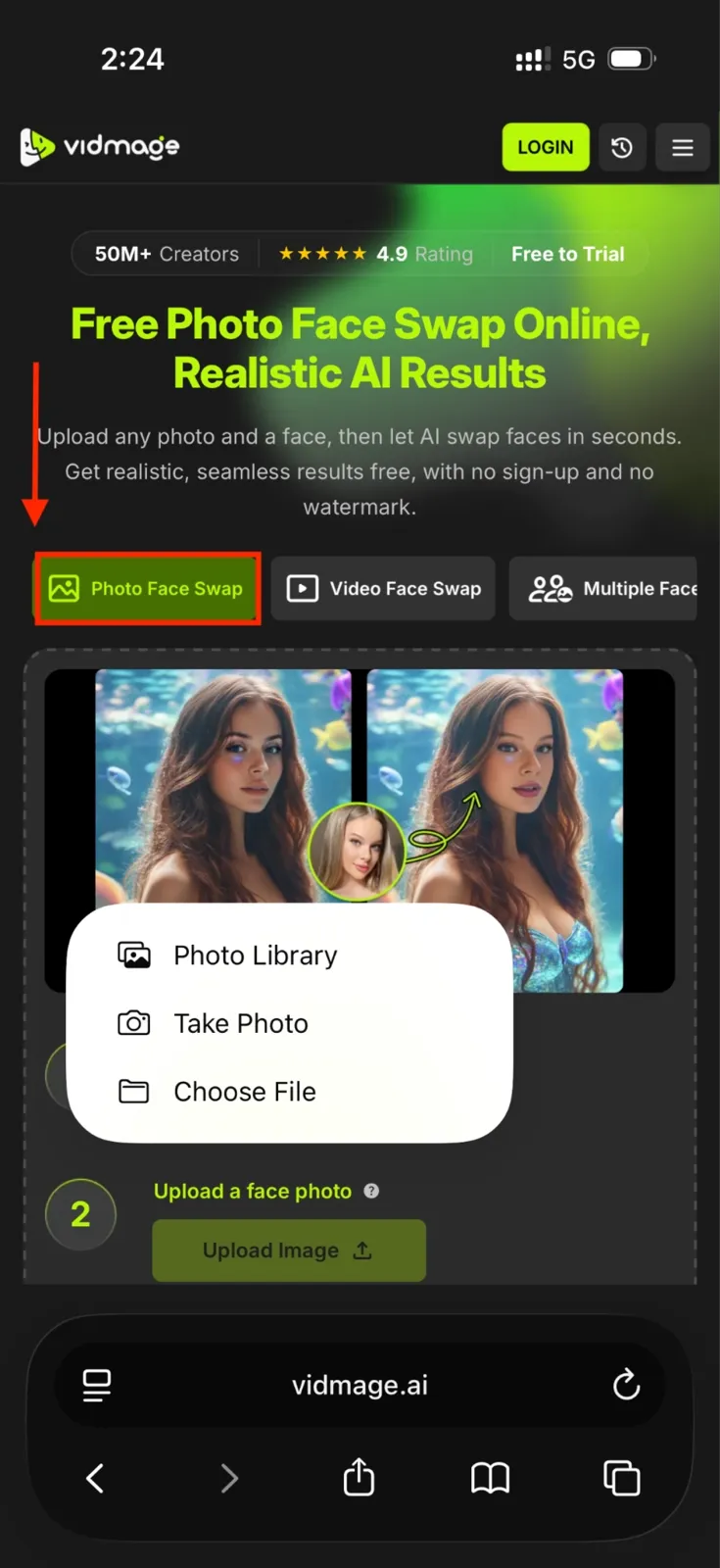
Step 2: Tap "Upload Image" and select the base photo from your camera roll.
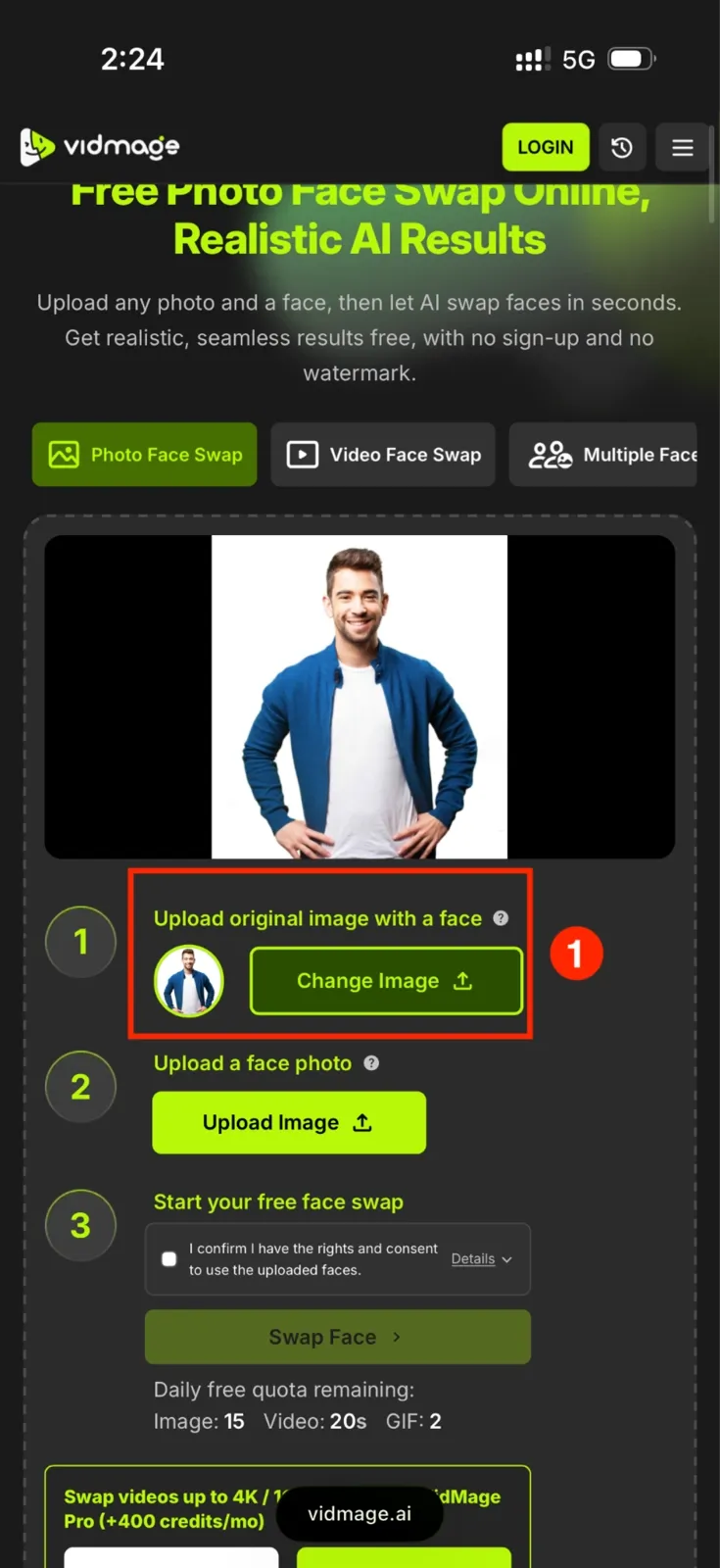
Step 3: Tap "Upload Image" again to add the source face, the photo of the face you want to swap in.
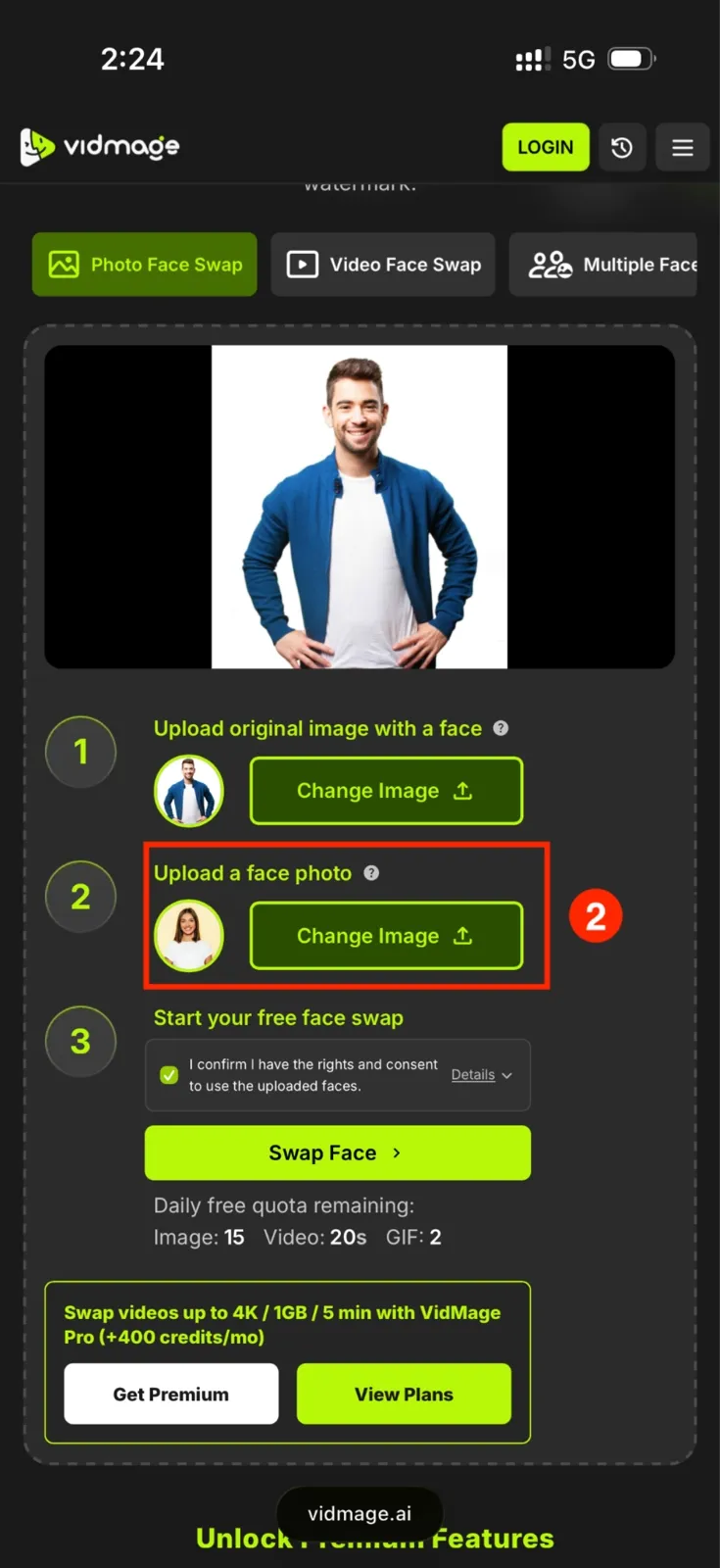
**Step 4: **Tap "Swap Face." The AI automatically matches skin tone, lighting, and expression, then shows you a preview of the result. Click "Download" to save the finished photo to your camera roll.
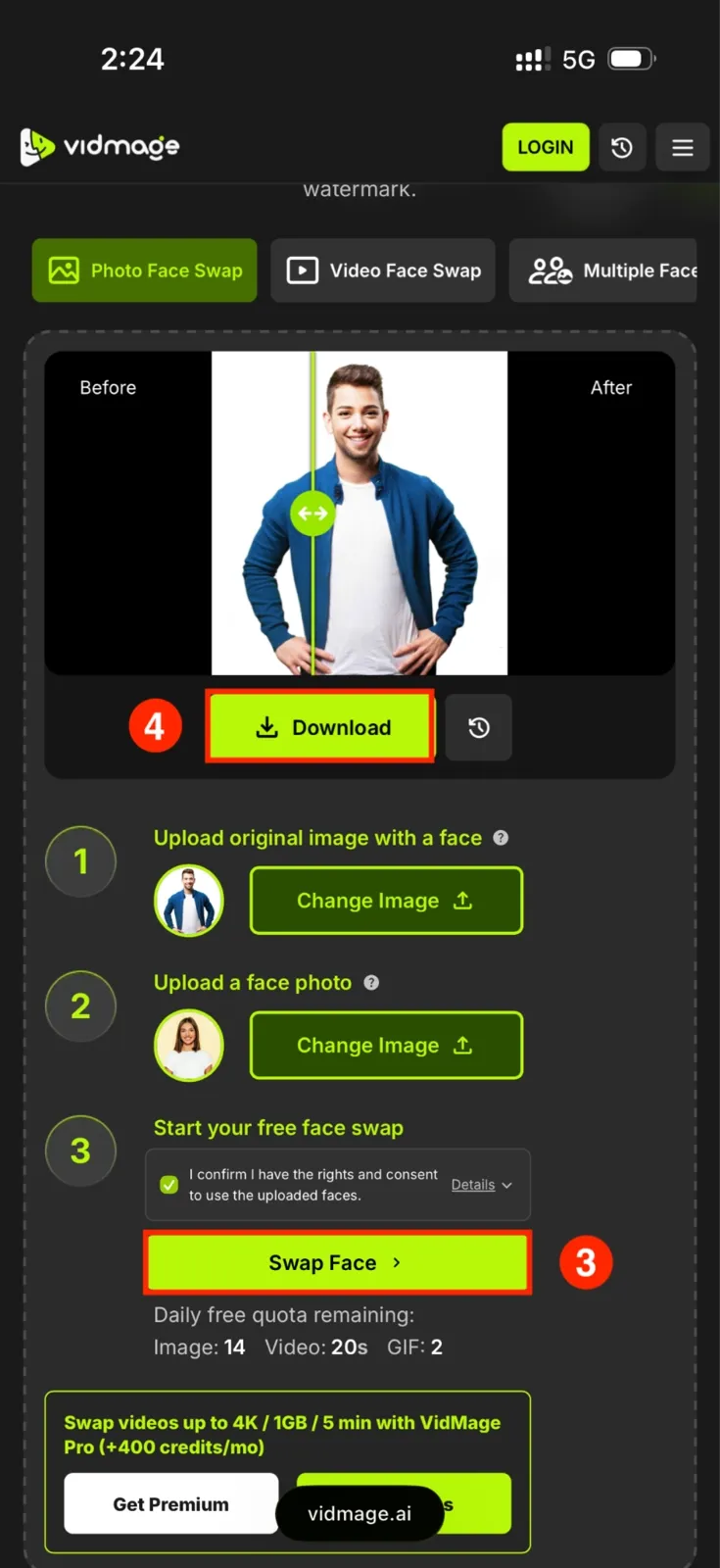
VidMage’s free plan gives you 15 photo face swaps per day with no watermark on any download.
How to Face Swap a Video on iPhone?
Follow this step-by-step guide to face swap a video with VidMage:
Step 1: Go to VidMage's Face Swap page in Safari and tap "Video Face Swap."
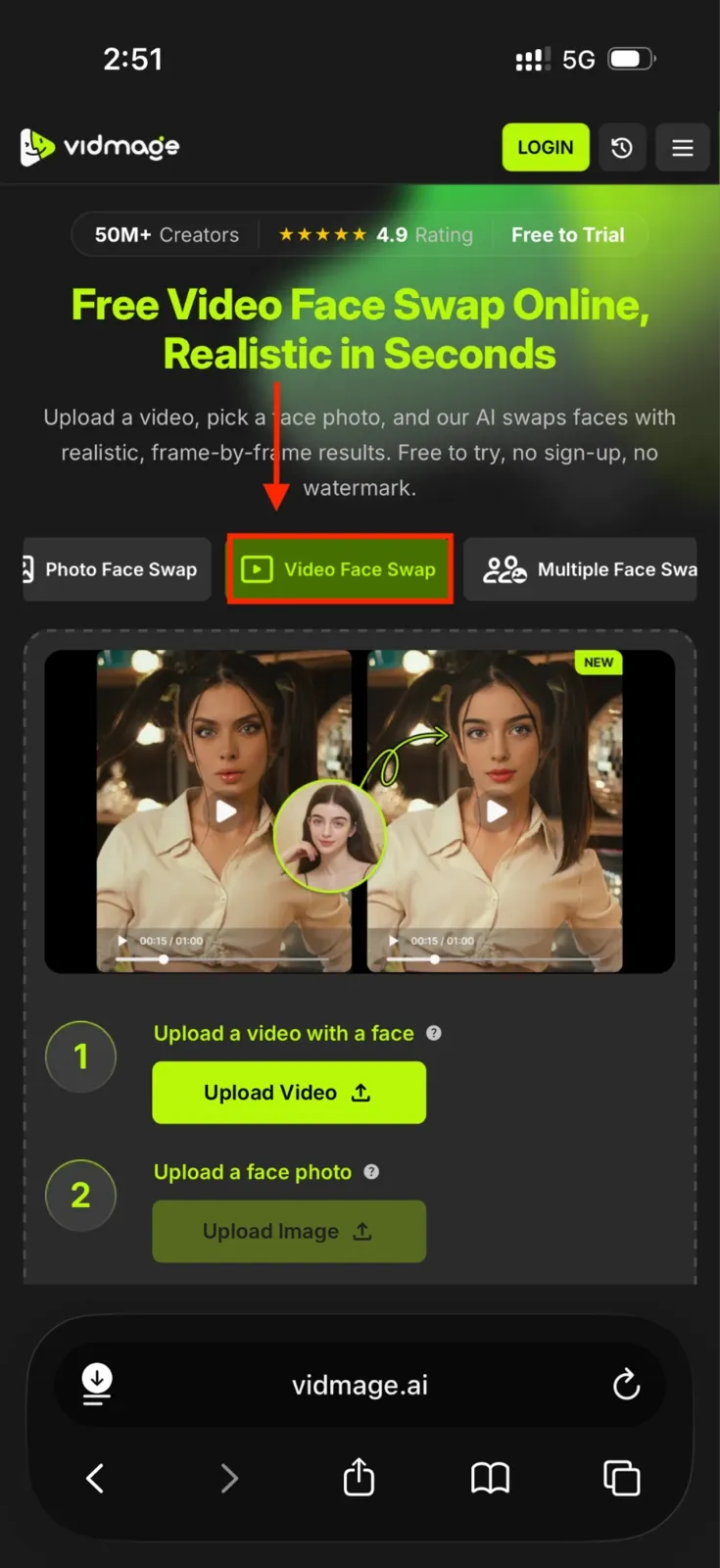
Step 2: Tap "Upload Video" and pick a clip from your camera roll. VidMage supports MP4, MOV, and M4V files.

Step 3: Upload a clear, full-face photo. The AI uses this as the source face across every frame of the video.
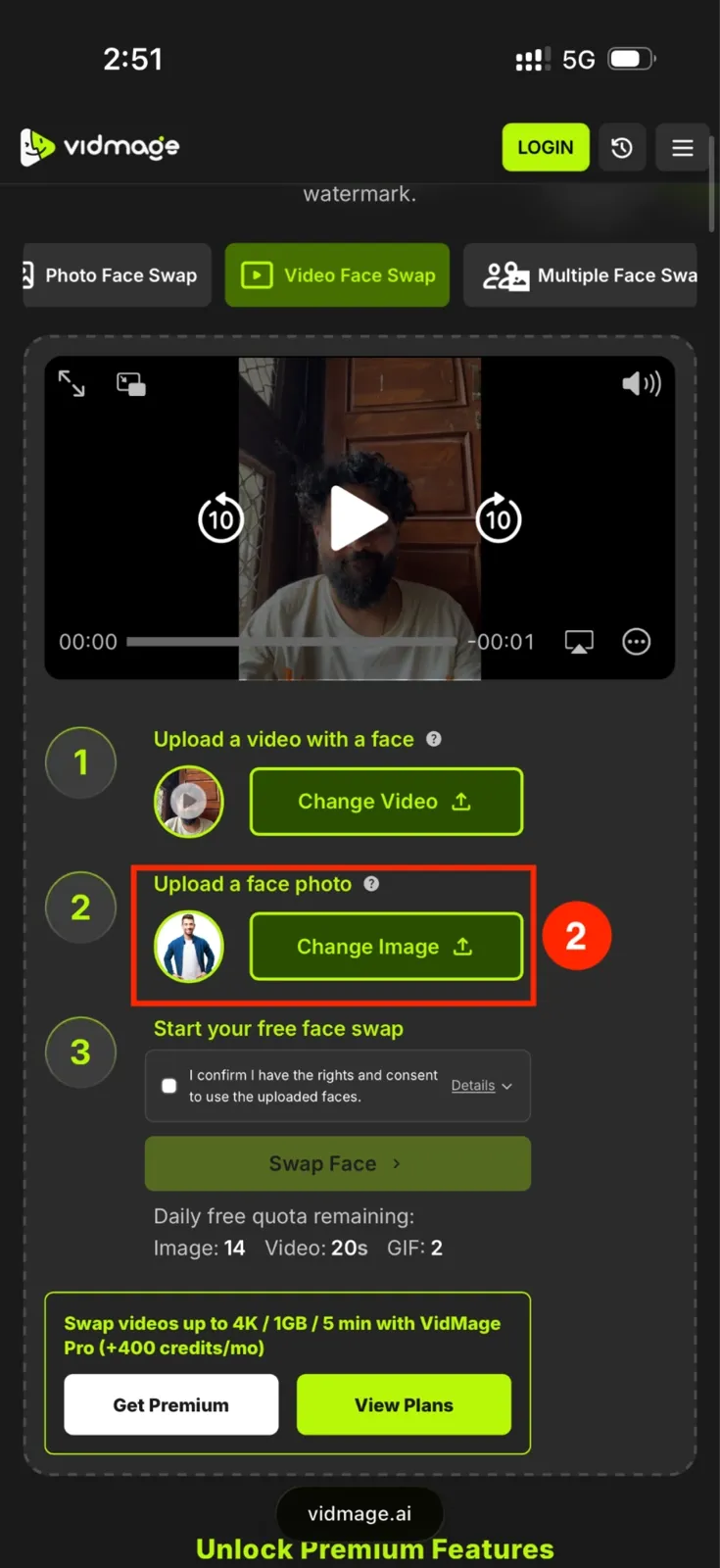
Step 4: Tap "Swap Face" and let VidMage process the clip. Hit the"Download" button to save the swapped video to your camera roll.
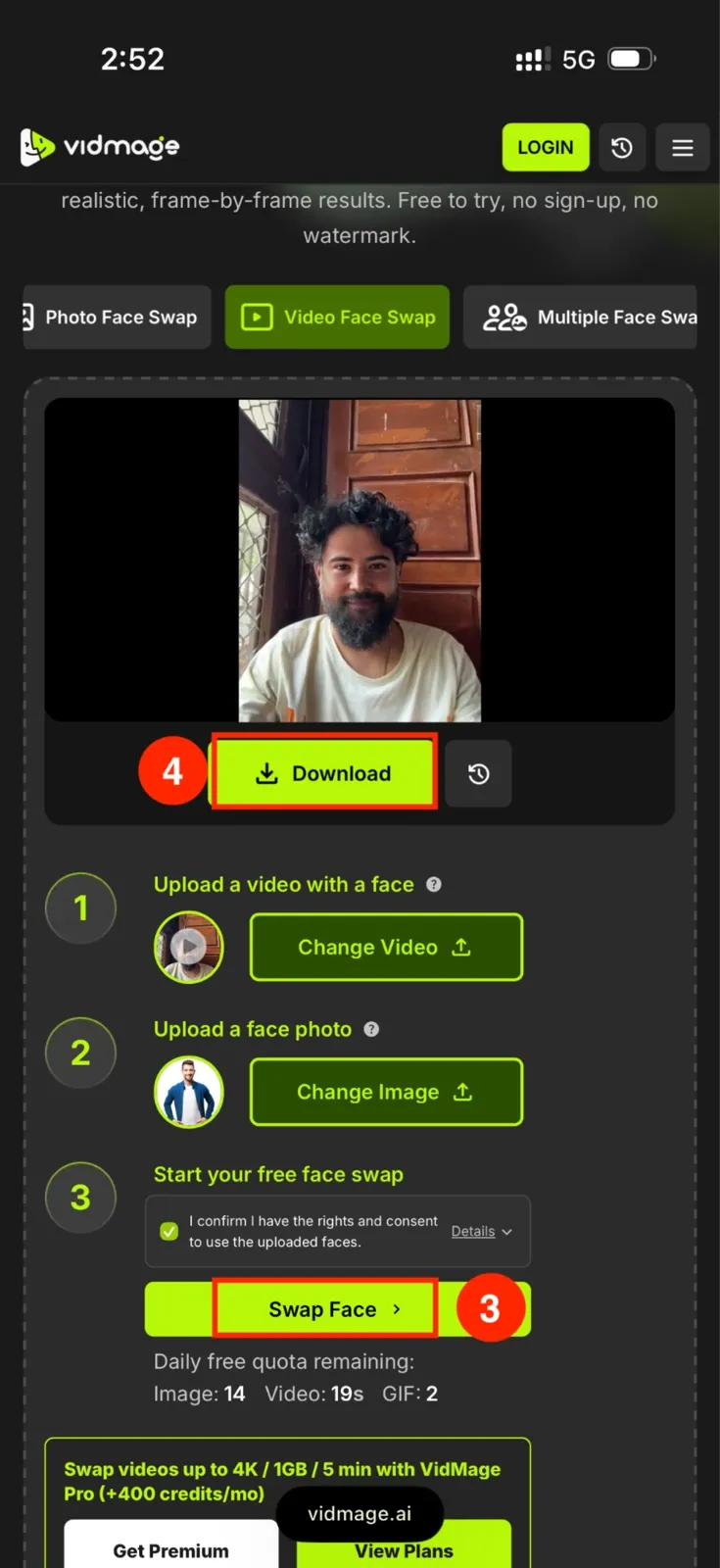
VidMage’s free plan supports videos up to 20 seconds in full HD per day.
FAQ
Do I need to download an app to face swap on iPhone?
Not with VidMage. It runs entirely in Safari, so you get the same AI quality as the desktop version without taking up space on your phone.
Is it really free, and will my photos have a watermark?
VidMage's free plan gives you 15 photo swaps and 20 seconds of video per day. Downloads come out clean with no watermark and no sign-up required.
What happens to my photos and videos after I upload them?
VidMage automatically deletes all uploaded files within 2 hours of processing. Your photos and videos are never used to train AI models or shared with third parties.
Can I face swap multiple faces in a group photo on iPhone?
Yes. Go to VidMage's "Multiple Face Swap" option in Safari. VidMage auto-detects every face in the photo and lets you swap up to 4 people in a single pass, each tracked and blended separately.
Is it safe and legal to swap someone else's face on an iPhone?
Face swapping is legal when you have the person's permission to use their face. Always get explicit consent before swapping in someone else's face, and never use a swap to impersonate or mislead others. Several US states have enacted laws targeting non-consensual deepfake content, so consent is both an ethical and legal requirement.