


VidMage lets you swap a face into any video for free right in your browser and on your desktop (Mac). You do not need to sign up, and you will receive a watermark-free clip. Upload your video and a target face, and the AI generates a realistic face swap that tracks expressions and motion frame by frame.
This guide covers how to face-swap a video online, on your phone, and on your desktop using VidMage.
How to Face Swap a Video Online?
Follow the steps given below to learn how to face swap a video online:
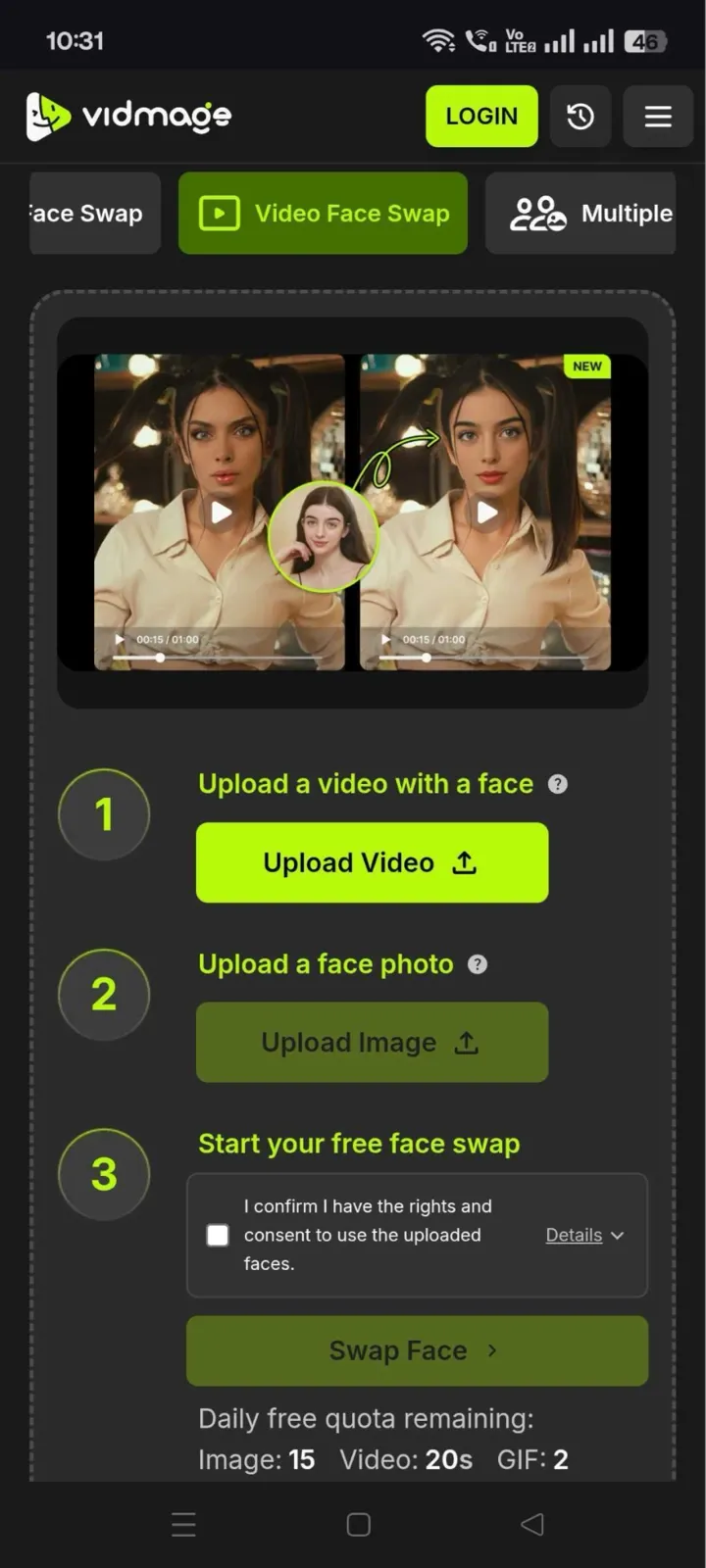
**Step 1: **Go to VidMage's video face swap page and upload your source video.
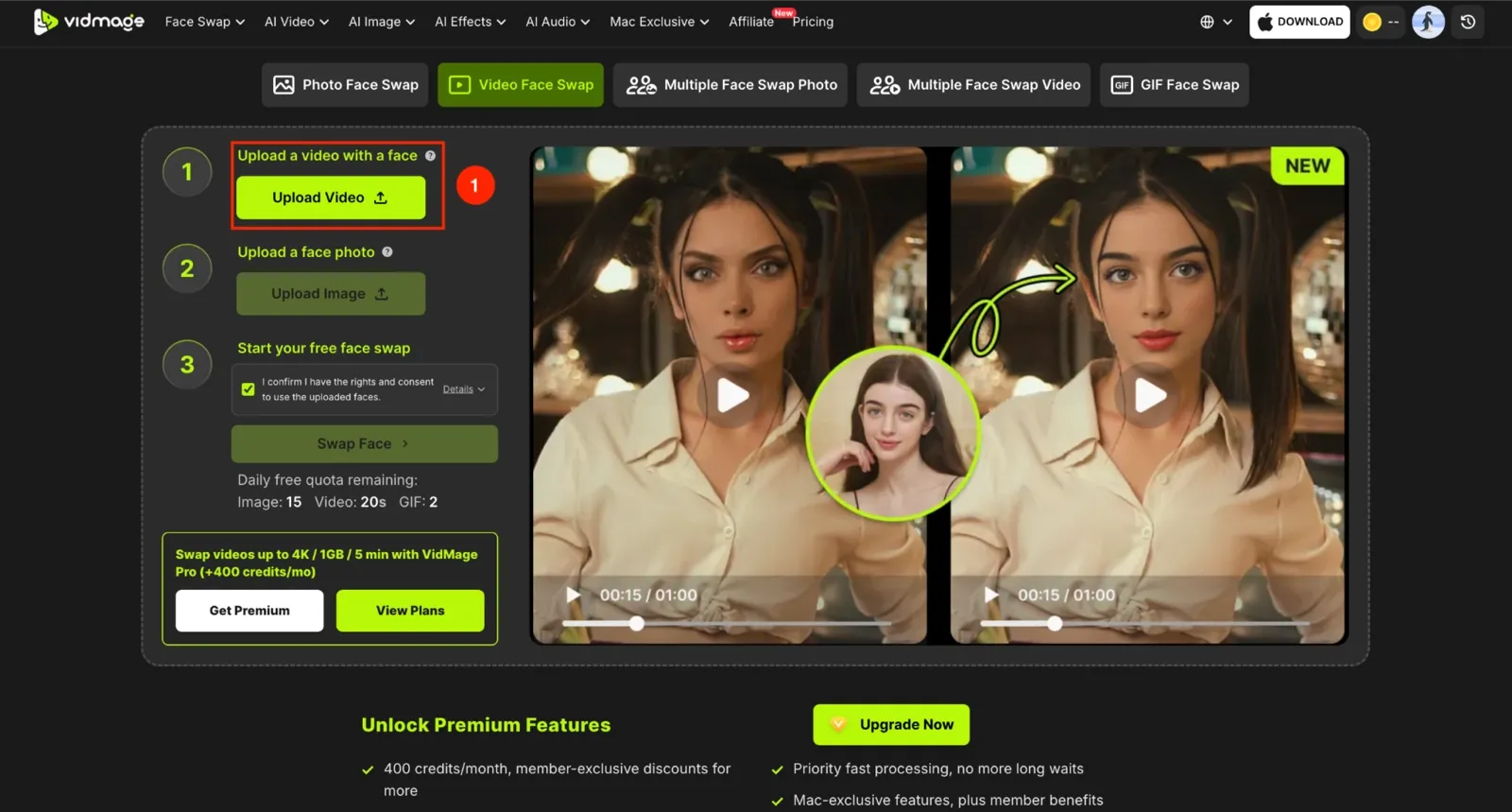
Step 2: Now, upload the face photo you want to swap into the video.
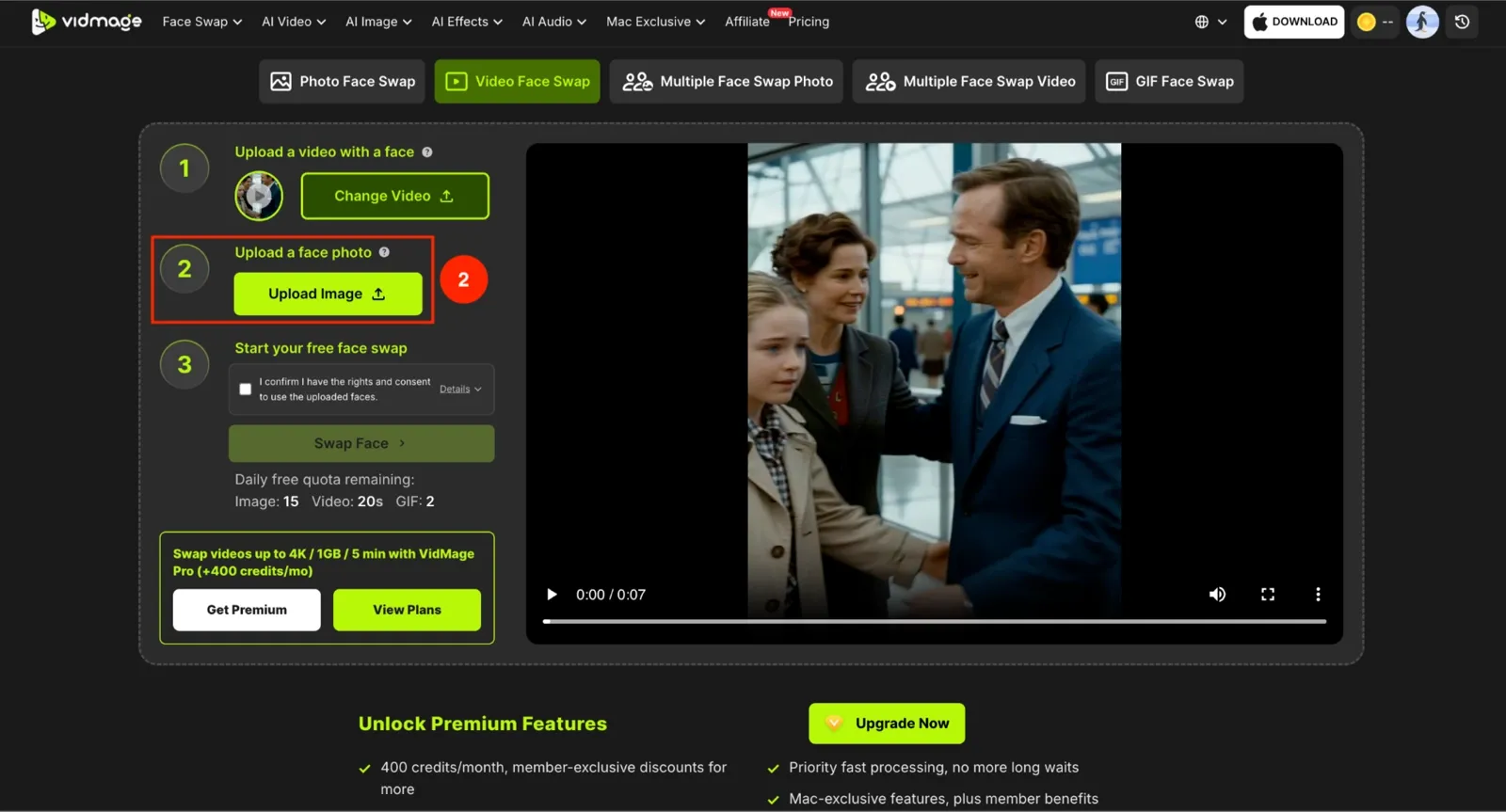
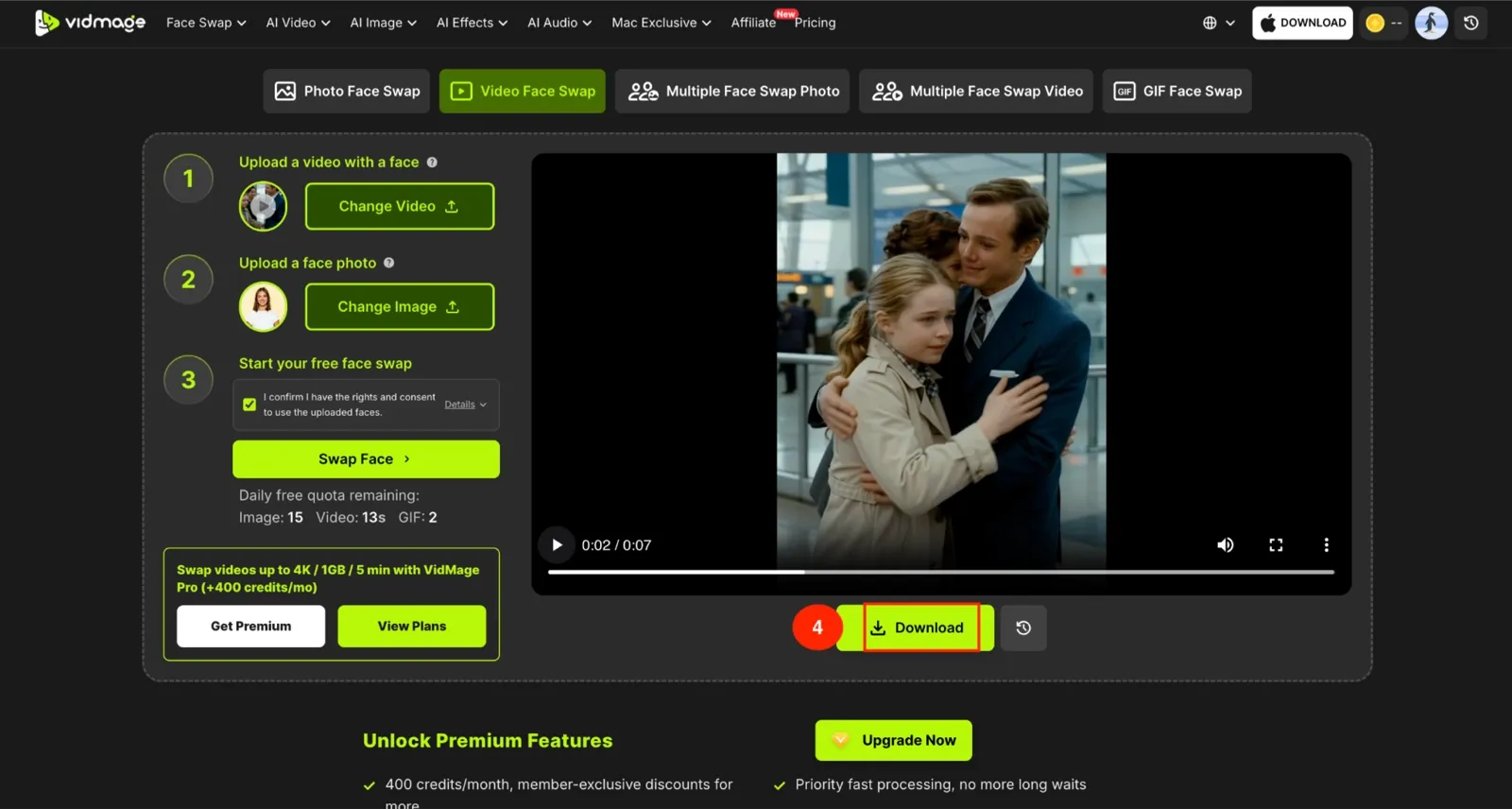
Step 3: Click "Swap Face." VidMage generates the swap automatically and matches expression and motion across every frame.

Step 4: Click "Download" to save your finished video.
How to Face Swap a Video on Mobile?
You do not need a separate app for this. Open VidMage in your phone's browser and follow the same steps you'd use on a computer. The AI swap runs directly in the browser, so nothing extra is installed on your phone and no storage space is used up.
How to Face Swap a Video on Desktop (Mac)?
VidMage works locally on Mac and swaps faces in videos effortlessly, without privacy concerns. Here is how to face swap a video on your Mac:
Step 1: Download the VidMage app from the official website, install it, and create your account.
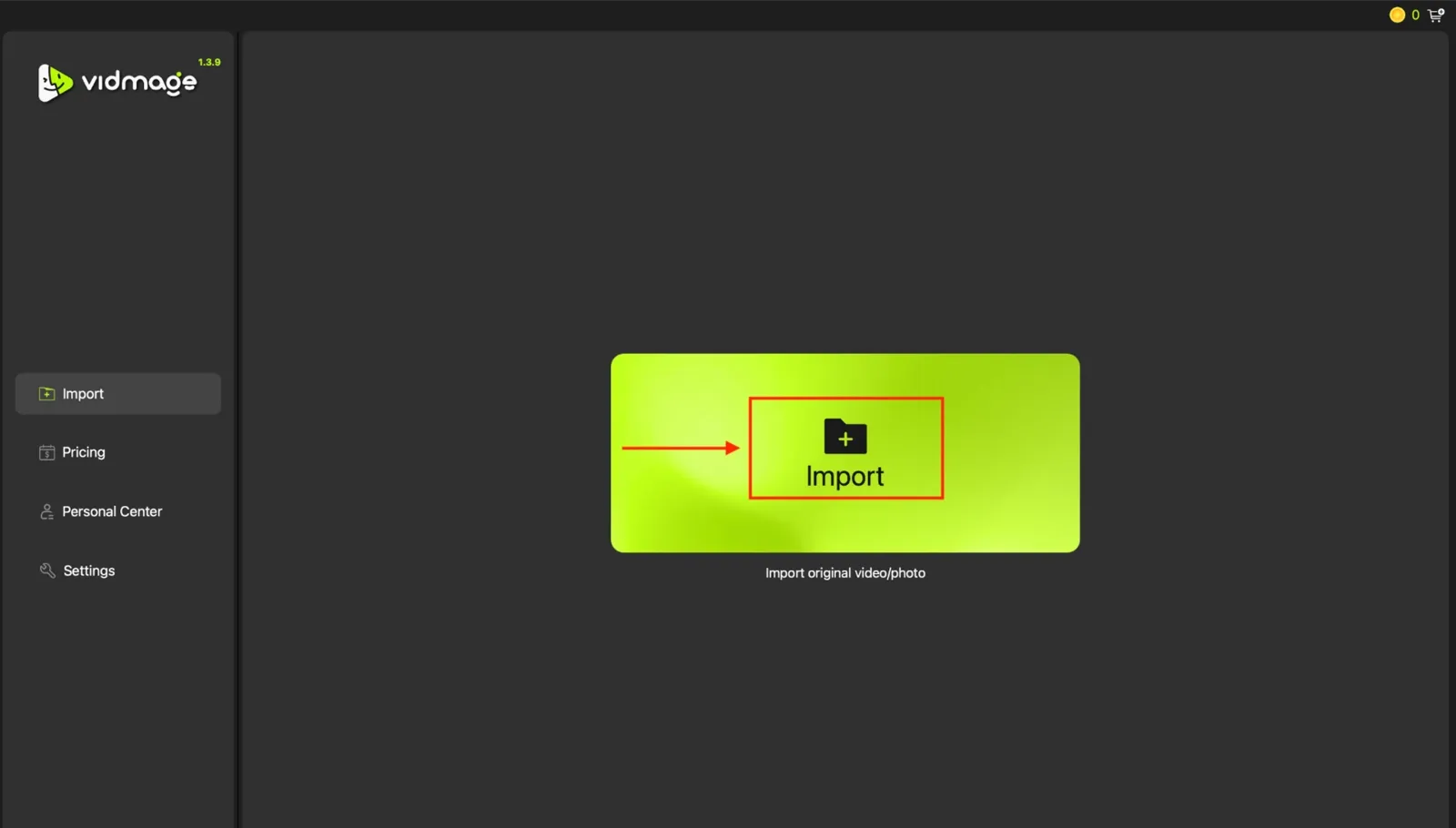
Step 2: Click "Import" to upload your source video.
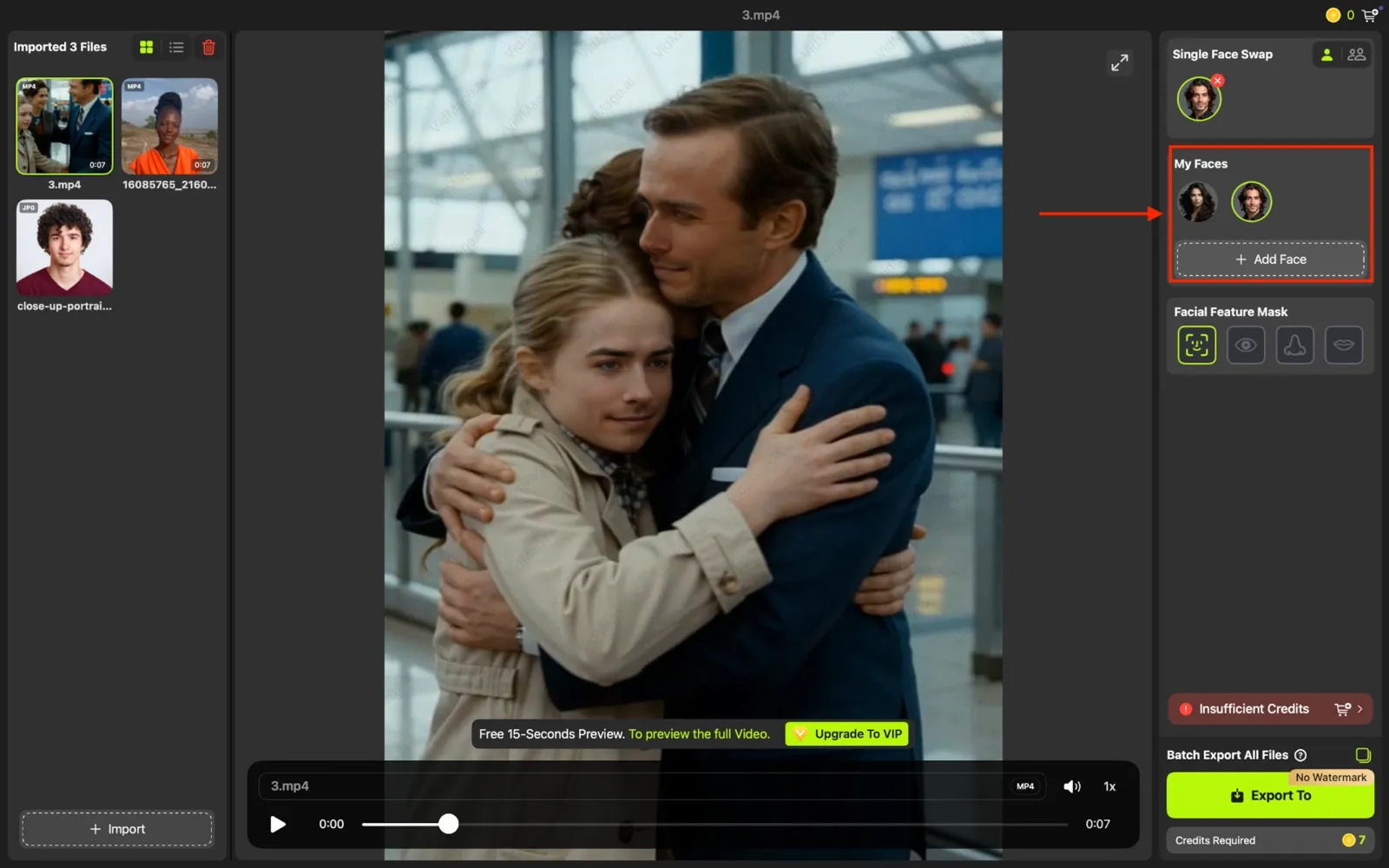
Step 3: Click "Add Face," then upload your own photo or pick one from the built-in templates. The swap happens automatically.
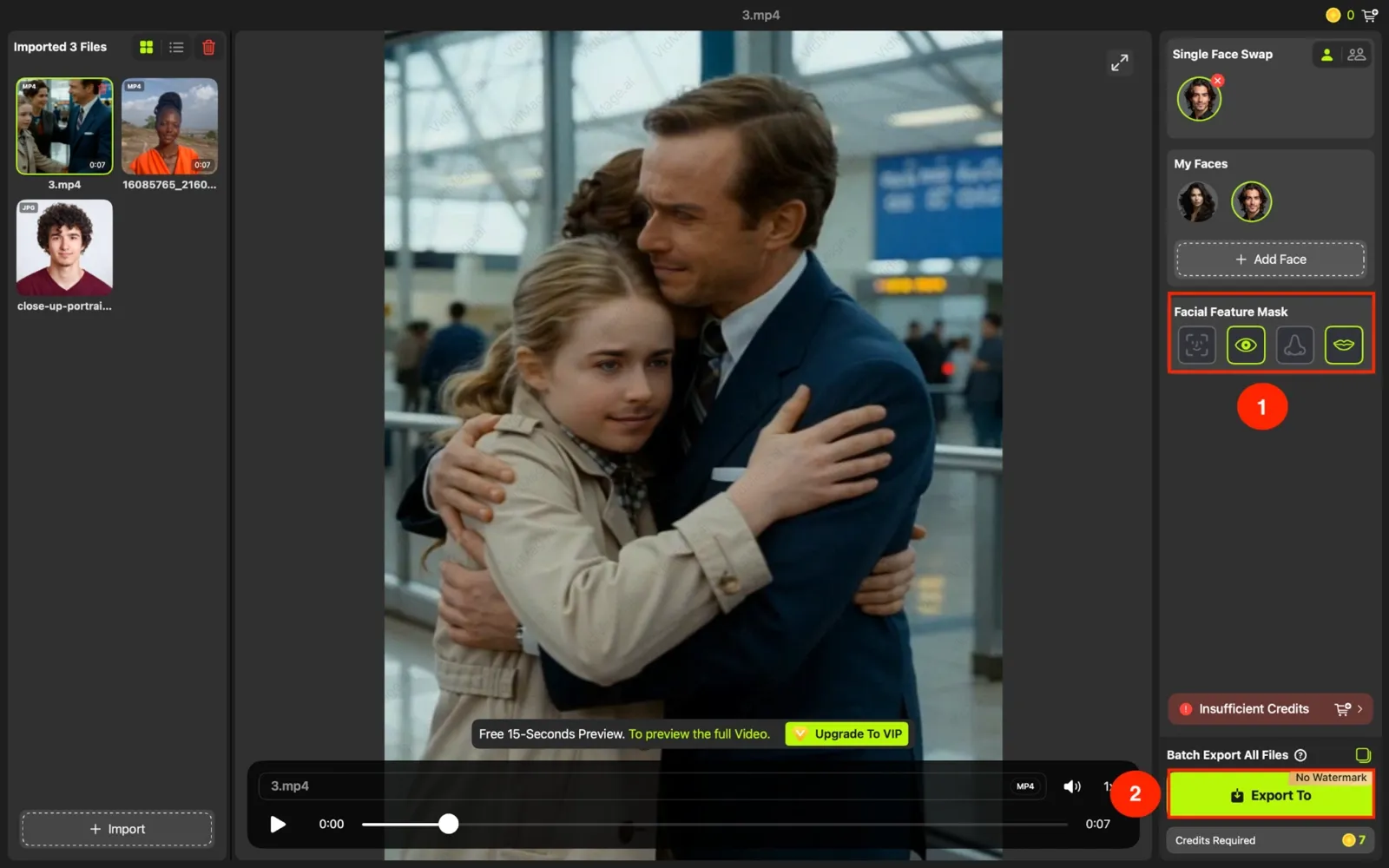
Step 4: Adjust specific features like the eyes, lips, or nose if you only want a partial swap instead of the whole face. Click "Export" to save your finished video.
Note: If you're using a Windows PC, you'll need to consider another tool, as VidMage is built specifically for macOS. A key advantage is that it runs locally, enabling offline face swaps while keeping your media private.
FAQ
Is video face swapping legal, and do I need consent?
Face swapping is legal when you have the right to use the footage and the face involved. Always get clear consent from anyone whose face you're swapping in, and never use a swap to impersonate, deceive, or harm someone. Several US states have laws that specifically target non-consensual deepfake content, so consent matters both ethically and legally.
How do I avoid flickering or a jittery, fake-looking swap?
Flicker usually comes from fast motion or sharp angle changes in the source video. Trim your clip to the steadiest, most front-facing section before uploading. The AI tracks facial landmarks frame by frame, so a calmer, more consistent video gives it less to work around, which means a smoother, more seamless result.
What makes the best source face photo?
A clear, front-facing photo is the starting point, but matching matters just as much. Try to match the lighting direction and expression in your photo to the scene in the target video. If the clip shows the person looking slightly to one side, a photo at a similar angle blends better than one shot dead-on. A higher-resolution photo also helps the AI detect facial landmarks more accurately.
Are my uploaded videos stored, and what's the real cost of free tools?
Check a tool's privacy policy before uploading anything sensitive, since storage and retention practices vary. On the free tier, most face swap tools, including VidMage, cap features like clip length and output resolution, and limit how many swaps you can run before you hit a credit limit. Paid plans typically remove these caps and unlock higher-resolution exports, such as HD or 4K.