


In under a minute, you can replace a face in a photo or video, or a full group shot, using nothing more than two uploads and a single click. This guide breaks down how to face swap across different formats, photos, videos, multiple faces, and even offline on Mac using VidMage's free tool. Every swap automatically blends skin tone and lighting, so the result looks natural whether you are working with a still photo or a moving clip.
How to Face Swap a Photo Online?
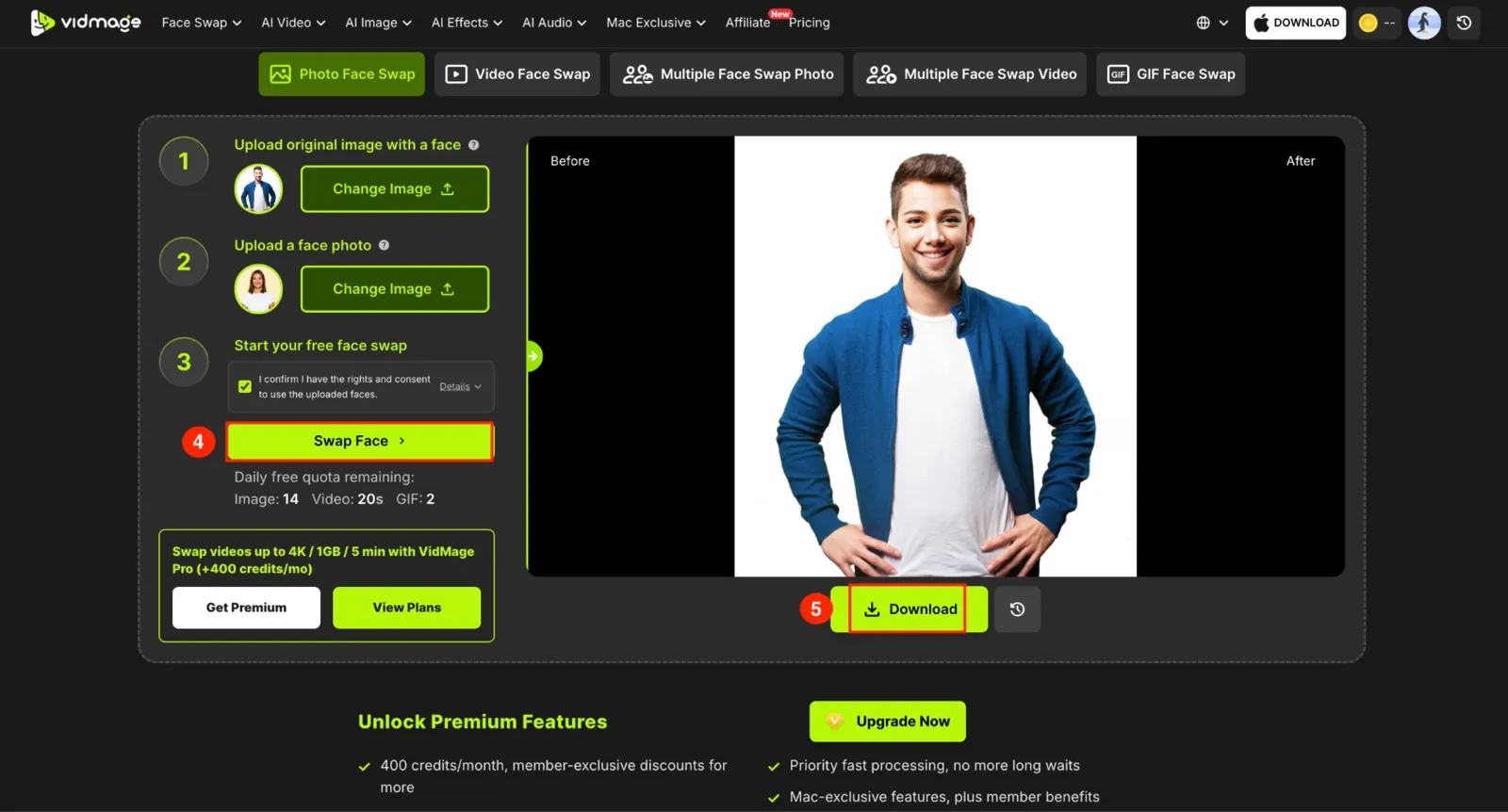
VidMage works seamlessly on your browser for photo swap. Follow these steps and get a face swap within 60 seconds on both your desktop and mobile browser:
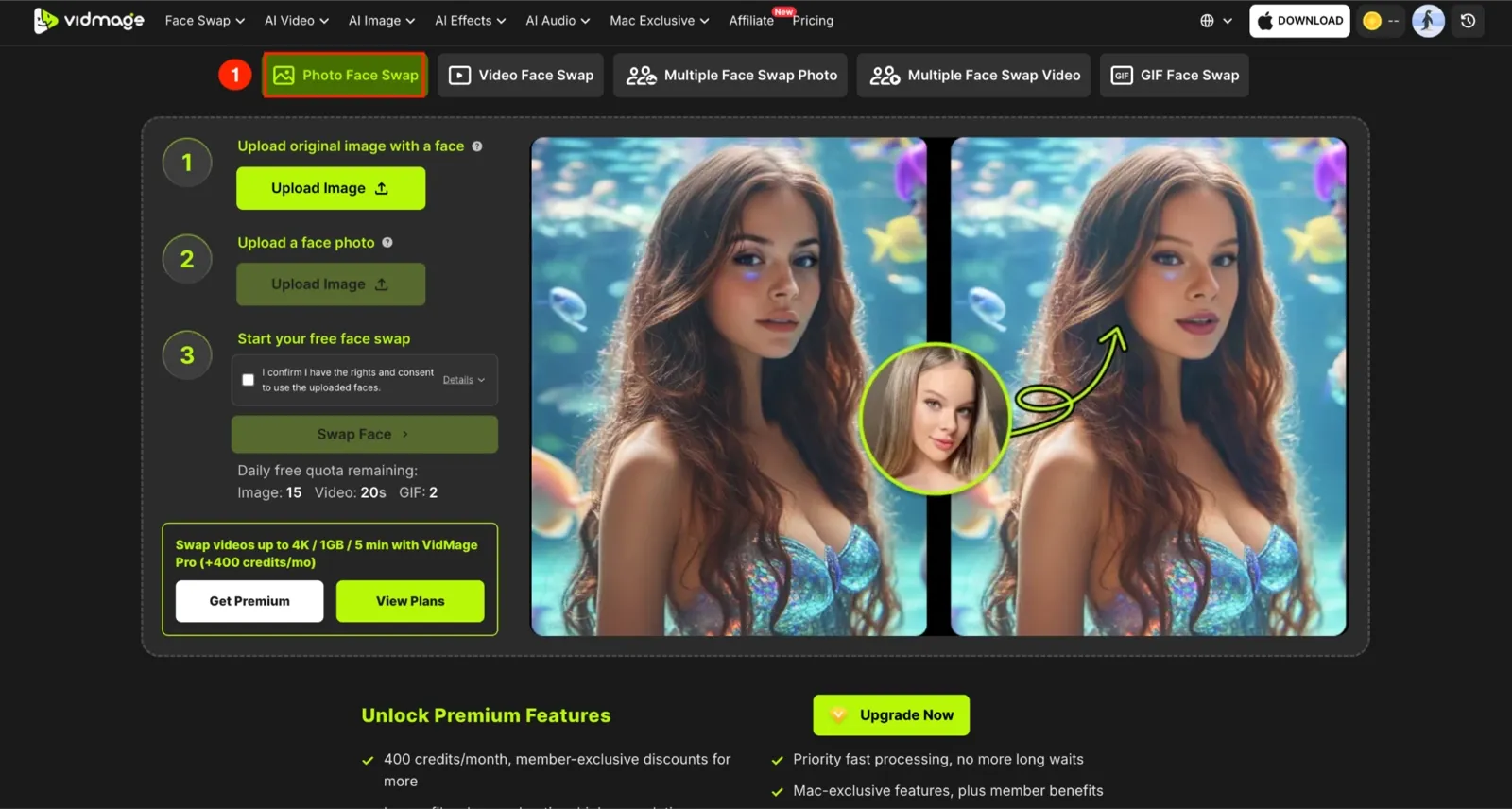
Step 1: Go to VidMage's website and tap "Photo Face Swap" on the main dashboard. You don't need to log in to use this tool.
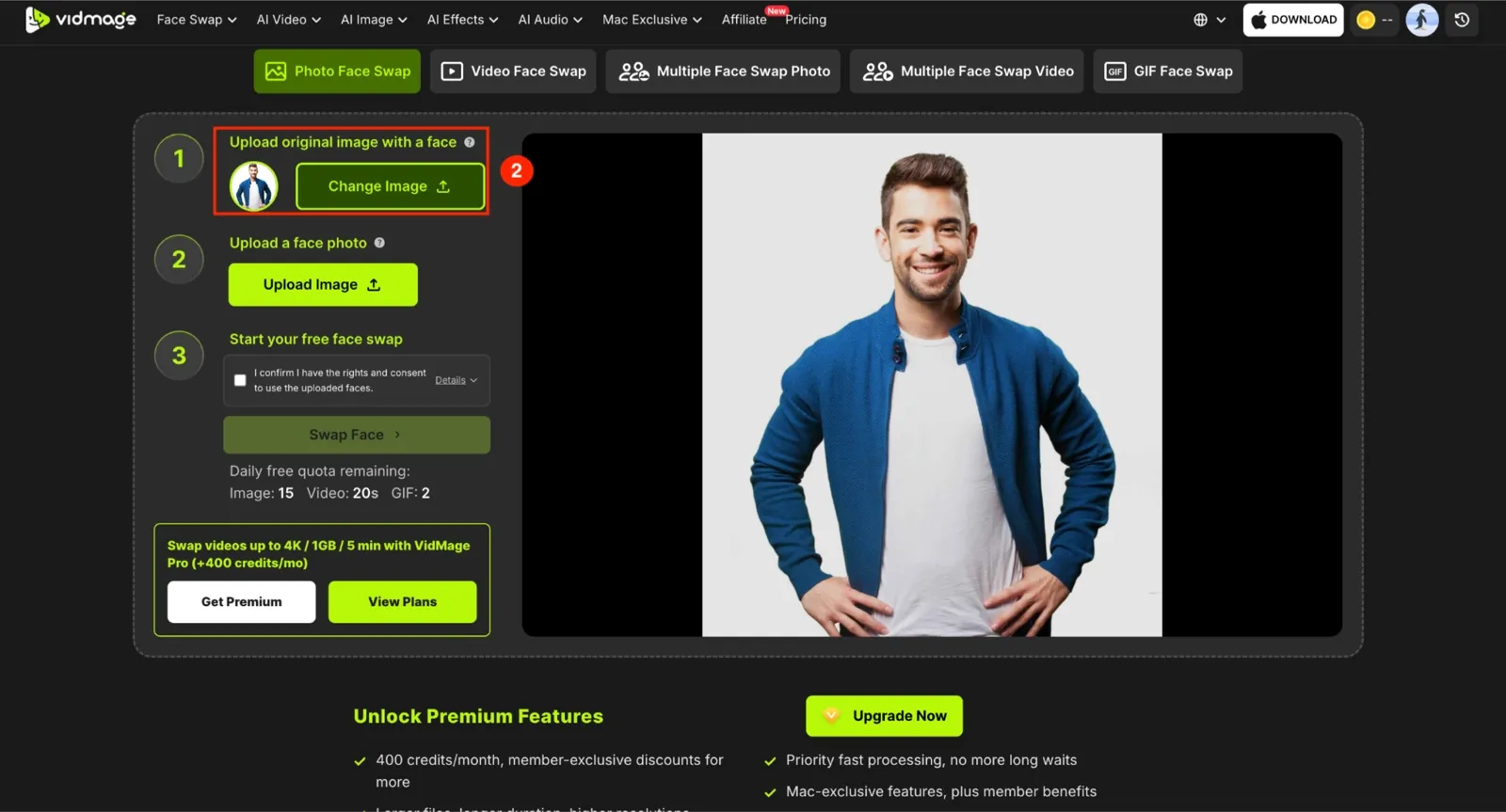
Step 2: Click "Upload Image" to add the base photo you want to edit, or select a template.
Step 3: Upload the target face you want to swap in. This can be your own photo, a friend's photo, or any clear face image.
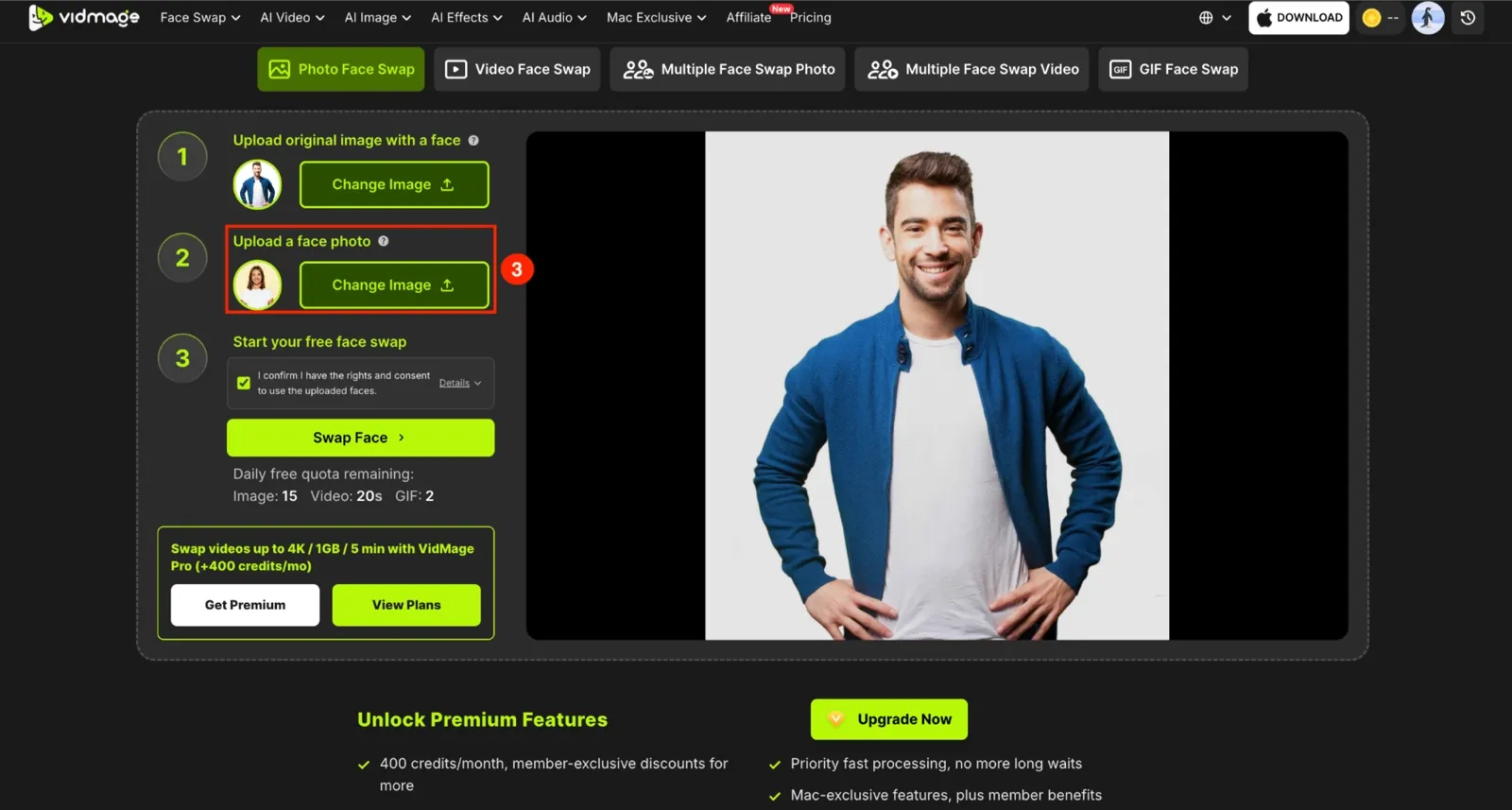
Step 4: Click "Swap Face" to let VidMage generate the result. Click "Download" to save the finished photo to your device.
How to Face Swap a Video?
Using the same VidMage tool, you can swap a face in a video. Follow the steps and get a realistic face swap:
Step 1: Tap "Video Face Swap" on VidMage's homepage, then click "Upload Video" to select a video from your device. VidMage supports most standard formats like MP4, MOV, and M4V.
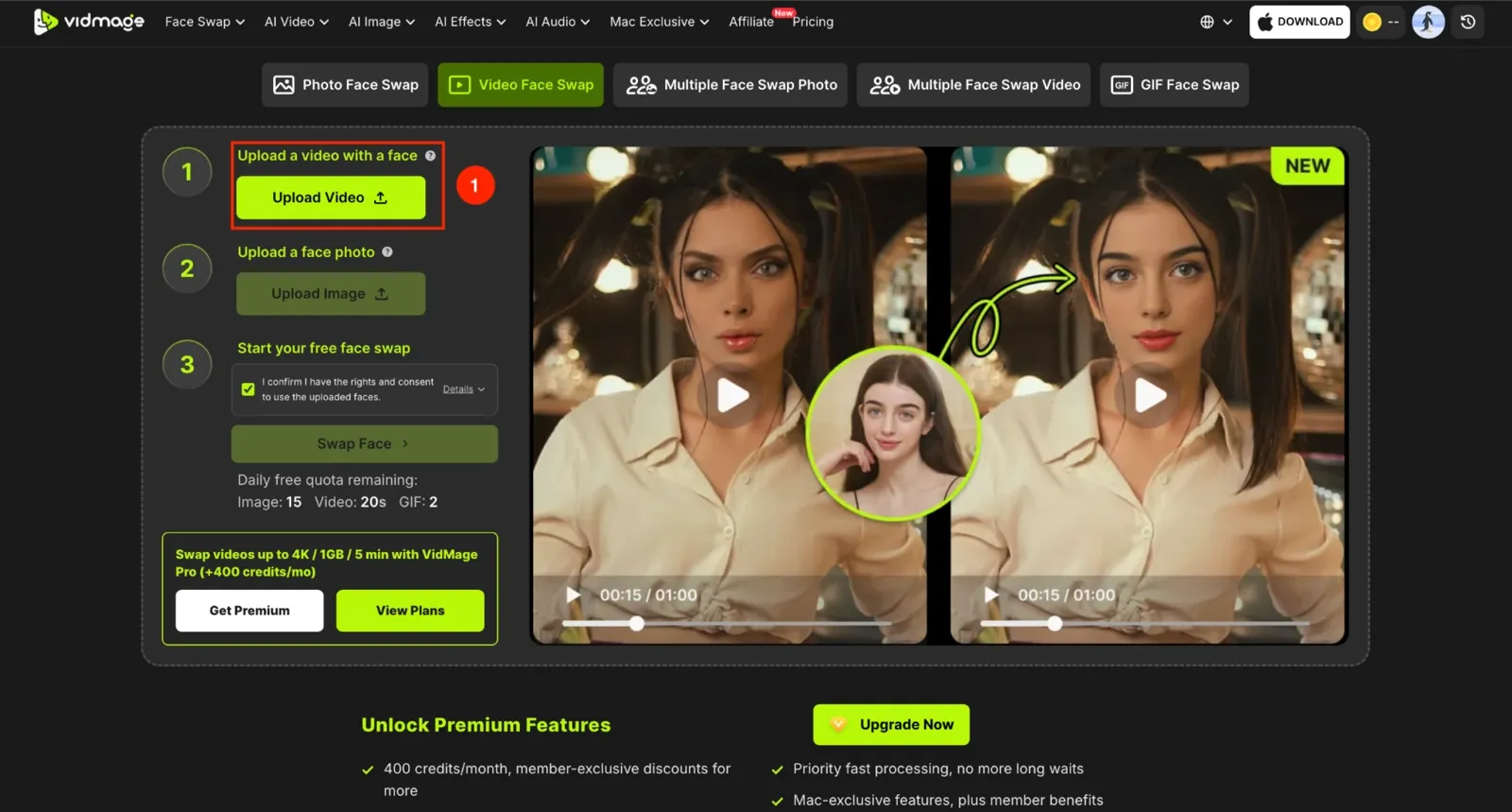
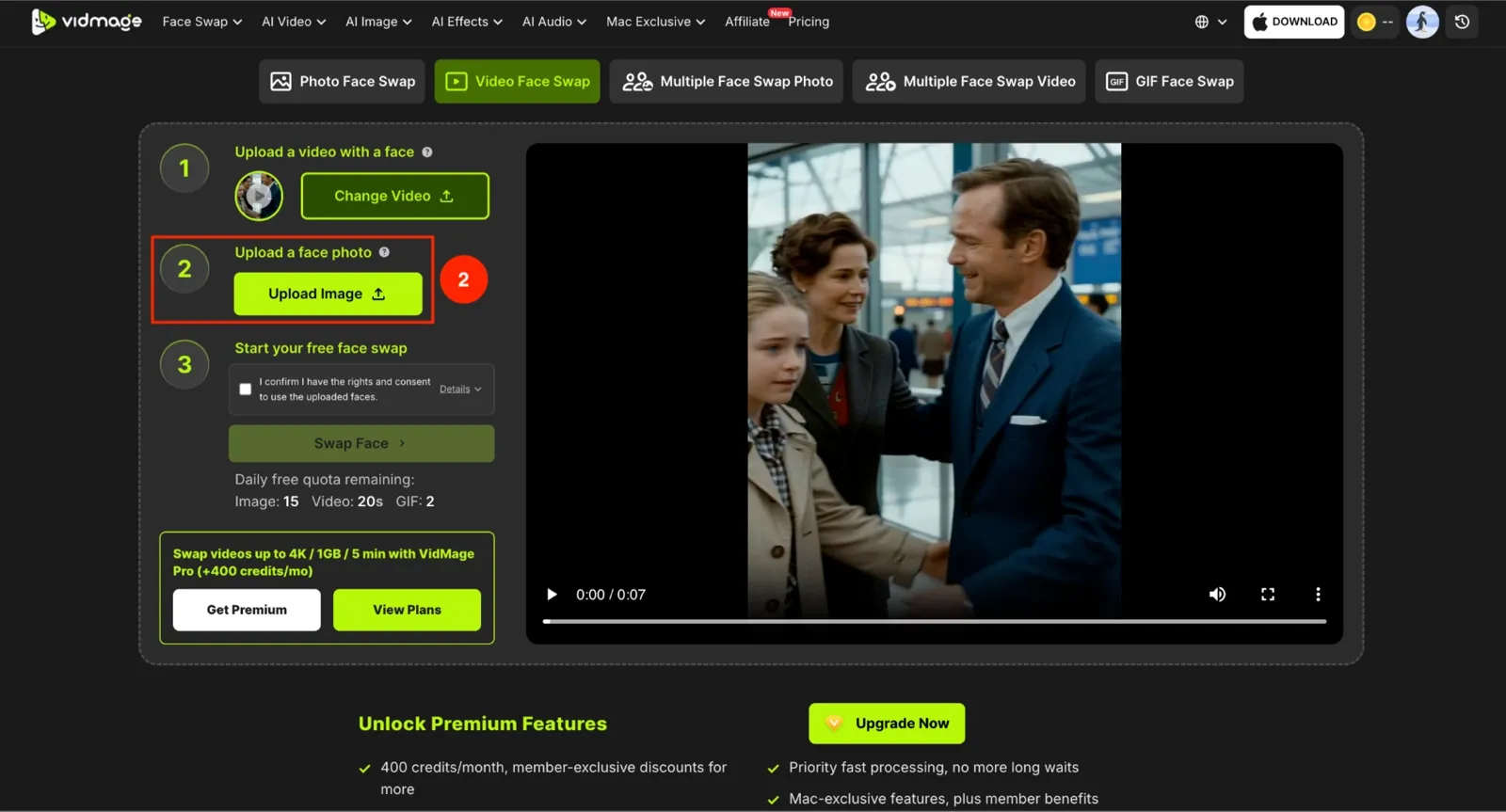
Step 2: Upload a clear, full-face photo with no blur or obstructions.
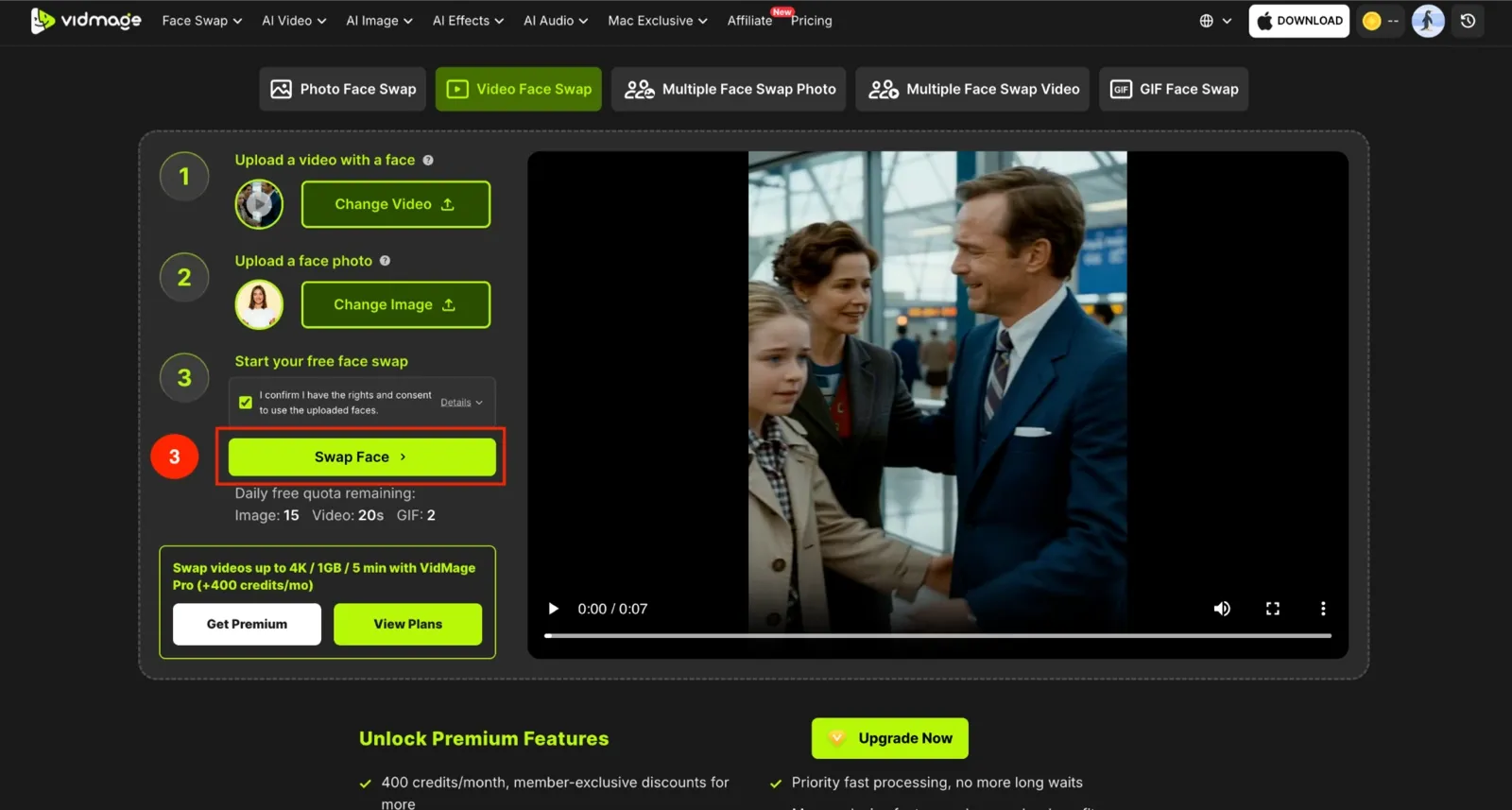
Step 3: Click "Swap Face" to start the AI processing. VidMage detects the face in your video and swaps it across every frame.
Step 4: Click "Download" to save your finished video.
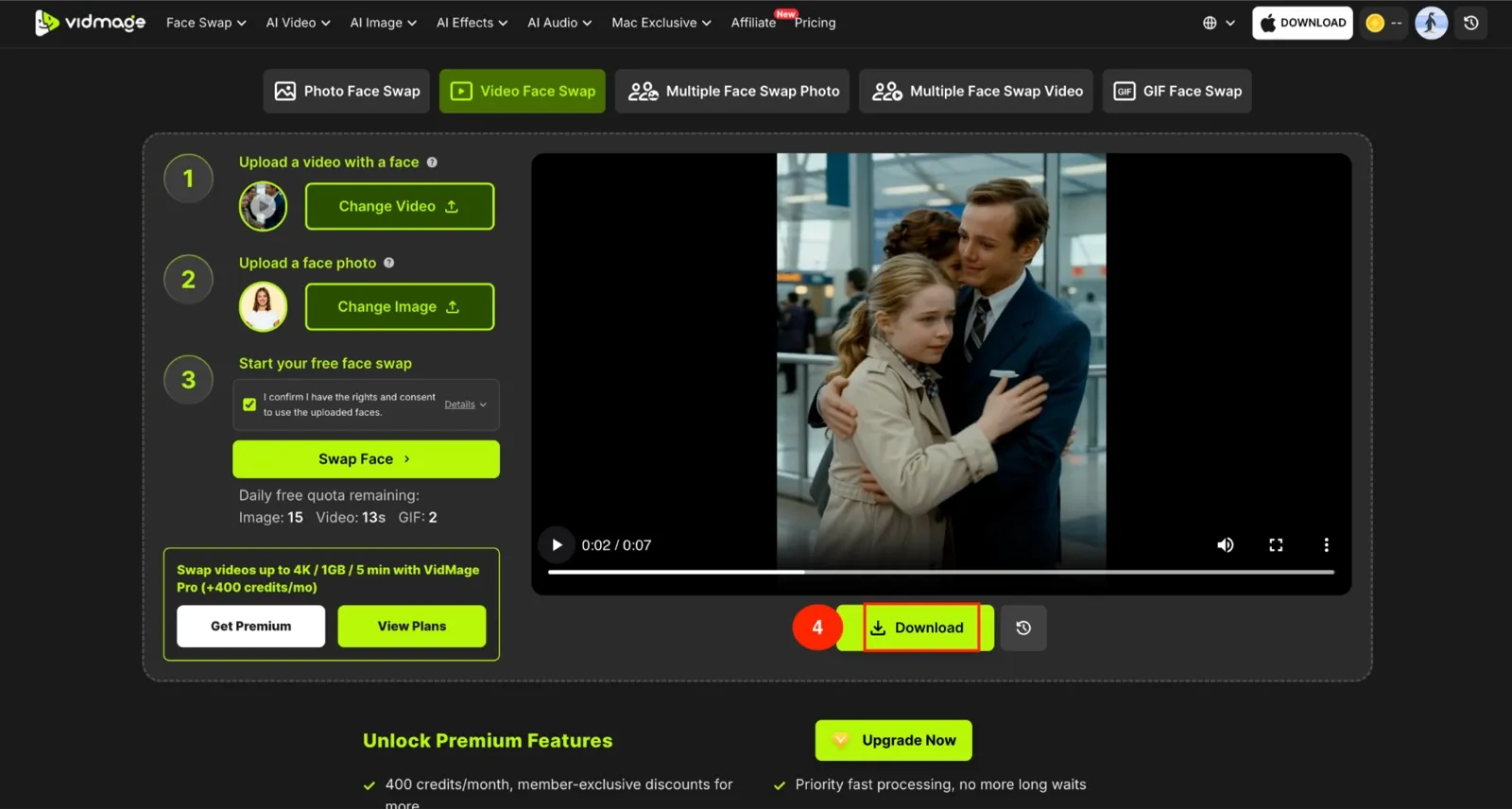
Note: The free version supports videos up to 15 seconds, 100MB, and full HD at 1080p.
How to Face Swap Multiple Faces?
Follow the steps given below to get a realistic multiple face swap online:
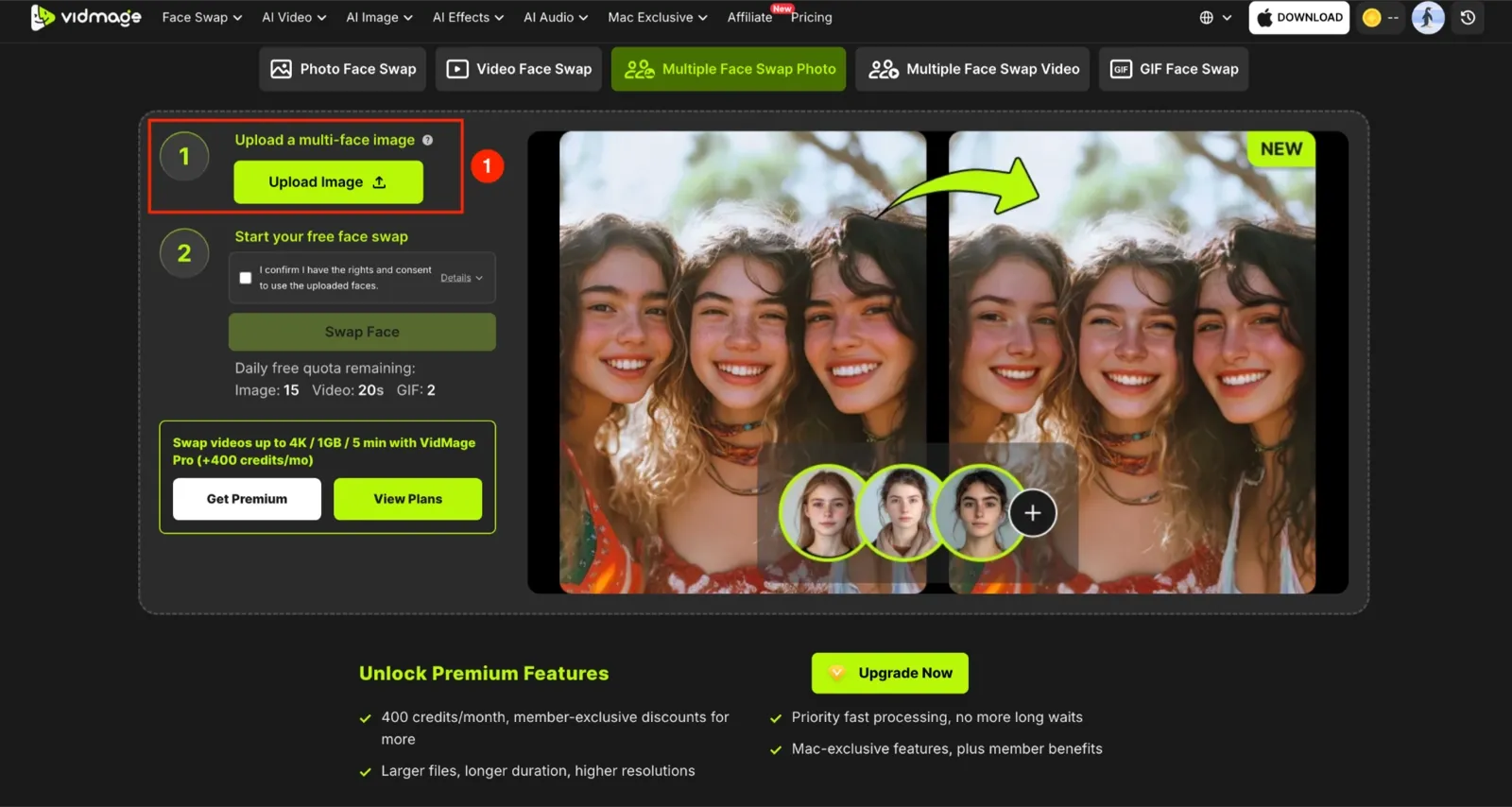
Step 1: Tap "Multiple Face Swap" on VidMage's homepage, then click "Upload Image" to add a group photo.
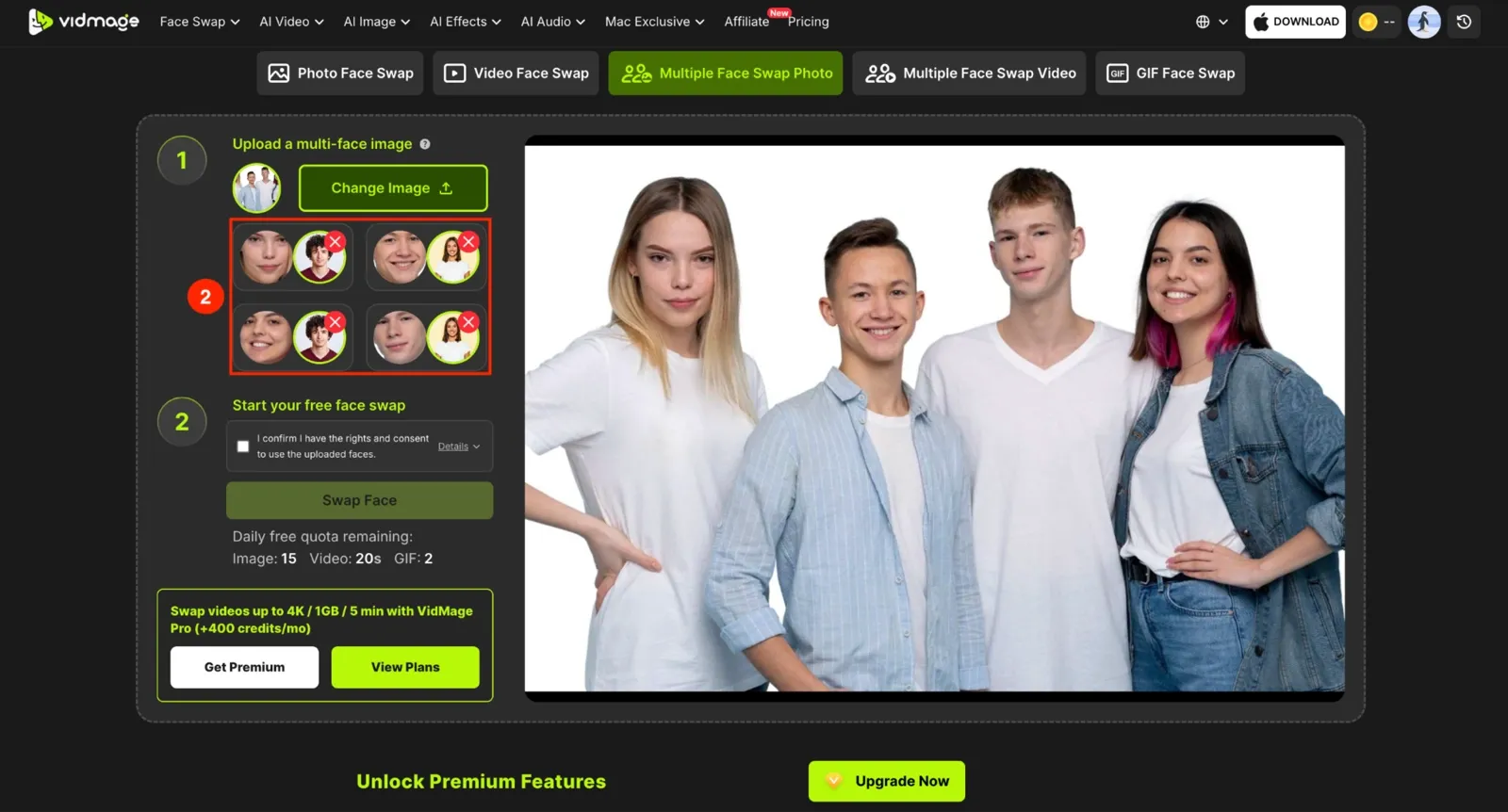
Step 2: VidMage automatically detects every face in the photo. Select the face you want to replace, then choose the new portrait for it. Repeat for any other faces you want to swap.
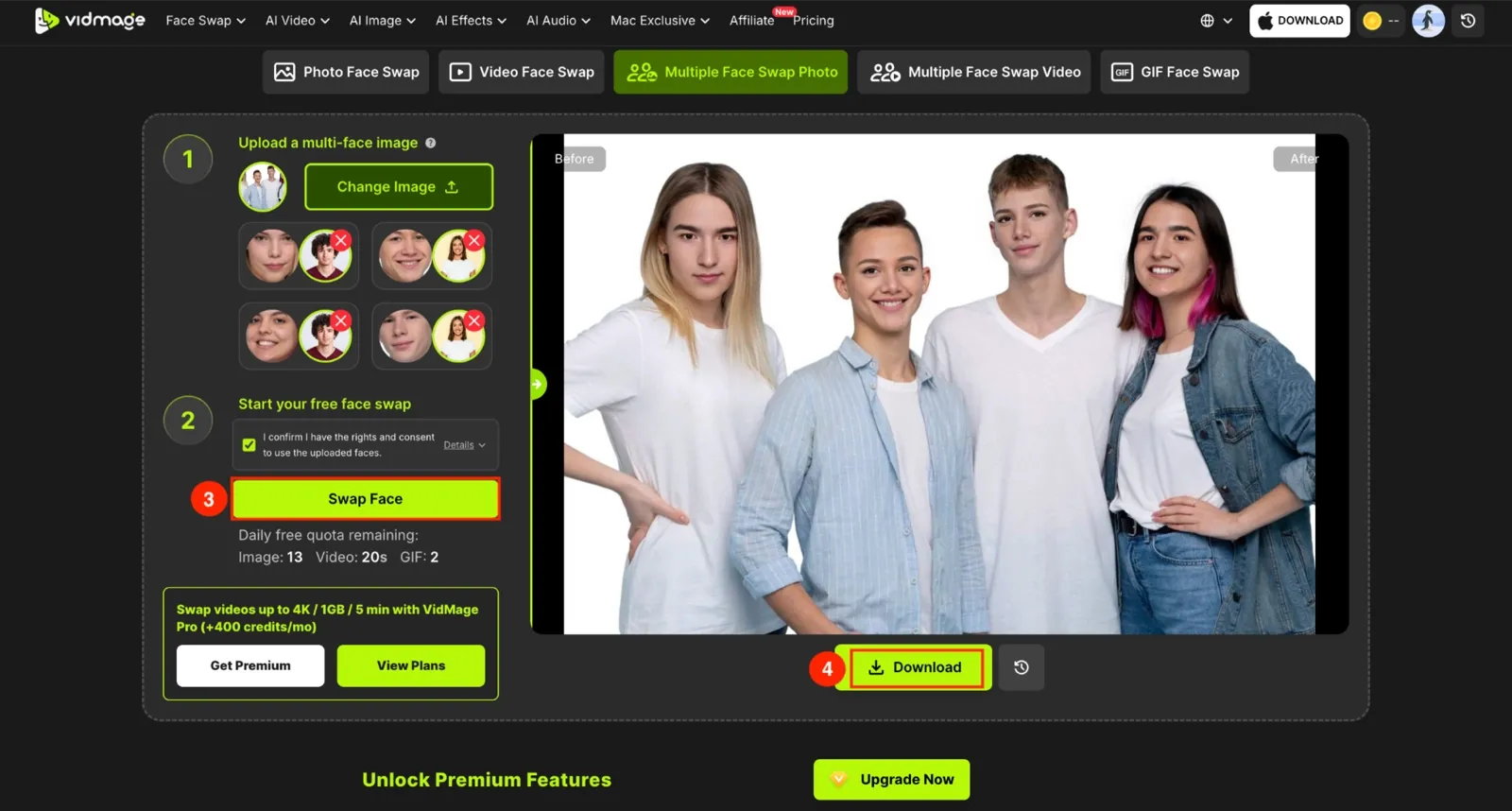
Step 3: Click "Swap Face" to generate the result. Once done, tap the "Download" button to save the photo.
How to Face Swap Locally on Mac?
VidMage works offline on your Mac and swaps faces locally, so you do not need to worry about privacy. Take these steps and get an offline face swap instantly without losing much time:
**Step 1: **Go to VidMage's website and click "Free Download." Install and launch the app once the download finishes. Click "Login" on the main dashboard, agree to the terms, and sign in with your Google account.
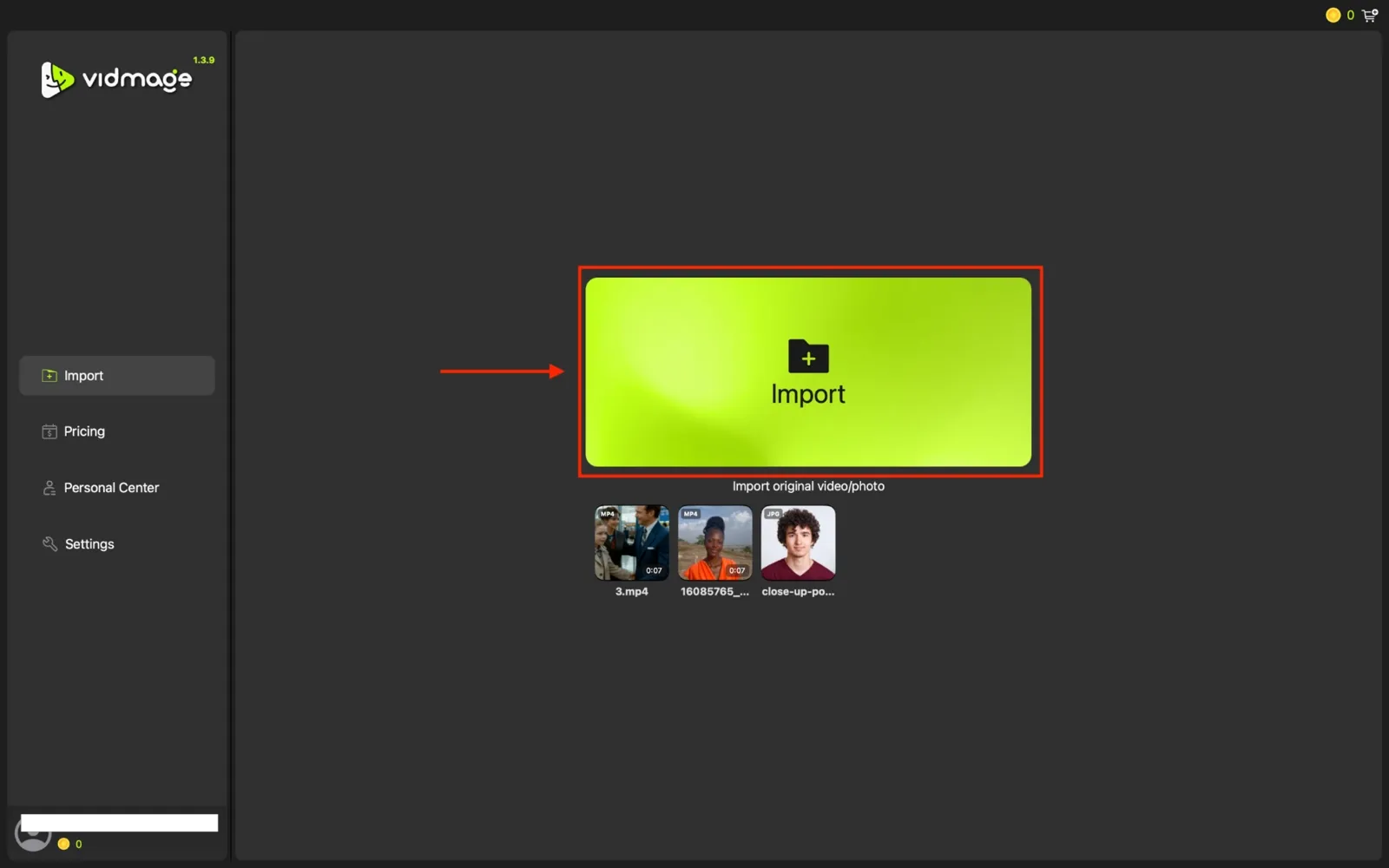
Step 2: Click "Import" again in the new window to upload a photo or video.
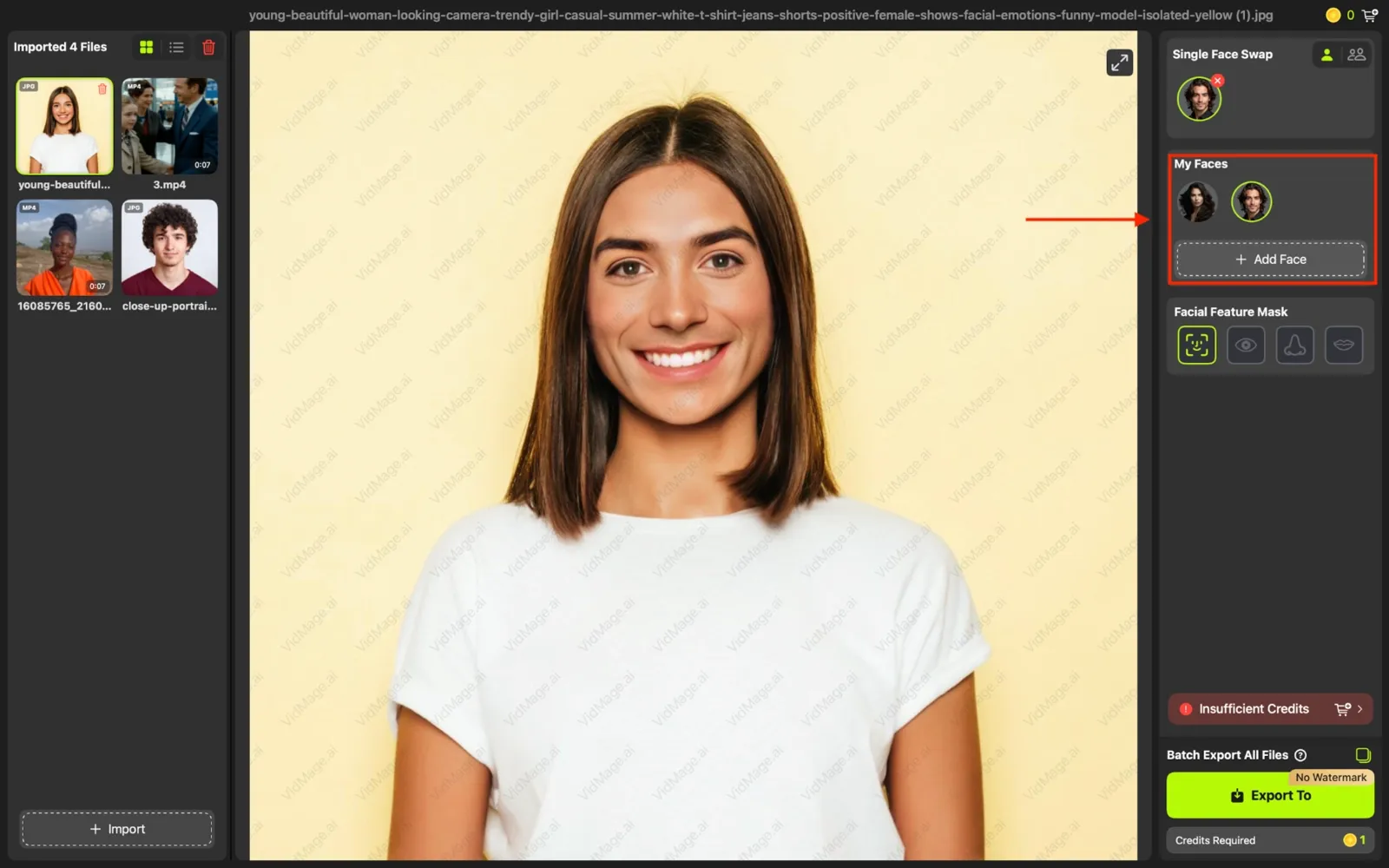
Step 3: Click "Add Face" to upload the face you want to swap in, or choose from the built-in templates. You can also mask specific features, such as the eyes, lips, or nose, rather than swapping the entire face.
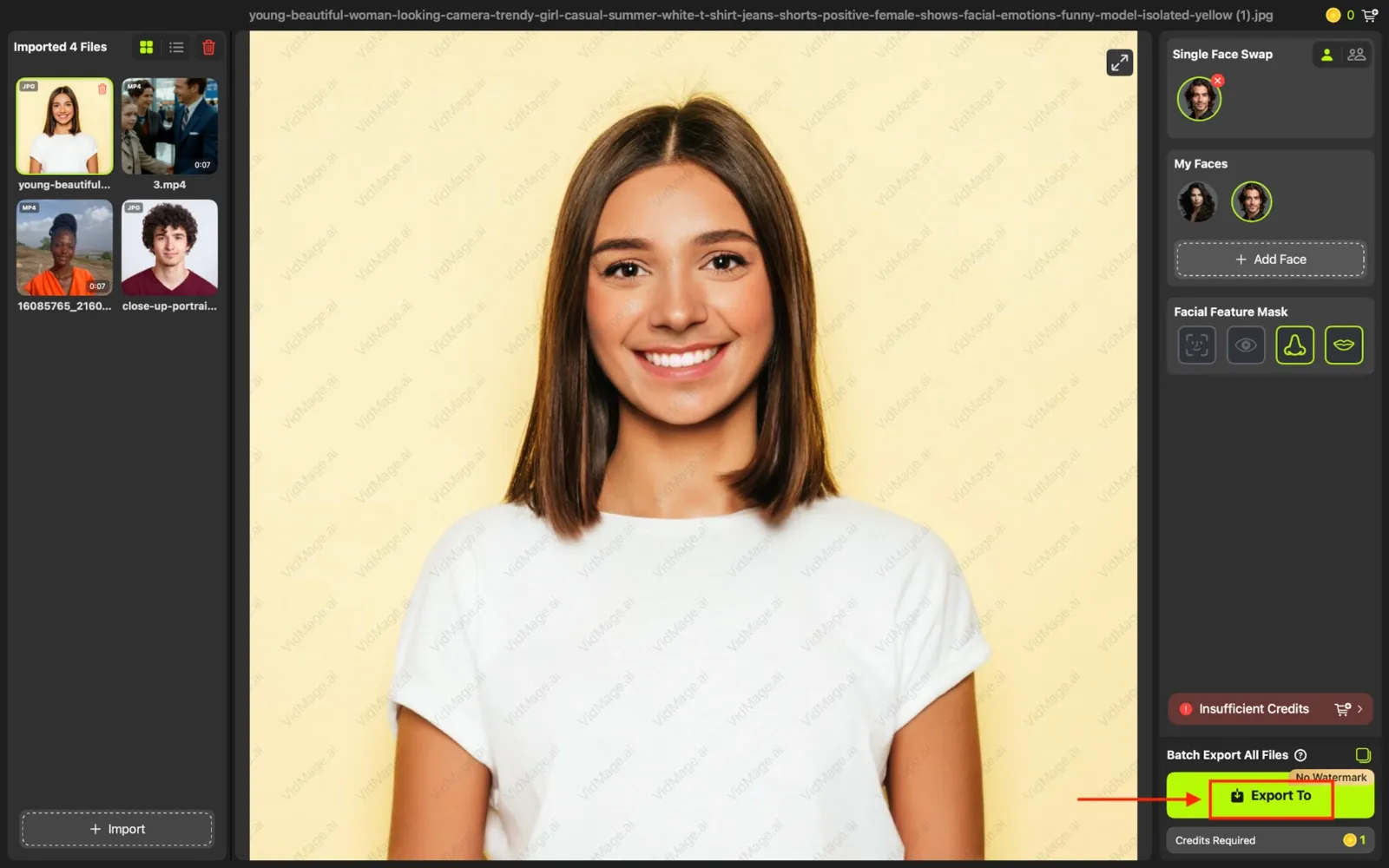
Step 5: Hit the "Export to" button to save your finished photo or video.
Note: The desktop app is available only on Mac, and a premium subscription unlocks the full set of features.
FAQs
Can I face swap on my phone?
Yes. Open VidMage in your phone's browser. Upload the source and target face, and click the swap face option. You don't need to download an app, and you get the same AI quality as on a desktop.
Can I swap multiple faces in a video, not just a photo?
Yes. VidMage's multiple face swap tool also works on video, so you can assign a different source face to each person in a group clip, not just in a photo.
Why does my face swap look blurry or misaligned?
This usually comes down to the source photo. Use a clear, high-resolution image with the full face visible and no obstructions. Faces with a similar angle and expression to the base image also blend more accurately.
Can I face swap myself into a movie scene or meme template?
Yes. VidMage offers a template library for both photo and multiple-face swaps, so you can pick a movie scene, character, or meme template instead of uploading your own base image.
What does VidMage do to prevent misuse of uploaded photos?
VidMage's terms require you to upload only images and videos you own or have explicit permission to use, and creating non-consensual or misleading content can result in an account being terminated. If you come across a face swap made without someone's consent, VidMage reviews abuse reports within 24 hours. For specifics on how long your own uploads stick around, that information is in VidMage's privacy policy rather than its terms of use.