


You can learn how to change a face in a video in three ways: online, on desktop, and on mobile. Every method in this guide uses AI to detect facial landmarks, match expressions, and blend the new face into the video frame by frame, so the result looks natural even with motion.
Let's learn with a simple step-by-step guide.
How to Change Face in Video Online?
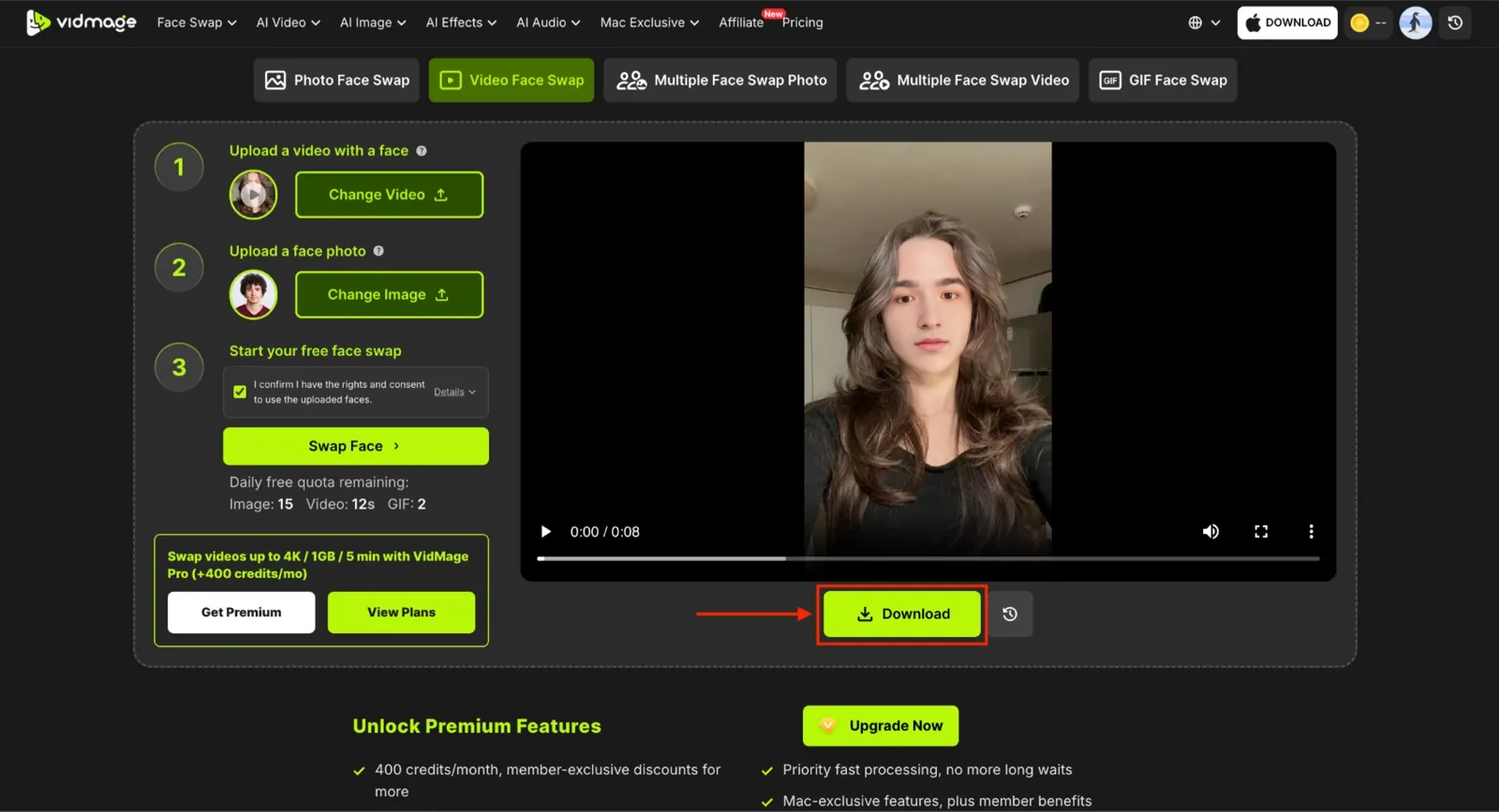
With VidMage, swap faces in videos without a login or subscription and get watermark-free results. Here is how to swap faces:
Step 1: Head to VidMage's Video Face Swap page and upload the source video.
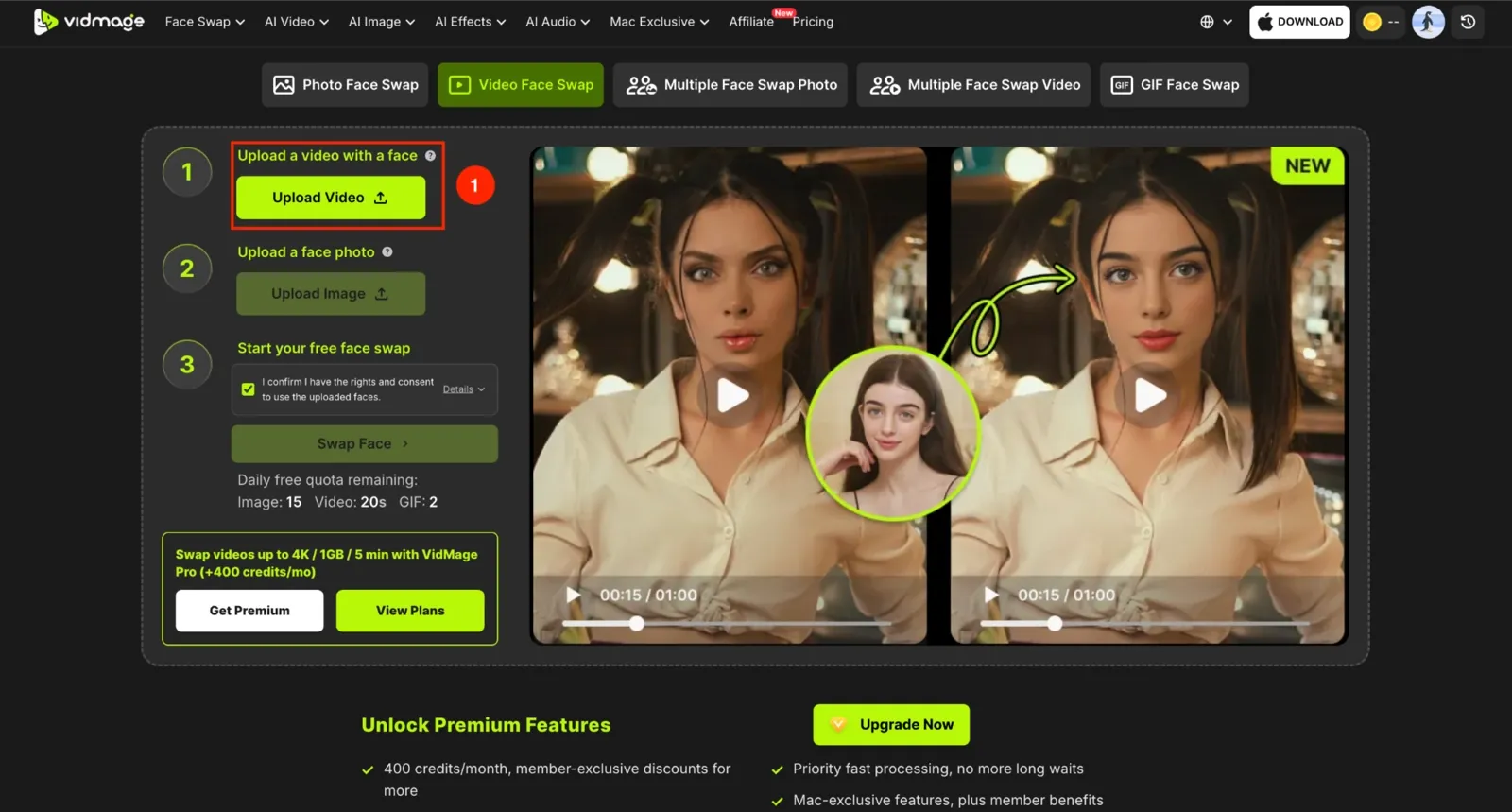
Step 2: Upload the target face photo you want to swap into the video.
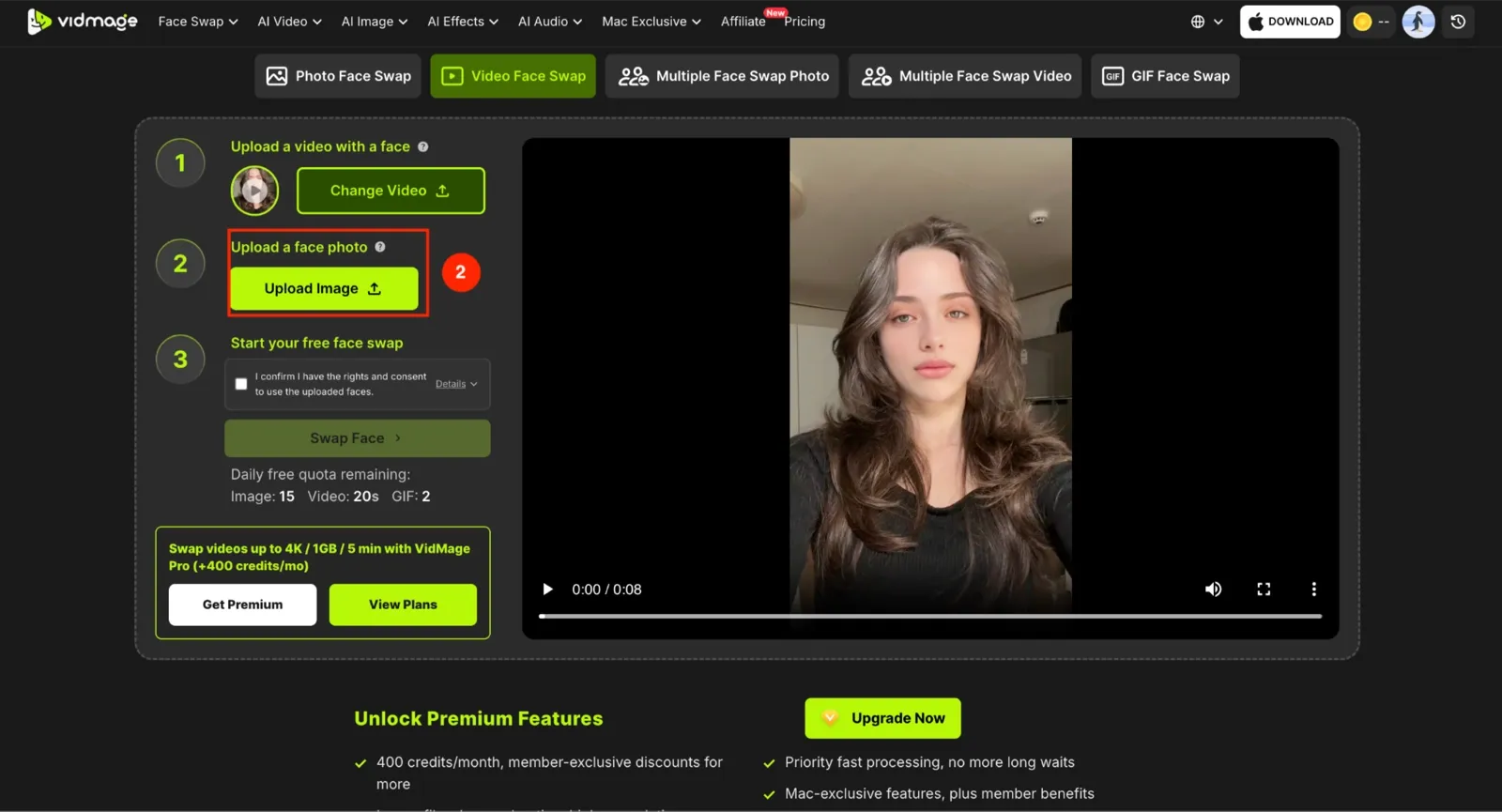
Step 3: Click "Swap Face" to start the process.
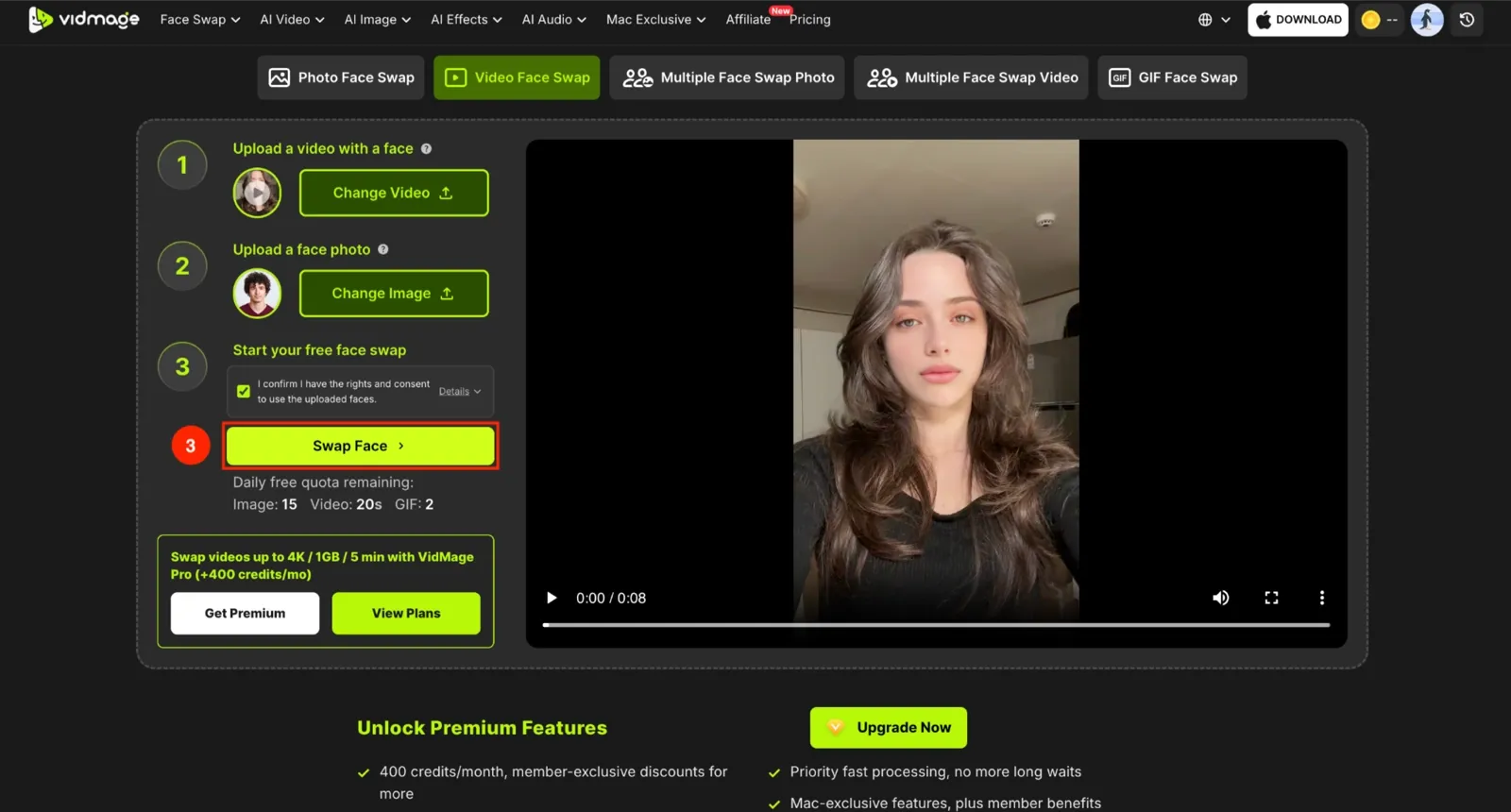
**Step 4: **Tap the "Download" button to save the results.
How to Change Face in a Video on Mobile?
You have two solid options for changing a face in a video on your phone:
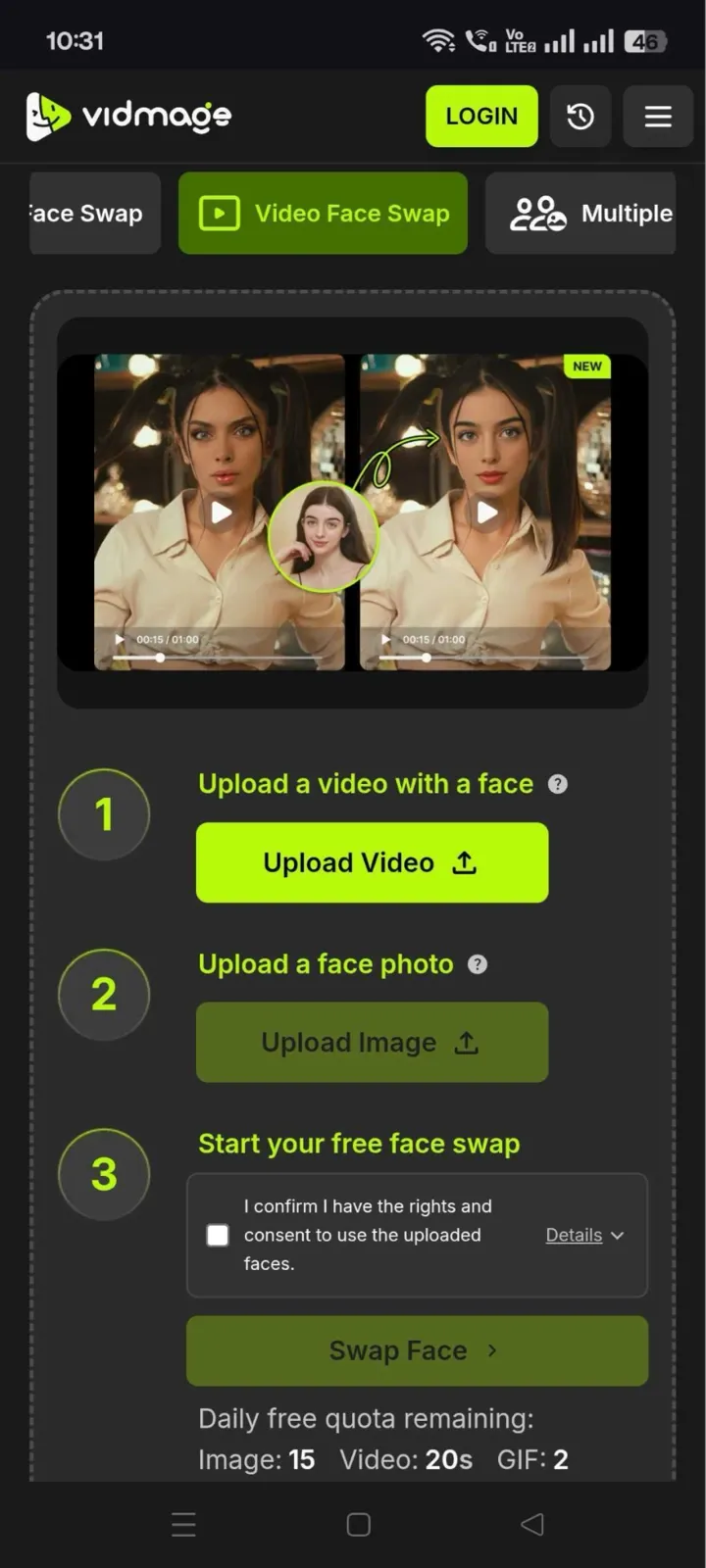
Option 1: Use VidMage in Your Mobile Browser
If you want the most realistic face swap, open VidMage in your phone's browser and follow the exact same steps as above. You get the same AI quality as on desktop, with no app to install and no extra space on your phone.
Option 2: Use the Reface App
If you'd rather work in a dedicated app, Reface is built for face-swapping videos on the go. Here is the step-by-step guide to learn how to change your face in a video on your mobile app:
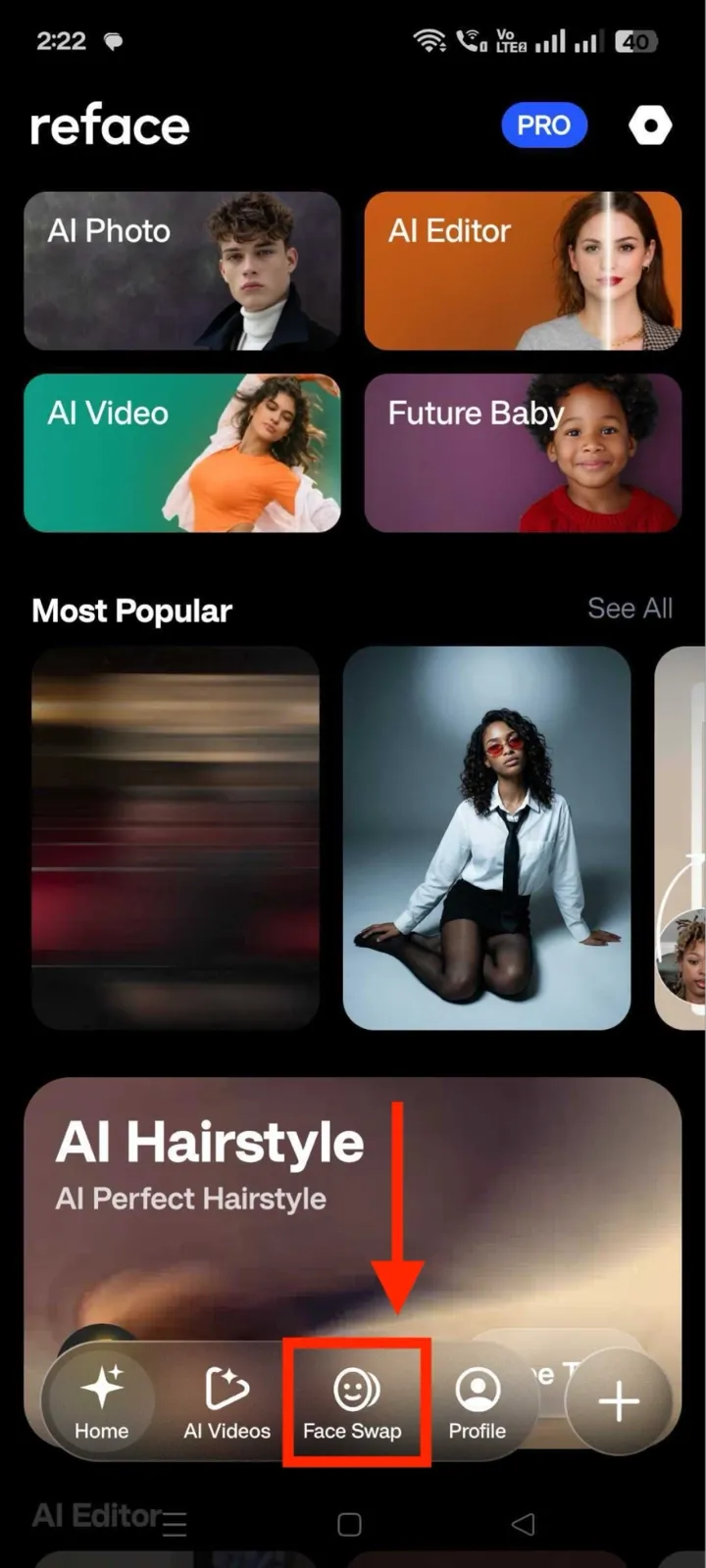
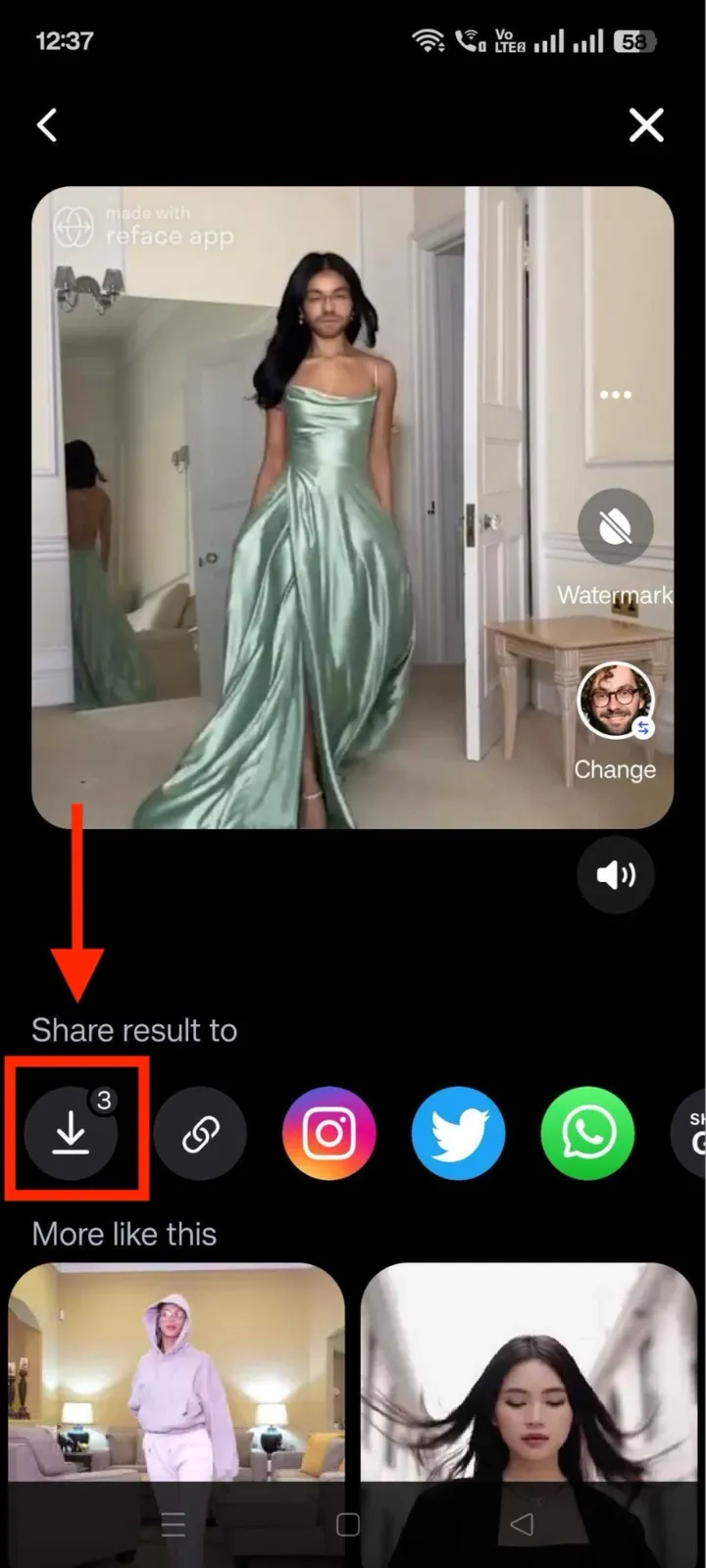
Step 1: Download the Reface app and tap the face swap option in the bottom menu.
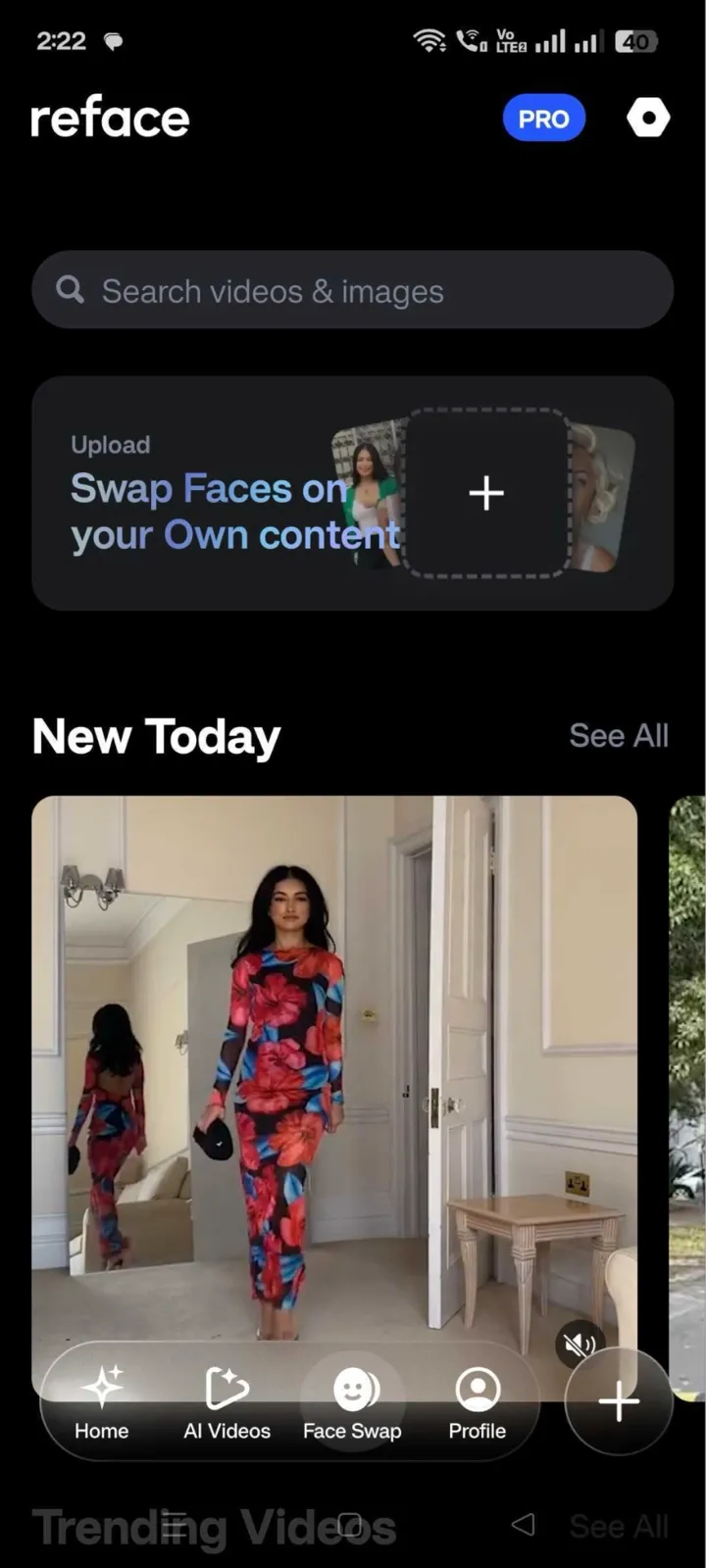
Step 2: Choose a video from the five template libraries or upload from your phone library.
Step 3: Click on the “Choose face” option and upload the target face, and click "Swap Face."

Step 4: Once done, click the Download icon and save the output.
How to Change Face in a Video on Desktop?
For more control over your face swap and the option to work offline, you can install the VidMage Mac app.
Step 1: Download the VidMage app from the official website and create your account.
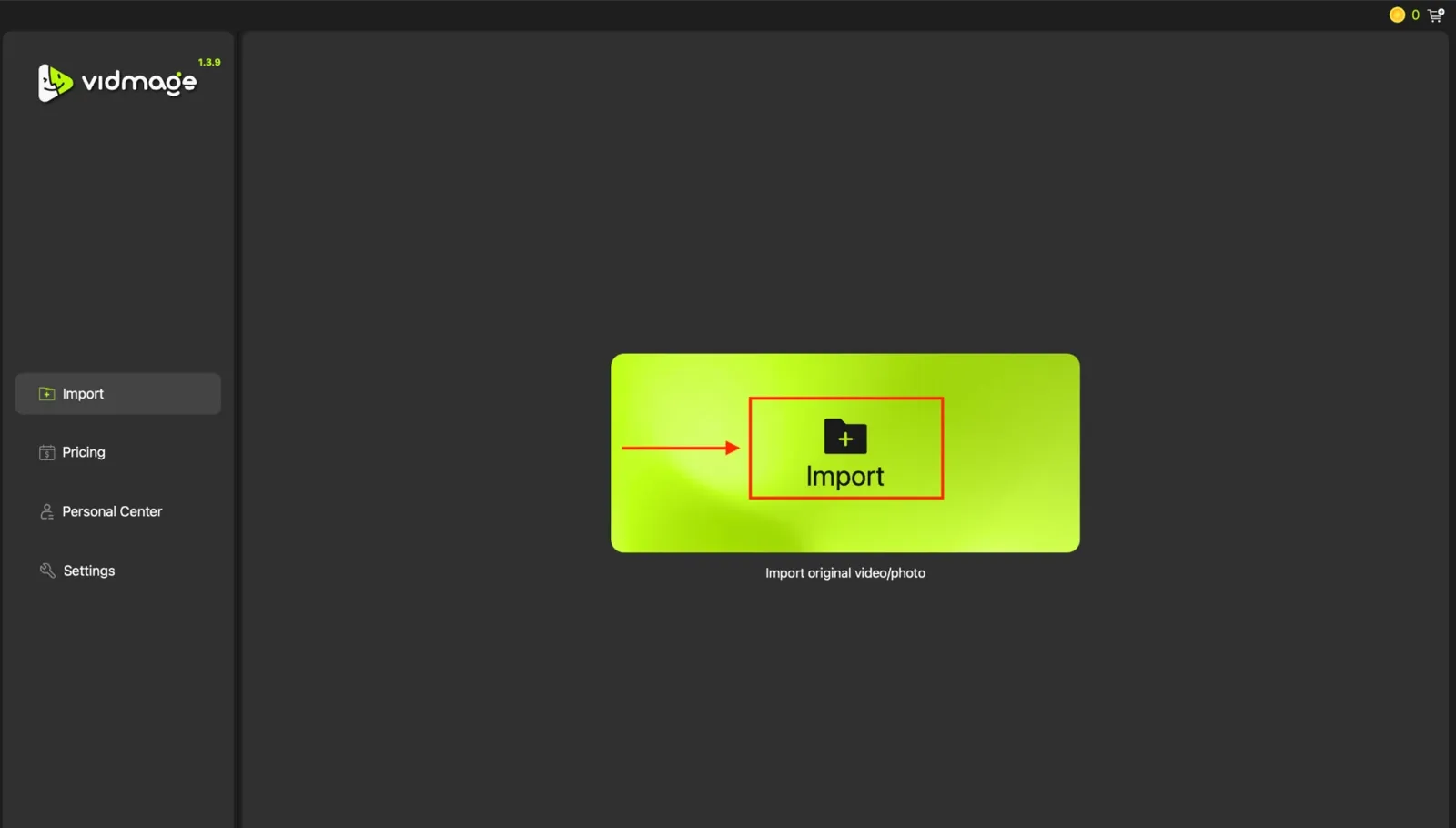
Step 2: Click the "Import" option to upload the video for face swap.
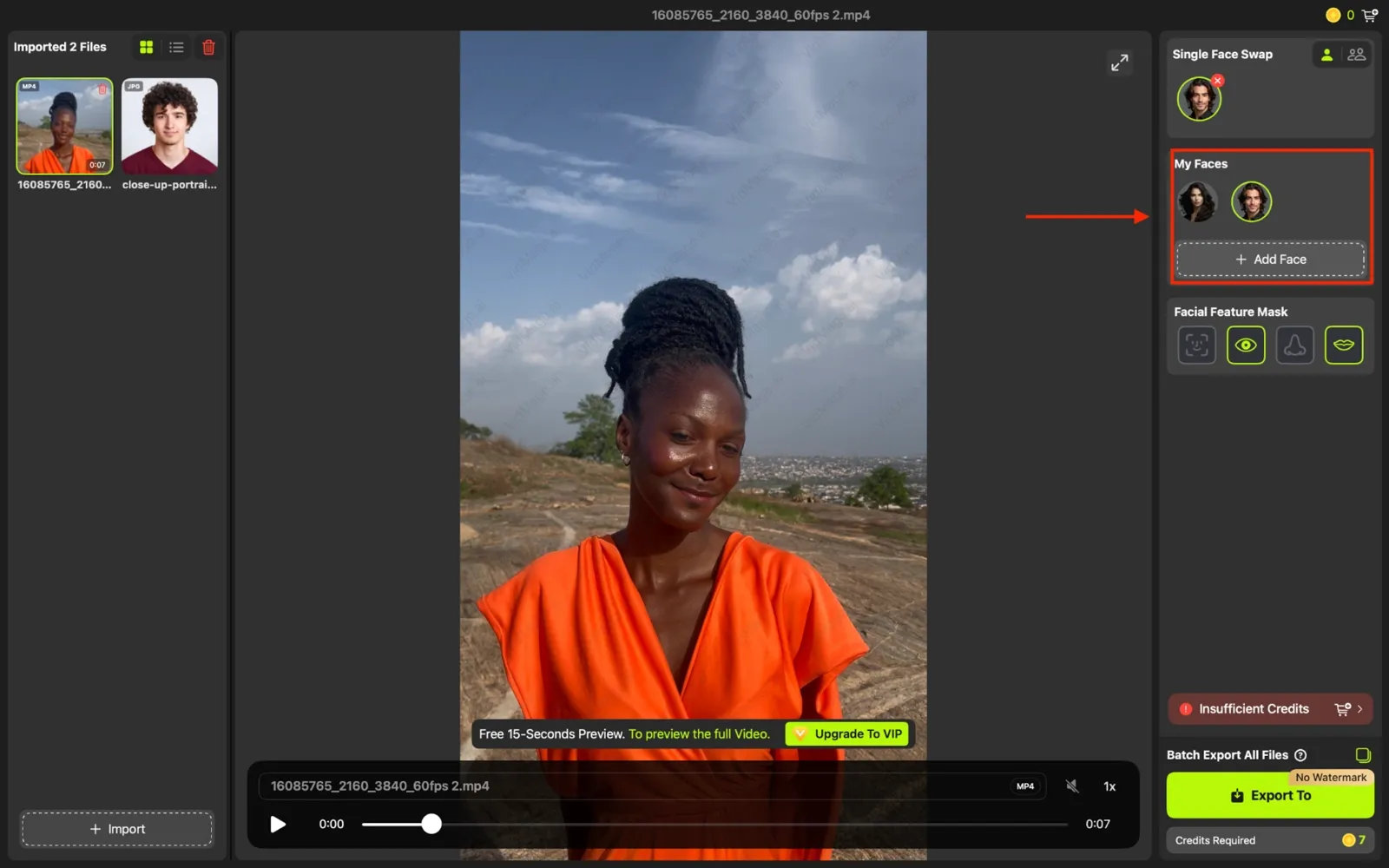
Step 3: After uploading the video, click "Add Face" and upload the target face. It will automatically swap faces in the video.
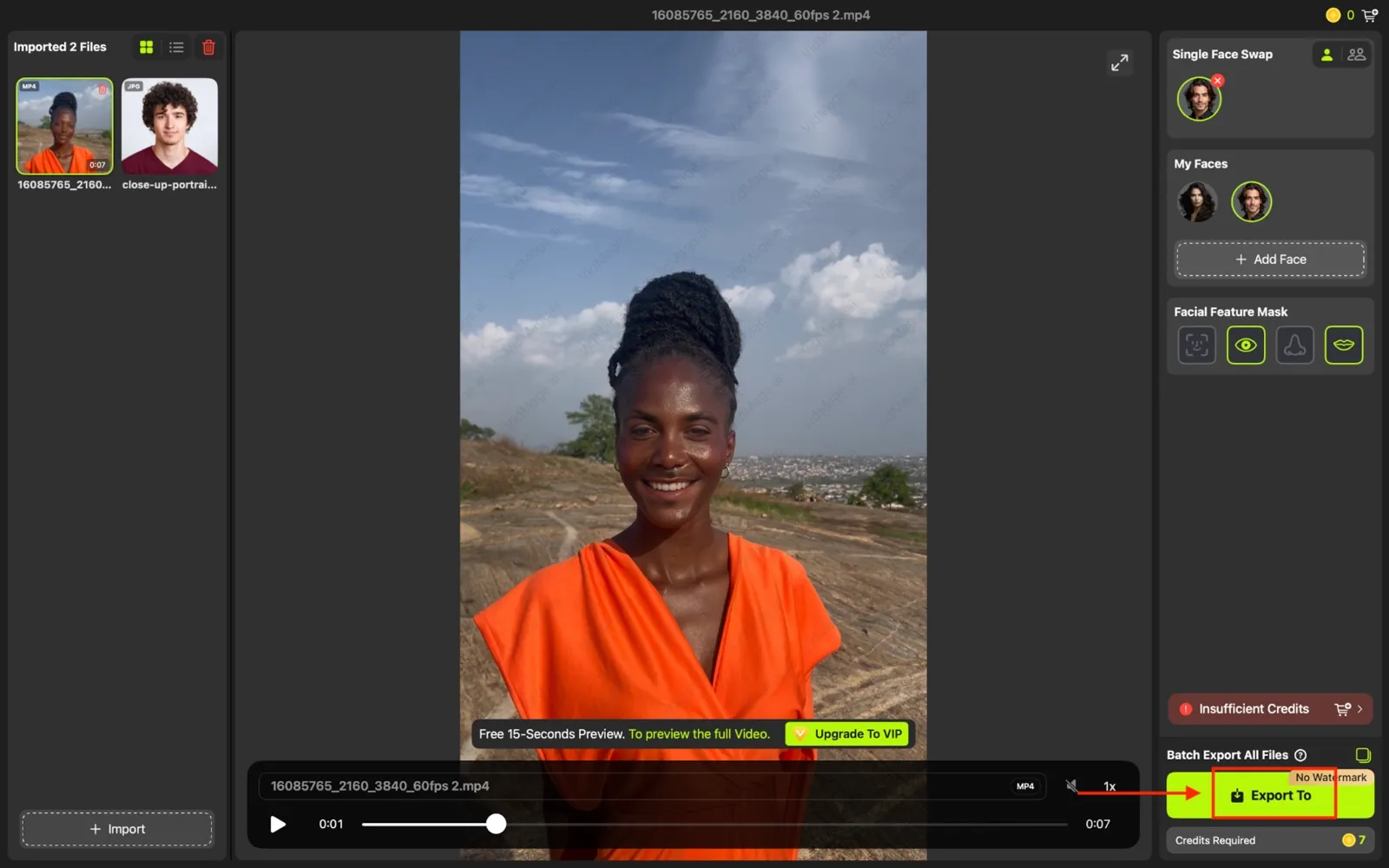
Step 4: If you do not want to swap a full face, click the specific features like nose, eyes, or lips. Then, click the "Export to" button to save the video.
Note:* VidMage is designed exclusively for Mac users and is not currently available on Windows.*
Quick Comparison of Video Face Swap Methods
Different face-swap tools suit different needs. If you want a quick browser-based solution, a mobile option, or offline desktop editing, the comparison below can help you choose the right method.
| Method | Sign-up Needed | Works Offline | Best For |
|---|---|---|---|
| VidMage Online (Browser) | No | No | Quick face swaps without installing software |
| VidMage Mobile Browser | No | No | On-the-go face swaps with highly realistic results |
| Reface App | Yes | No | Users who prefer a dedicated mobile app experience |
| VidMage Mac App | Yes | Yes | Full control, offline editing, and desktop workflows |
Tips to Get a Realistic Face Swap in Video
A few simple tips can help you achieve a more realistic face swap.
Use a clear, front-facing photo whenever possible.
Choose videos where the face stays visible and doesn't turn too far to the side.
Avoid clips with very fast movement, as they can cause flickering.
Pick a source photo with lighting similar to the video.
Use a photo with a facial expression that matches the scene.
Upload a high-resolution image for better face detection and blending.
For videos with multiple people, use a tool that supports swapping multiple faces at once.
If the result looks off, try a different source photo with better lighting and image quality.
FAQ
Is it safe to upload my video and photos?
Yes, as long as you use a reputable tool. VidMage processes your files to generate the swap and does not require a sign-up for the browser version, and it processes everything locally on the desktop app. You should always check a tool's privacy policy to see how long your uploads are stored before you upload anything sensitive.
How do I get a realistic face swap on a video with quick movement or side angles?
Trim your video down to the steadiest, most front-facing section before uploading. AI face-swap tools like VidMage track facial landmarks frame by frame, so less motion and a clearer angle make it easier for the AI to match expressions and blend the new face smoothly.
What's the difference between free and paid face swap tools?
Free tools like VidMage's browser version typically cover short clips at standard quality with no sign-up required. Paid tiers across most tools usually unlock longer clip lengths, higher-resolution exports like HD or 4K, and additional credits for processing more videos.
Is it legal to swap faces in a video?
Yes, face swapping is legal as long as you have permission to use the faces and footage involved, and you are not using the result to harm, deceive, or impersonate someone without consent. Several US states have passed laws specifically targeting non-consensual deepfake content, so always get consent before swapping someone else's face into a video.
Can I swap multiple faces in one video?
Yes. Tools built for group videos, like VidMage's multi-face swap feature, let you assign a different source face to each person detected in the clip, instead of limiting you to one swap per video.