
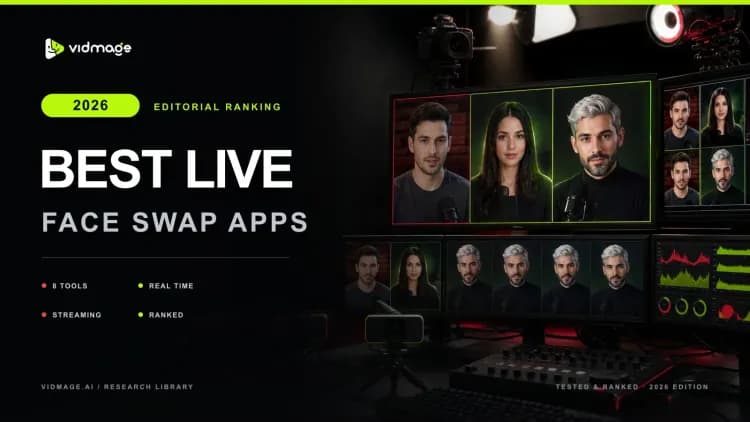

It might be possible that someday you want to drop into a Monday Zoom standup wearing your coworker's face just long enough to crack the room up before anyone catches on. A live face swap app can make that a one-click setup.
In 2026, real-time face swap technology has matured to the point where a single photo is all you need, and virtual camera support means the swap feeds directly into Zoom, OBS, or Teams with no extra steps. I tested 8 of these AI face-swapping tools across Mac and Windows to find out which actually hold up when the call goes live.
Quick Picks: Bottom Line at a Glance
Here are the picks that held up best across my tests:
Best Overall (Mac and Web): VidMage is strongest combination of swap quality, local processing, virtual camera support, and output resolution for most users
Best for Mac: VidMage. Native Apple Silicon client with on-device processing and no frame uploads
Best for Twitch Streamers: Swapface. Built-in virtual camera that feeds directly into OBS or Discord, no third-party routing needed
Best Free Pick: DeepLiveCam. Fully open-source single photo swap runs locally on Windows and Apple Silicon, costs nothing
Best for Privacy: VidMage. Desktop client with local processing keeps your webcam frames off any server
What is a Live Face Swap App?
A live face swap app replaces your face in real time during a webcam feed, video call, or live stream. It is not the same as a recorded video swap, where you render a clip offline and come back to it later to see the swap face. With a live face swap tool, the AI processes every frame as your camera captures it and outputs a virtual camera feed that Zoom, Teams, OBS, or any streaming platform can read instantly.
Most apps let you upload a single photo with a single click. A few, like DeepFaceLive, train a custom face model on hours of footage for a specific identity and trade setup time for higher fidelity. That single-image vs. trained-model split is the biggest quality decision you will make when choosing a face swap tool.
How We Tested These Live Face Swap Apps?
I spent 12 hours over one week testing 8 live face swap apps on a MacBook Pro M2 and a Windows desktop with an RTX 3060. Every tool ran through the same setups our readers actually use: Zoom, Google Meet, Teams, OBS, and Discord.
The first thing I measured was real-time performance and FPS. I needed to know how smooth the swap stayed at full resolution and whether facial expressions and emotions were mirrored accurately under fast movement, or whether the face drifted the moment someone turned their head.
The second criterion was support for virtual cameras. A tool that cannot expose a virtual camera that Zoom, Teams, Google Meet, and OBS recognize without extra routing software is not actually useful for the scenarios most readers run into.
OS coverage mattered just as much. I tested each tool on both Mac and Windows and noted whether the Mac build was Apple Silicon native or just an Intel binary limping through Rosetta emulation.
Privacy and local processing were the fourth factor. There is a meaningful difference between a tool that keeps your webcam frames on your device and one that ships every frame to a cloud server for processing. I categorized each tool clearly and assigned it a high weight.
The fifth criterion was price and a free tier. Vague claims like "free plan available" mean nothing. I looked for the exact number of swaps, video seconds, and daily caps each free tier allows before a paywall appears, and I checked whether free output carries a watermark.
Live Face Swap App Comparison: FPS, Virtual Camera, Pricing
Live face swap tools vary in performance, platform support, pricing, and video quality. The comparison below highlights some of the most popular options, helping you choose the right solution for your hardware, budget, and use case.
| Tool | OS | FPS (Tested) | Resolution Cap | Free Tier | Virtual Camera | Starting Price |
|---|---|---|---|---|---|---|
| VidMage | Mac/Web | 30 FPS (M1) | 4K (Subscriber) | 5 minutes free every day | Yes | Free/Paid |
| DeepFaceLive | Windows | Up to 25 FPS | 1080p | Free (open-source) | Yes (via OBS) | Free |
| DeepLiveCam | Windows/ Mac Silicon/Linux | 20–25 FPS | 1080p | Free | Yes (via OBS) | Monthly Subscriber (Mac): $32/month |
| Swapface | Windows / Mac | Real-time | 1080p | Free credits | Yes (built-in) | Free/Paid |
| DreamFace | iOS / Android / Web | App-dependent | Up to 1080p | Only 2 credits | No | $4.99: 30 credits |
| AKOOL Live Camera | Browser (Any OS) | Real-time | 1080p | Free Basic | Yes (browser) | Free/Paid |
| Xpression Camera | Windows / Mac | Real-time | 1080p | Free (7-day Pro trial) | Yes | $12/month Pro |
| Pyksel (Pykaso) | Web | N/A (async) | HD | Gems-based | No | From $6 (50 Gems) |
The 8 Best Live Face Swap Apps in 2026
Here are the 8 best live face swap apps I tested, ranked by quality, resolution cap, FPS, free trial, and more.
VidMage: Best for Realistic Live Face Swaps on Mac and Web
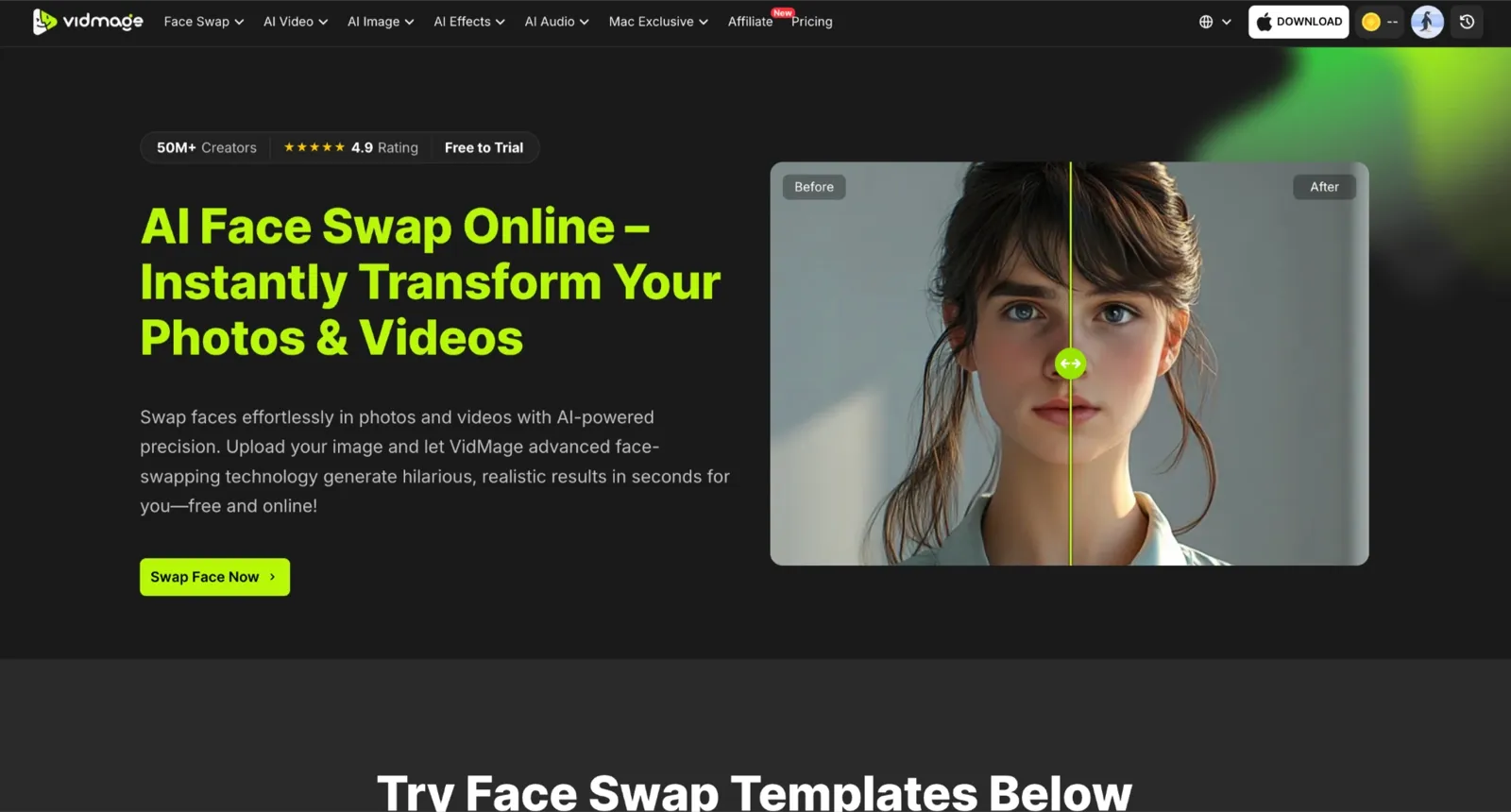
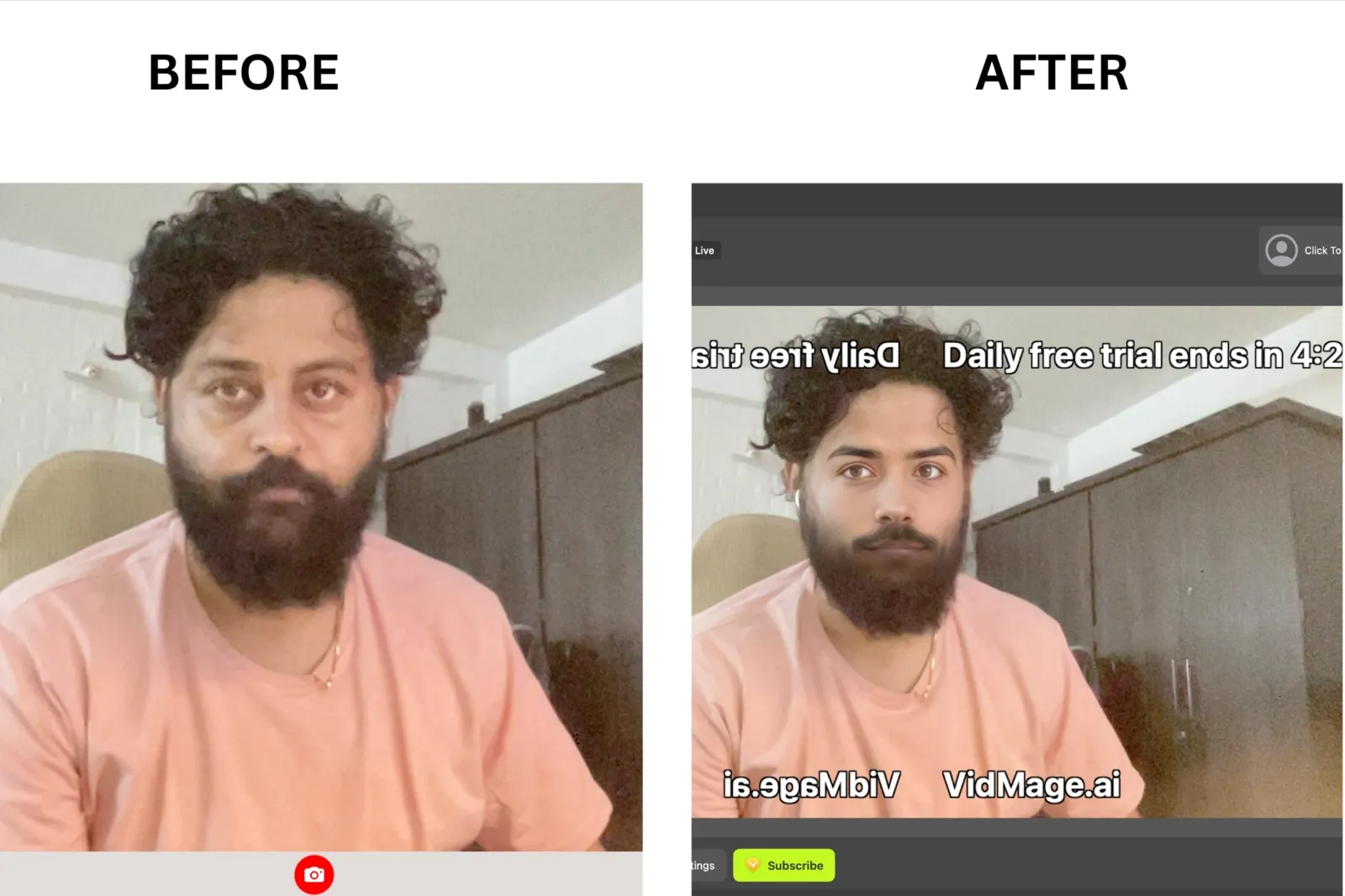
If you record talking-head videos on a Mac, you have probably noticed that most capable live face swap tools are still heavily focused on Windows. VidMage stands out because it delivers one of the most convincing real-time swaps I tested on Apple Silicon. Facial expressions and head movements carried through naturally, and the identity stayed consistent during speaking and moderate movement instead of looking pasted onto the frame.
The native face swap Mac app processes frames locally, so your webcam feed stays on-device throughout the session. It also includes a facial face swap feature when you want to replace specific facial elements instead of the entire face. The virtual camera output works directly with Zoom, Teams, Google Meet, and OBS. During fast lateral movement or harsh side lighting, I occasionally noticed brief drift, but the model recovered within a frame or two.
DeepFaceLive: Best for Trained-Model Quality
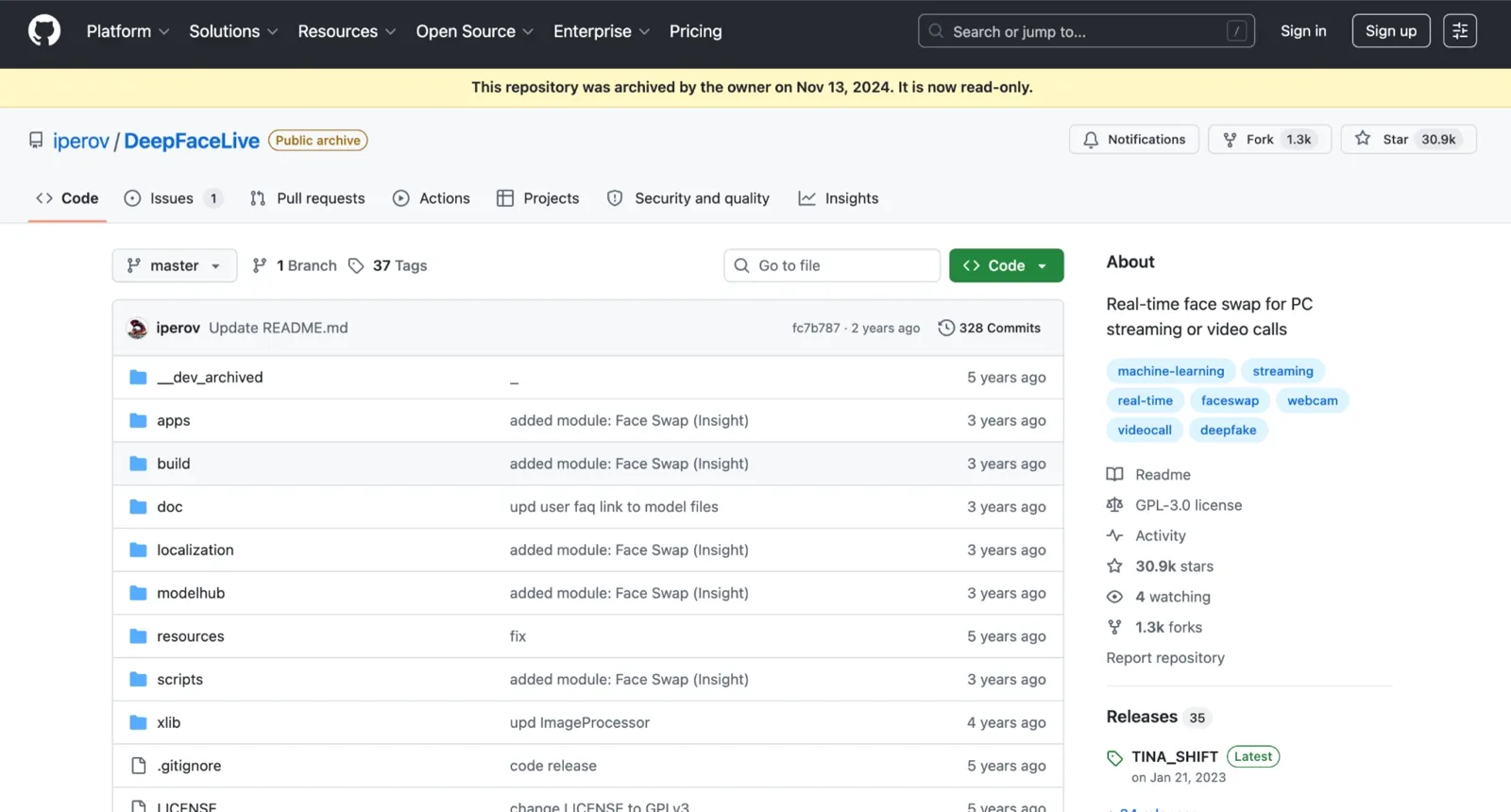
The key differentiator with DeepFaceLive is the trained model approach. Instead of swapping from a single photo, you train a custom DFM (DeepFaceLive Model) on hours of footage for a specific identity. That extra training time produces swap quality that single-photo tools cannot match, especially in complex scenes with varied lighting, extreme angles, and layered expressions. Emotions transfer with noticeably higher fidelity when the source model is well-trained. The trade-off is setup complexity and the fact that the GitHub repo was archived in November 2024, so no further updates are coming.
DeepLiveCam: Best Free One-Click Open Source
What makes DeepLiveCam great is how close it gets to trained-model quality using just a single photo. You upload one source image, point it at your webcam, and the swap runs locally on your GPU. Since all processing stays on-device, it is a strong privacy-first choice for anyone whose NDA or employer policy prohibits sending webcam frames to a cloud server.
The DeepLiveCam Lite version, launched in mid-2026, adds a CPU mode via the Decart API for users without a capable GPU, though that requires your own API key.
Swapface: Best for Twitch Streamers
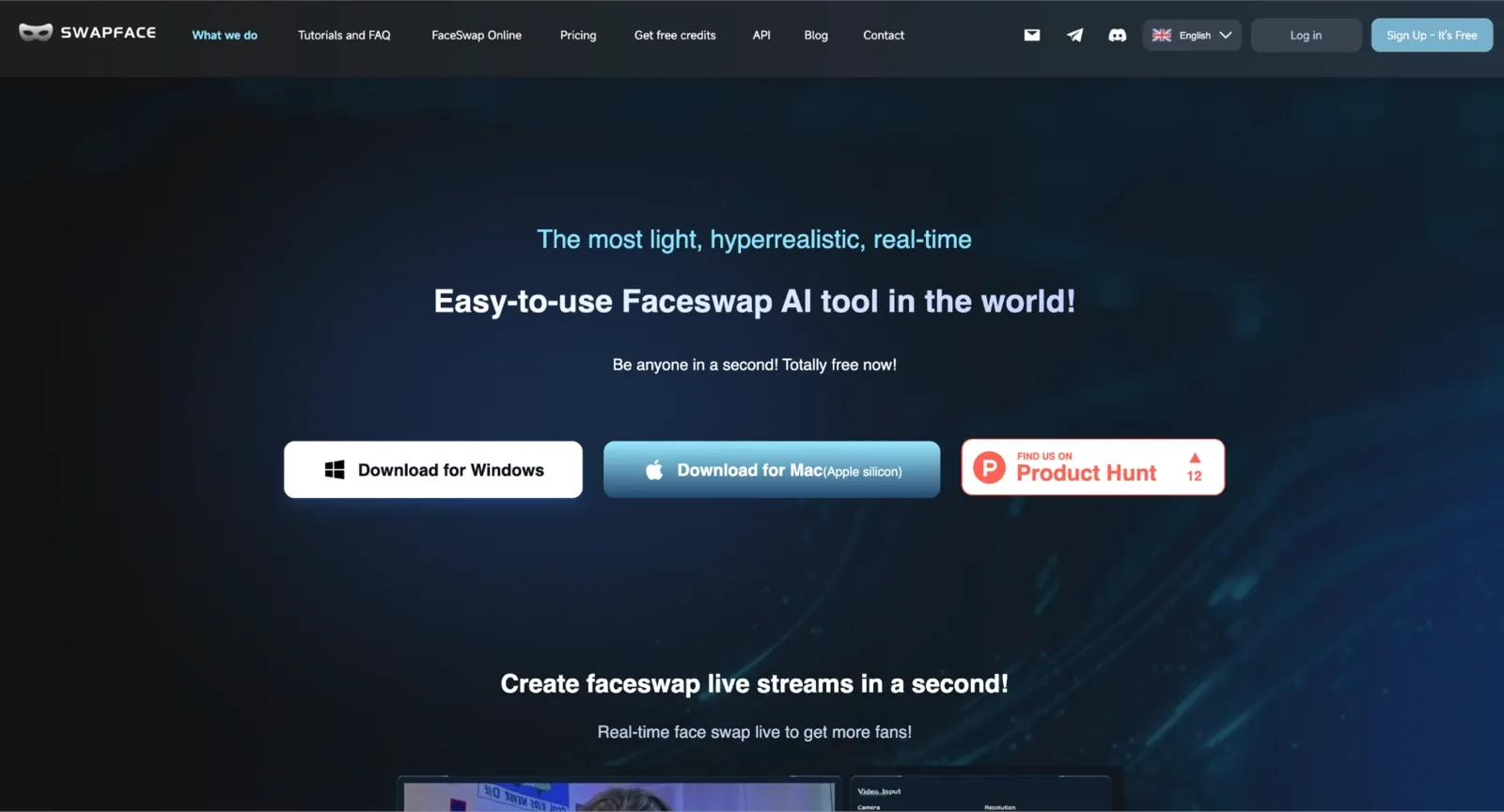
If you stream on Twitch but aren't ready to show your real face, Swapface gives you a believable on-cam persona. You point OBS at Swapface's built-in virtual camera, and your audience sees a face that talks and blinks like yours in real time. What sets Swapface apart is that virtual camera output is built directly into the app. You do not need to install OBS separately just to route the swap into your streaming software. Facial expressions and blink timing transfer cleanly at low latency, which matters when a live audience will notice any delay between what you say and what the avatar shows.
DreamFace: Best for Mobile and Casual Use

DreamFace is built for casual mobile use, not for streamers or creators who need virtual camera output. What makes it great for its target audience is the barrier to entry: open the app, upload a photo, and your animated face swap is ready in seconds on your iPhone or Android.
Facial expressions animate with reasonable accuracy, but complex scenes and rapid head movement show visible artifacting. The free tier adds a watermark and limits video duration. Since there is no virtual camera output, DreamFace is a poor fit for video calls or live streaming. For short social clips and casual experimentation, it gets the job done fast.
AKOOL Live Camera: Best for Browser-Only Setups

The key differentiator with AKOOL Live Camera is that it runs on the browser with a Mac camera app download. You connect your webcam, upload a source photo, and the real-time face swap outputs through a browser-based virtual camera that Zoom and Google Meet pick up as a webcam source.
Facial expression transfer is smooth in good lighting, and the interface makes it genuinely easy to switch between source faces mid-session. AKOOL processes frames on its cloud infrastructure. That means it is not suitable for environments where webcam data cannot leave your local network.
Xpression Camera: Best for VTubers and Stylized Looks
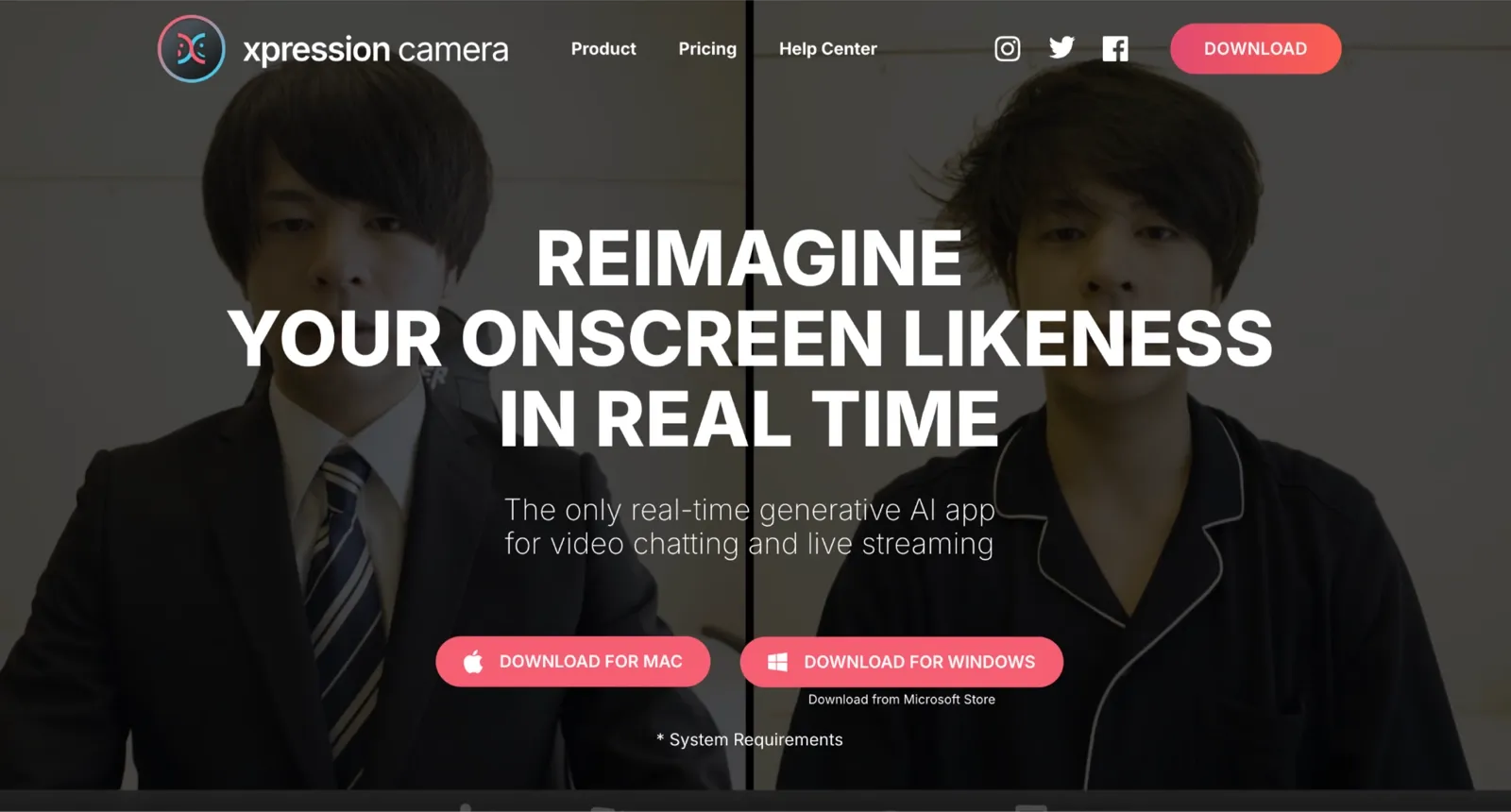
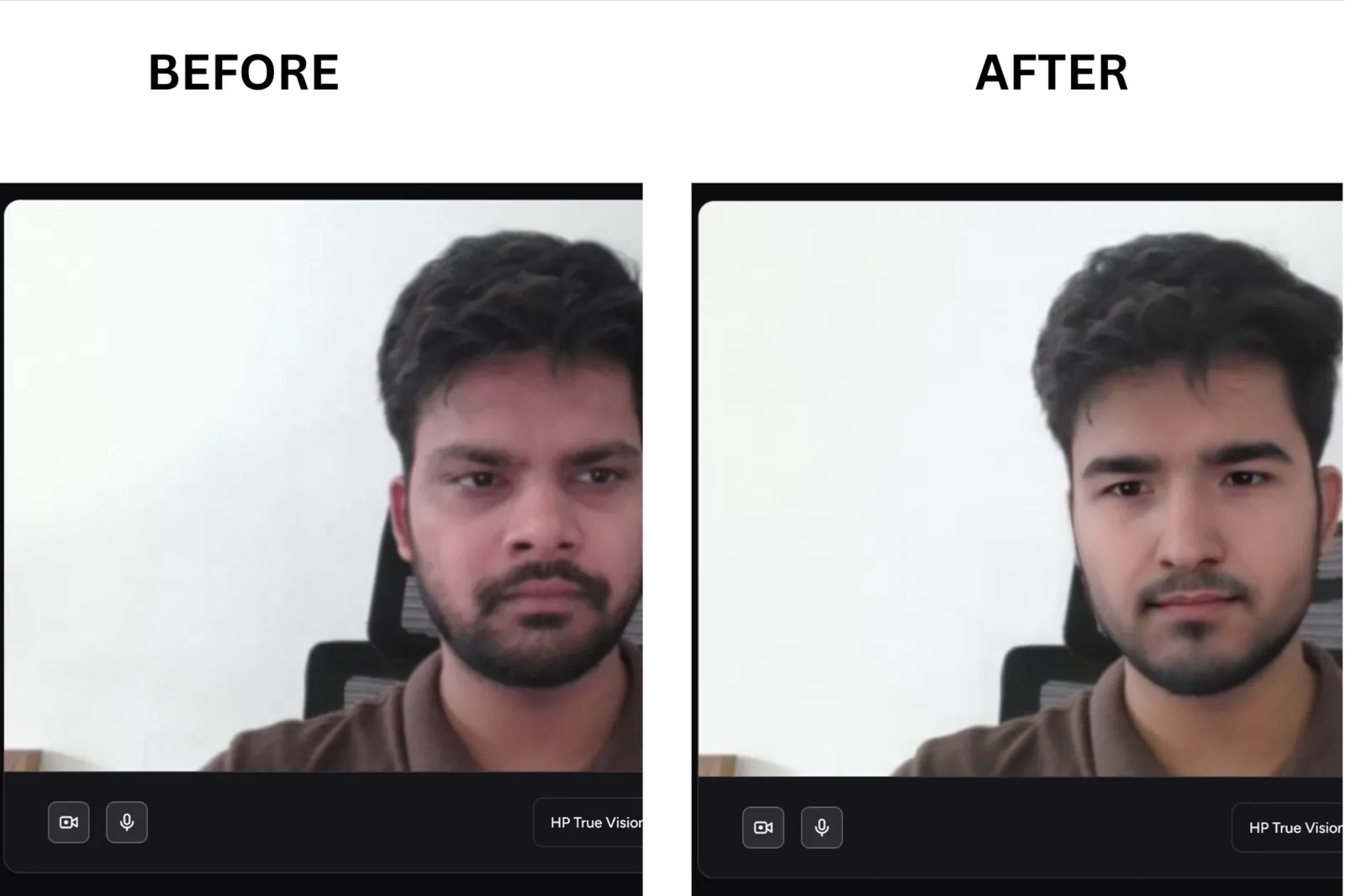
If you cosplay on Twitch, a stylized swap reads better on camera than a half-baked photorealistic one every time. What sets Xpression Camera apart is the breadth of stylized output: anime, CG, cinematic, 90s hip hop, and more. You can become any image with a face, including paintings, comics, cartoons, and movie stills, not just photos of real people. That flexibility makes it the strongest pick for anyone building a VTuber persona or streaming as a fictional character. Swap realism is lower than photorealistic tools, but that is the correct trade-off here.
Pyksel (Formerly Pykaso): Best for Batch Creative Content

Pyksel, which acquired Pykaso, now includes a dedicated face swap tool at Pyksel. The workflow is straightforward: upload a source face, upload the target photos or videos you want the face applied to, and launch the batch swap. It is not a live webcam tool. What makes Pyksel great for its target audience is the ability to run multiple swaps at once and combine them with the rest of Pyksel's AI content suite, including lip-sync, image-to-image, and AI video editing, in the same workspace.
How to Set It Up on Mac, Windows, and OBS?
Setting up a real-time face swap for a video call or stream requires three components: the face swap app, the virtual camera, and the platform you are calling from. Here is how each path works.
On Mac
Download and install the VidMage Mac client from the official website. It requires Apple Silicon (M1 or later) running macOS 12 or newer.
Open the app, sign in, and your live face swap starts.
VidMage creates a virtual camera called VidMage Camera.
In Zoom, Teams, Google Meet, or FaceTime, open video settings and select VidMage Camera as your webcam. The swap feeds through immediately.
On Windows
Download the Windows executable from deeplivecam.net (paid build) or the DeepFaceLive GitHub release (free). Run the installer.
Install OBS from obsproject.com. In OBS, open Tools and enable OBS Virtual Camera.
Open DeepLiveCam or DeepFaceLive, select your source photo and webcam input, and start the swap.
In Zoom, Teams, or Google Meet, select OBS Virtual Camera as your video source. Discord uses the same setting under User Settings, then Voice and Video.
The virtual camera step is the piece most guides skip. Once your face swap app is running and OBS Virtual Camera is active, any platform that can select a webcam can use the swap output. Test a 5-minute call before going live to confirm the virtual camera source is stable on your specific hardware.
Tips for Better Live Face Swap Results
Getting a natural-looking live face swap depends on more than just the software. Lighting, image quality, hardware settings, and your environment all affect tracking accuracy and stability. These practical tips can help you achieve smoother, more reliable results.
Use even lighting from the front. Strong shadows from overhead or side lighting can reduce tracking accuracy.
Choose a clear, high-resolution source photo with a forward-facing face and good lighting.
Lower the FPS if your system struggles. This can reduce GPU load and help maintain a stable swap during longer sessions.
Test different head angles before going live, especially if you wear glasses, have facial hair, or move around a lot.
Run a short test call to check for lag, drift, or overheating issues that may appear after several minutes.
Keep your background simple and avoid busy patterns, which can make face tracking less consistent.
FAQ: Live Face Swap Apps
Is there a free real-time face swap app?
Yes. DeepLiveCam is fully open-source, runs locally on Windows and Apple Silicon, and has no watermark or credit cap. VidMage's free tier covers 5 minutes of live face-swapping per day.
Can I use a live face swap on my phone?
DreamFace supports iOS and Android and lets you animate faces from a mobile app. Quality and FPS are lower than those of desktop tools because mobile processors handle less computing. Virtual camera output is desktop-only, so you cannot feed a live face swap from a phone into Zoom or Teams. For video calls and streaming, a desktop or laptop is required.
How many faces can these tools swap at once on a live call?
Most tools support single-face swap in real-time mode. Multi-face swap is primarily available in video rendering mode, not live webcam mode. For recorded video work, some tools like VidMage support up to 4 simultaneous face swaps.
What hardware do I need for a smooth real-time face swap?
On Mac, an M1 chip or better handles real-time face swap at usable FPS. M2 and M3 run noticeably smoother. On Windows, an NVIDIA RTX 3060 or higher with 6 GB or more of VRAM is the recommended floor. AMD GPUs work with tools that support OpenCL or DirectX12 builds. CPU-only mode is available in some tools but delivers very low FPS and is not suitable for live calls.
Is it okay to use a live face swap on a first video chat with a stranger?
Light, clearly stylized swaps can protect your real identity from screenshots on an initial call with someone you do not know. Presenting a completely different real human face as your own crosses into deception. Protecting anonymity with a stylized avatar is different from impersonating a specific person. If you cosplay on Twitch as an anime character, that is a creative expression. Claiming to be someone you are not on a dating app is misrepresentation.
Is using a live face swap app legal?
Using these tools for entertainment, creative content, or personal privacy is generally legal in most regions. Using a face swap to impersonate a specific person without consent, defraud someone, or produce non-consensual intimate imagery is illegal in many jurisdictions. Always review the platform's terms of service and check local laws if your use case involves a public figure or sensitive content.
The Bottom Line: Our Live Face Swap App Verdict
After testing eight live face swap tools across Mac and Windows, VidMage stood out as the strongest option for realistic live face swap performance on Mac. It maintained identity well during movement, preserved facial expressions more consistently than most alternatives, and combined that quality with local processing and native Apple Silicon support.
For streamers, Swapface remains the better choice if you want built-in virtual camera tools and streaming workflows. DeepLiveCam is the strongest free option, offering local processing, broad OS support, and no watermark.
For privacy-focused users, local tools remain the safest choice. VidMage, DeepFaceLive, and DeepLiveCam all process frames on-device, making them better suited for sensitive or client-facing work.
Ultimately, the best tool depends on whether you prioritize realism, streaming features, privacy, or cost.