
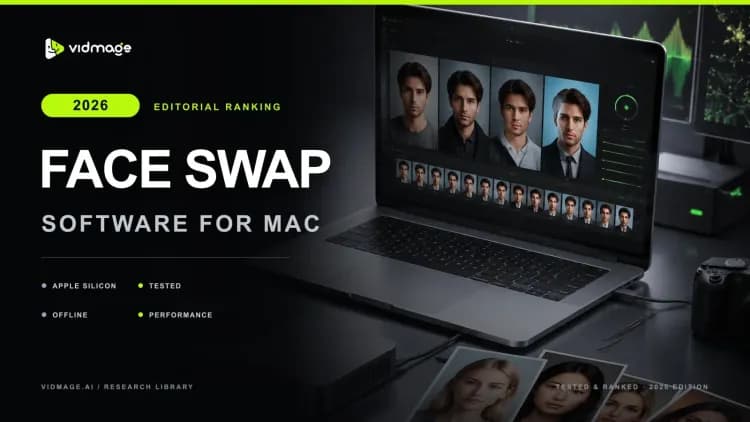

Say you want to drop your friend’s face onto a Thanos snap and send it to them before lunch. The problem is that many Mac face-swap tools still make you wrestle with downloads, dependencies, and a confusing setup before you can create anything.
To find a reliable solution that actually works, I tested 7 face-swapping apps over 4 days on an M2 MacBook Air running macOS Ventura. I used the same 60-second 1080 reference clip and a 3-angle face image set across every best face swap software for Mac. I also evaluated performance on Apple Silicon AMCs from M1 to M3. My core focus was on realism, real-time responsiveness, on-device processing, privacy, and free-tier limitations.
How We Tested and Picked the Best Face Swap Software for Mac?
Hardware: M2 MacBook Air, 16 GB RAM, macOS Ventura. Two picks were retested on M3 for thermal performance comparison.
**Candidate pool: **I looked at 14 Mac-tagged face swap tools and kept 7
Tools kept: Vidmage, MacFaceSwap, SwapFace, FaceFusion, Faceswap.dev, HitPaw FotorPea, Reface.
Tools I Dropped When Choosing the Best Face Swap Software for Mac
DeepSwap: no Mac client, web only, with upload limits
**Akool: **enterprise-first pricing, no free tier for individual use
Vidnoz: web wrapper with no Apple silicon optimization
**SoulGen: **image only, no video support
**Pixble: **unreliable output on M series hardware
DeepFaceLab: Windows first, minimal Mac support
Wombo: mobile only, no macOS app
Scoring rubric
Apple Silicon native: 30%
Install path: 20%
Free tier clarity: 20%
Offline or on-device privacy: 20%
Output quality on fixed test clip: 10%
I have been testing Mac face swap tools on M1, M2, and M3 hardware since 2023. This review focuses on what actually runs on Apple Silicon and how well each tool holds up on complex shots.
Comparison Matrix: Mac Face Swap Apps at a Glance
Not all Mac face swap tools offer the same mix of quality, privacy, and ease of use. This comparison matrix highlights the key differences in features, pricing, free tiers, and Apple Silicon support.
| Tool | Apple Silicon | Photo | Video | Live | GIF | Free Tier | Pricing | Privacy | Best For |
|---|---|---|---|---|---|---|---|---|---|
| VidMage | Yes (Mac client) | Yes | Yes | Yes | Yes | 15 photos, 20s video, 2 GIFs/day, no watermark | Free; $9.99/mo; $69.99/yr | On-device (Mac client) | Best for realistic face swap on Mac |
| MacFaceSwap | Yes (DMG) | Yes (60+ FPS M1/M2) | Yes | No | Yes | Unlimited (open source) | Free | On-device | Live streaming on Mac |
| SwapFace | Yes (Mac client) | Yes | Yes | Yes | Yes | Credit-based free tier | Free credits; paid plans | Hybrid | Twitch overlays |
| FaceFusion | Terminal install | Yes (with setup) | Yes | Yes | No | Unlimited (open source) | Free | On-device | Power users |
| Faceswap.dev | Terminal install | Yes (with setup) | Yes | Yes | No | Unlimited (open source) | Free | On-device | Custom model training |
| HitPaw FotorPea | Yes (DMG) | Yes | Yes | No | No | 3 exports trial | From $4.99/mo | Cloud | One-off photo swaps |
| Reface (Unboring) | Web app | Web | Yes | Yes | No | Limited free swaps | Credit-based | Cloud | Casual social GIFs |
VidMage: Best Overall for Mac
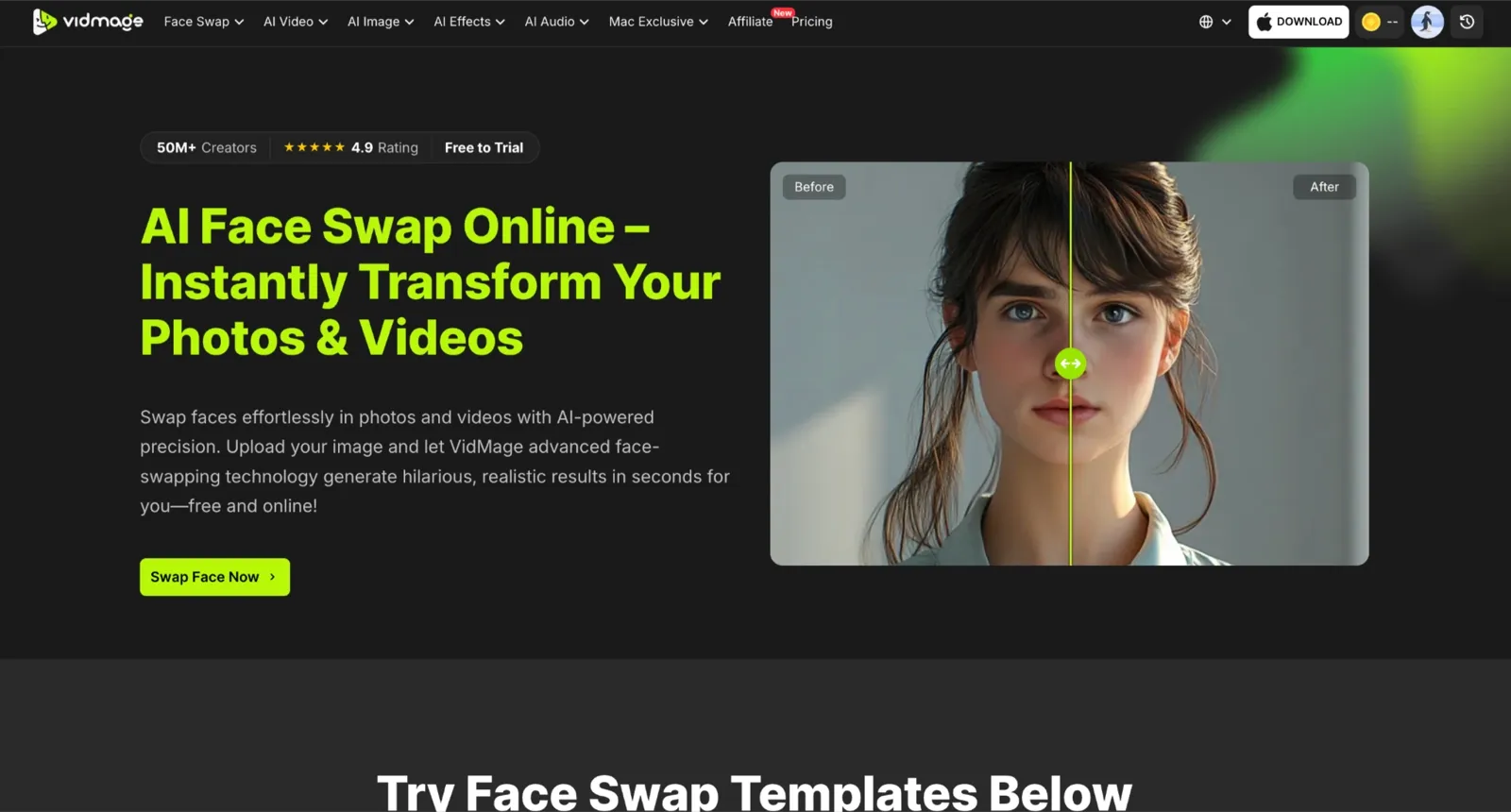
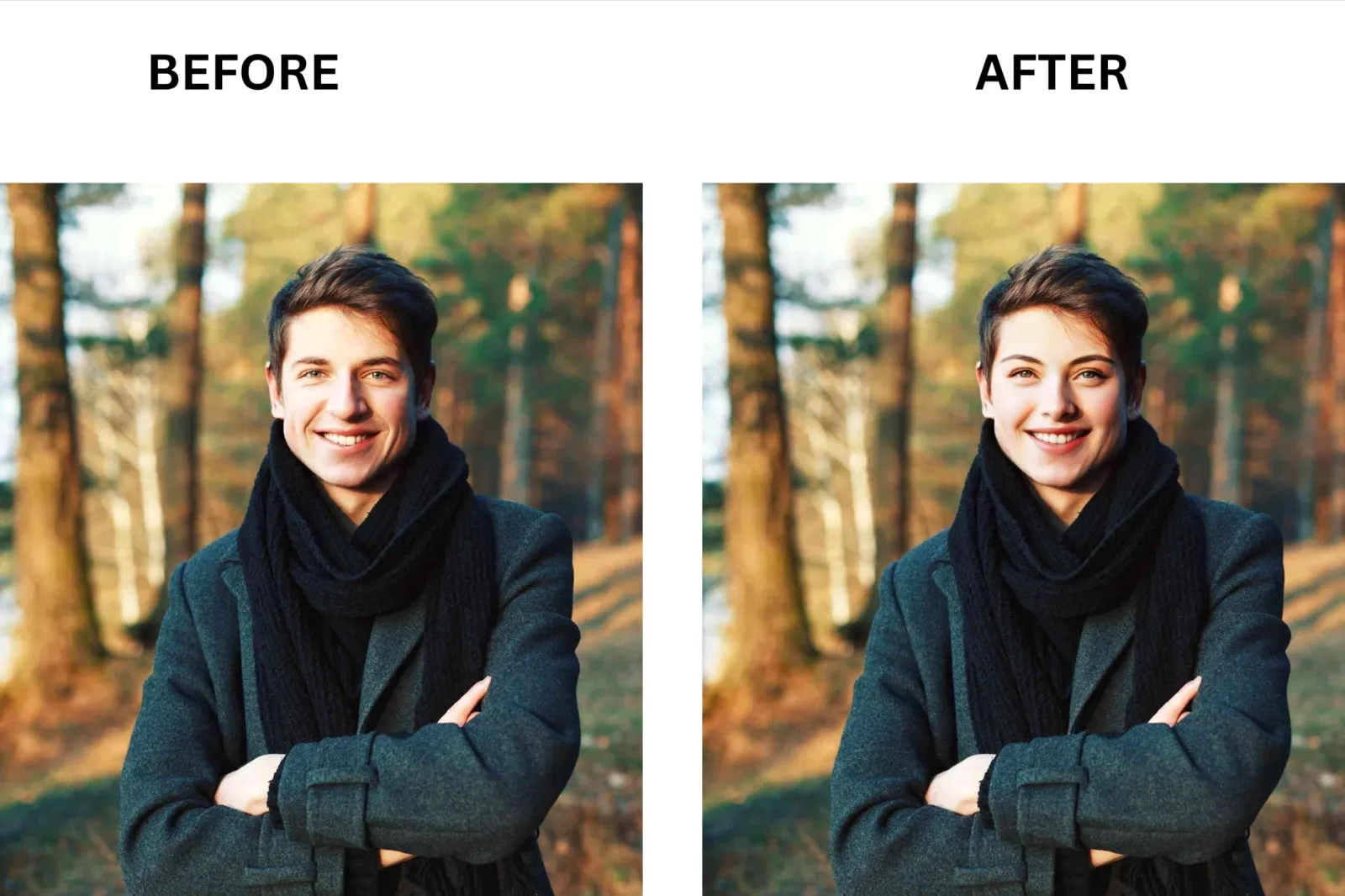
Most tools that call themselves Mac native quietly process everything on a remote server. VidMage runs the full model on the device via Apple Silicon, so your face data never leaves your machine. On my 60-second test clip, the VidMage face swap Mac app produced the most natural skin tone blending I saw across all 7 tools. Face edges were clean with no halo artifacts, and facial expressions, including eyebrow movement and mouth shape during speech, transferred correctly.
That is where most tools fall apart: they get the face shape right but lose the microexpressions. VidMage held those. Motion transfer across the full 60-second clip stayed consistent too, with no drift or flicker during fast head turns, something that most face swap tools struggled with. The live face swap and facial feature swap adds another layer, letting you isolate and swap a single feature, like eyes or jaw, without touching the rest of the face.
The Other 6 Mac Face Swap Picks, Ranked
Not every Mac face swap tool deserves the top spot, but several came close. These six alternatives excel in specific use cases, from real-time streaming and Twitch overlays to custom model training and quick social media edits.
MacFaceSwap: Best for Live Streaming on Mac
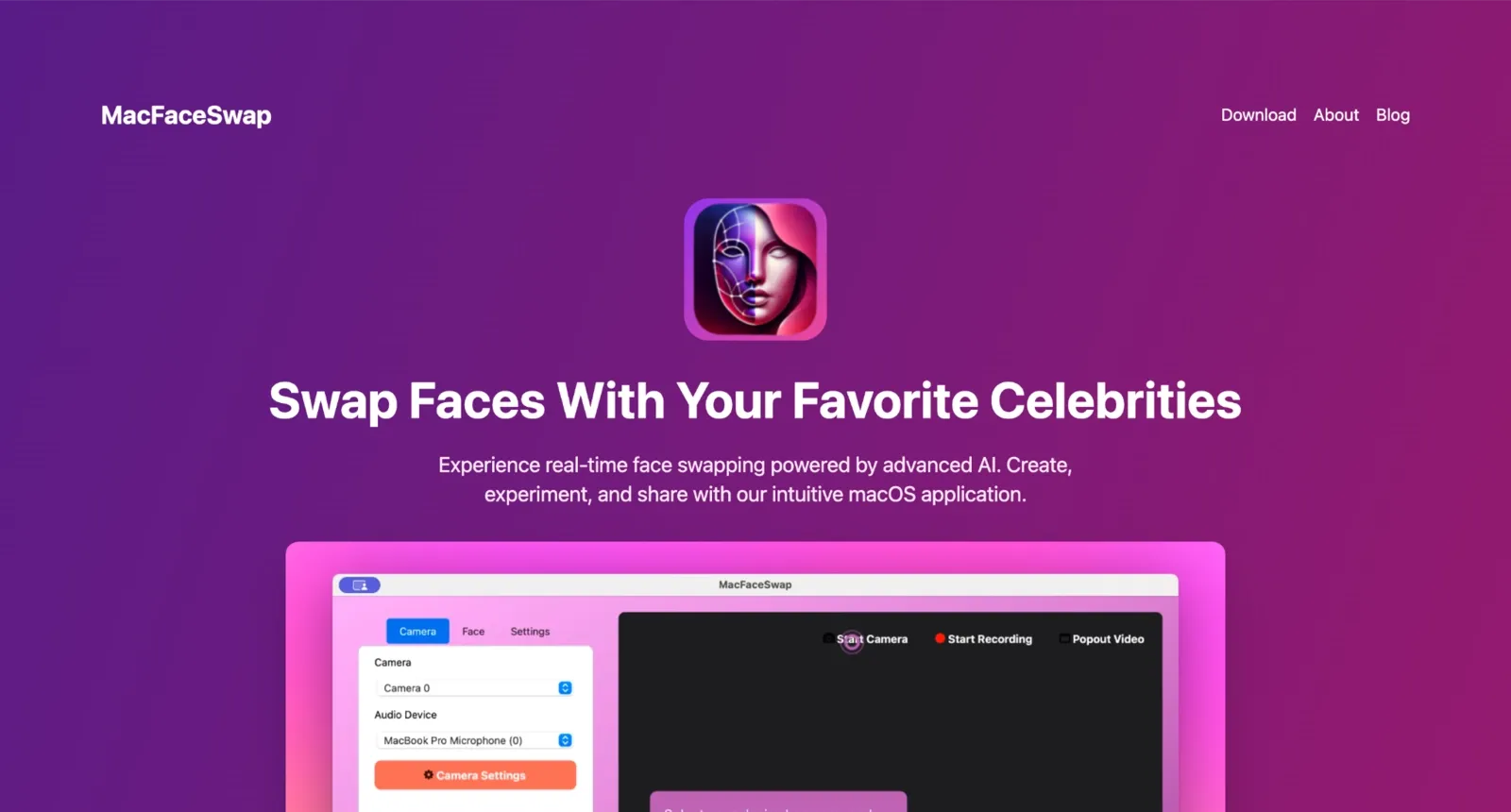
MacFaceSwap is an open-source DMG built specifically for macOS, with Metal acceleration and Apple Silicon optimization. What sets MacFaceSwap apart is that it delivers 60+ FPS real-time face swap on M1 and M2, which makes it the only free tool in this list you can actually use as a live Twitch overlay without dropping frames.
The swap quality on still faces is strong. MacFaceSwap uses the Buffalo L detection model and the Inswapper architecture, which better preserves facial expressions than simpler blending approaches. It struggles with glasses and extreme side angles, but front-to-slight-side performance is consistently clean.
SwapFace: Best for Twitch Overlays
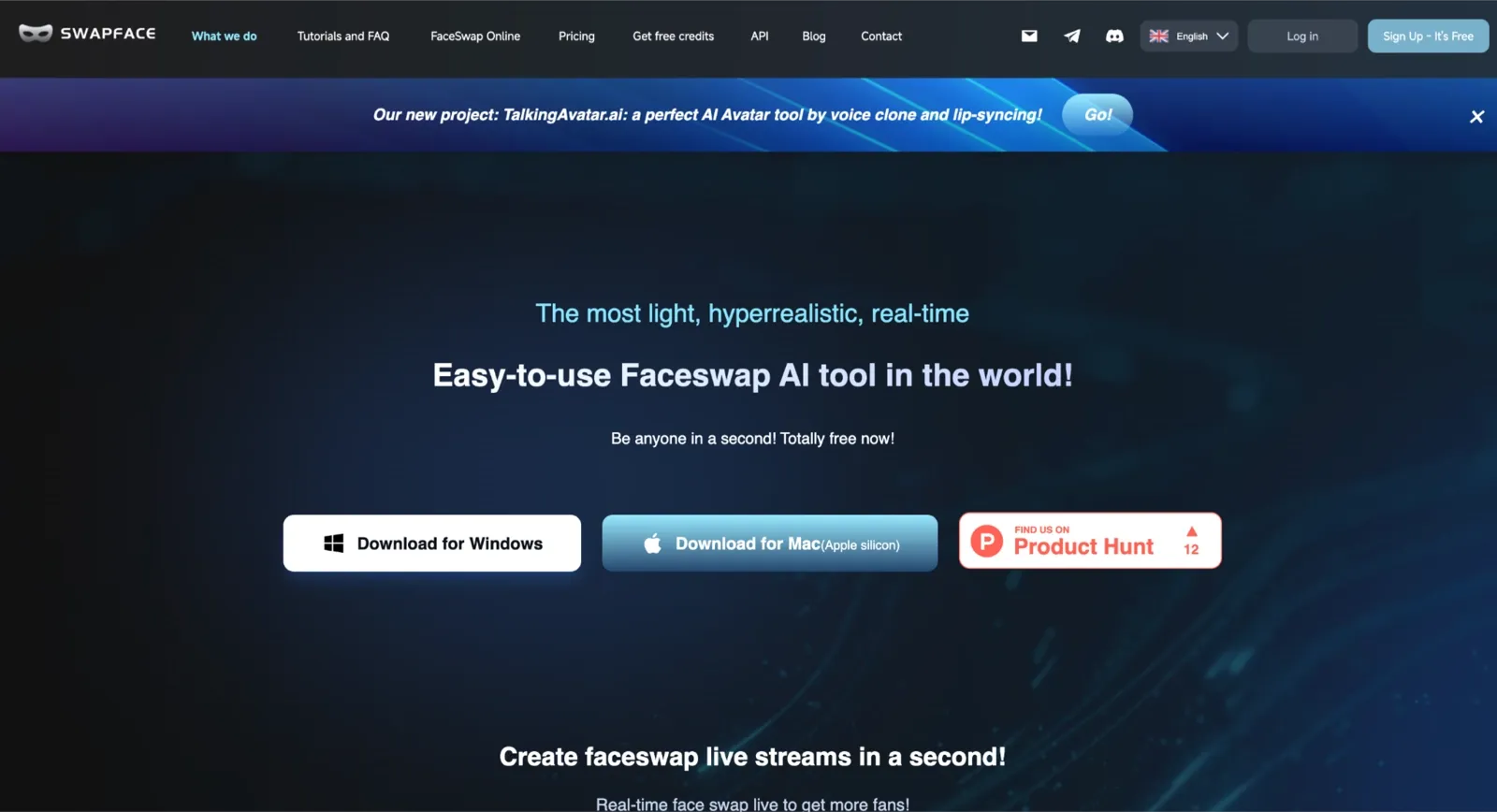
SwapFace offers both a Mac client (Apple Silicon build) and a web version, providing real-time live swap photo, video, and GIF output in a single install. The key differentiator is how smoothly it integrates as a virtual camera source for streaming setups. I could pipe the swapped feed directly into OBS on M2 without noticeable latency.
Swap quality on front-facing and slight-angle shots is solid. Skin tone blending is better than average. Performance on complex scenes with multiple faces depends on which face SwapFace locks onto first, which can be unpredictable.
FaceFusion: Best for Power Users
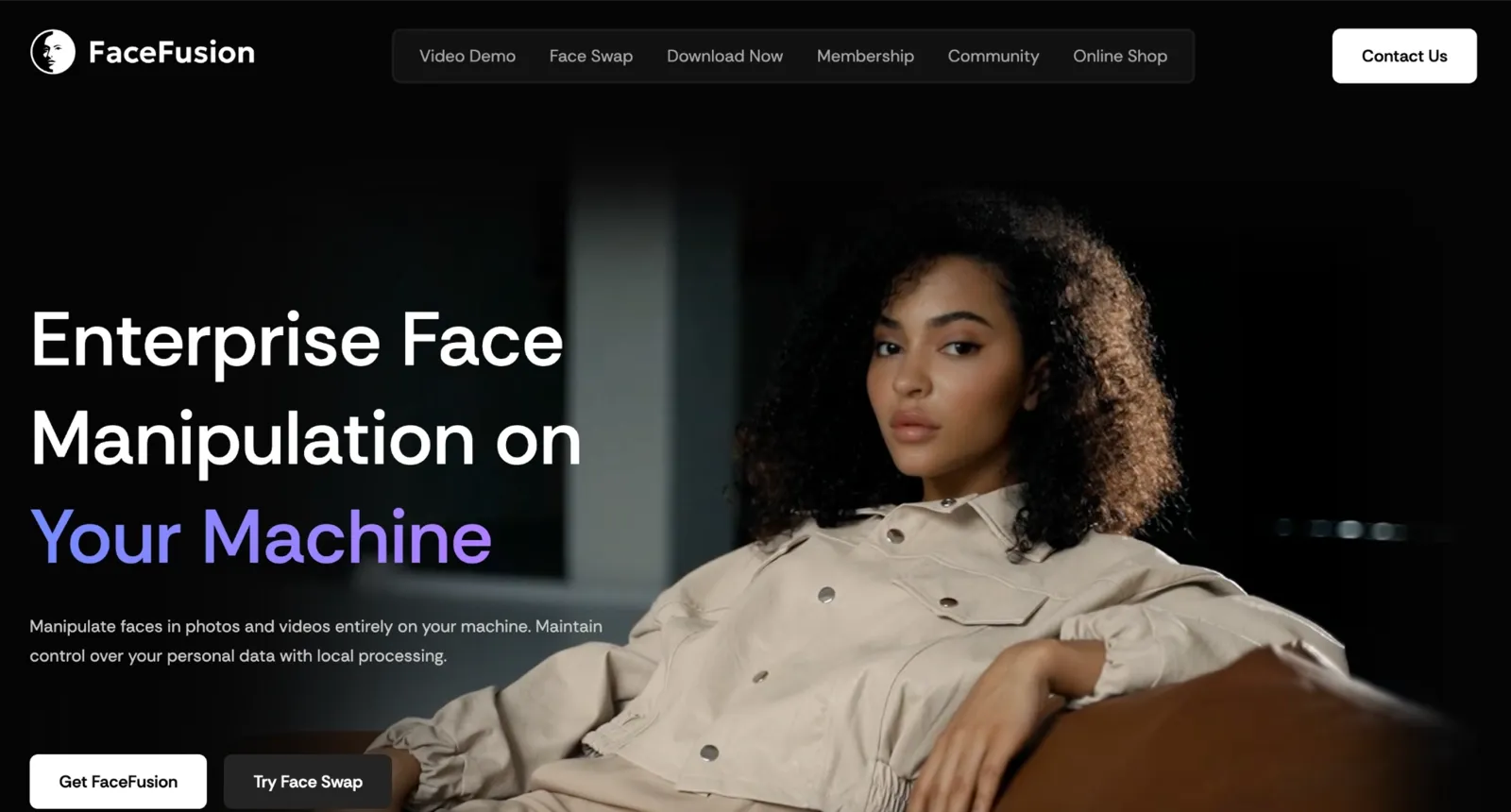
FaceFusion describes itself as an industry-leading face manipulation platform. What makes FaceFusion great is the level of output control: you can tune face restoration strength, swap frame selection, and output resolution in ways no GUI-only tool allows. On M2 with the correct conda environment, render quality on a clean front-facing source is among the best I tested.
The trade-off is set up. FaceFusion requires Terminal Python, conda, and ffmpeg before you run a single swap. Once it runs, the quality is excellent. Getting there takes patience.
Faceswap.dev: Best for Tinkerers and Custom Training
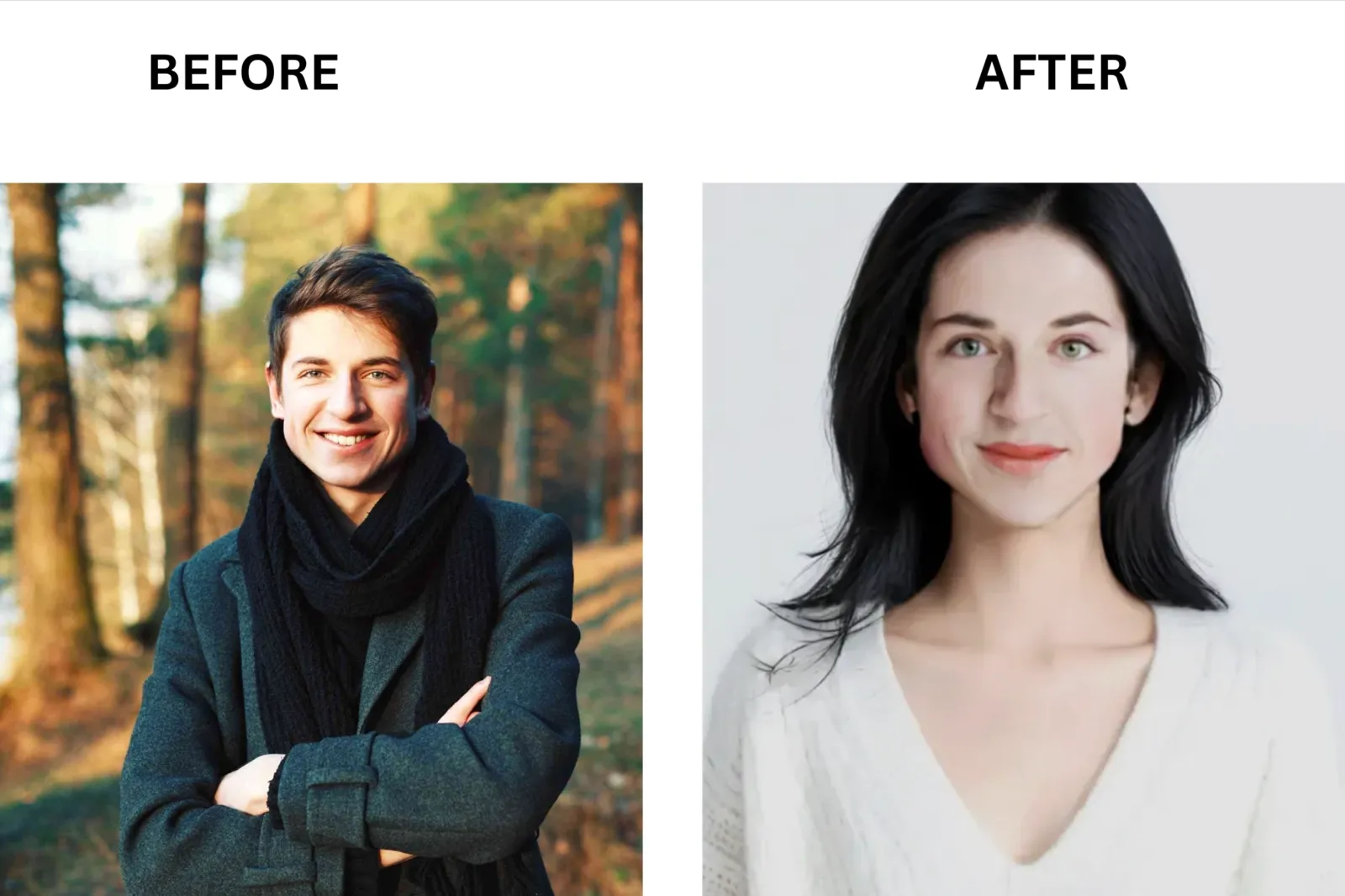
Faceswap.dev is free, open source, and runs on macOS, powered by TensorFlow and Keras under the hood. What sets Faceswap.dev apart is the ability to train custom models on your own face dataset, which produces more consistent results across varied shots than single-image reference approaches. If you have 200 source images and two hours to train, the model's output quality on tricky angles improves substantially.
The realism of a well-trained model is high. Facial expressions are carried through better than with most single-pass tools. Privacy is fully on the device since nothing leaves your machine.
HitPaw FotorPea: Best for One-Off Photo Swaps

HitPaw FotorPea is a Mac and Windows app focused primarily on AI photo enhancement, with face swap as one feature inside a broader photo editing toolkit. The key differentiator is how cleanly it handles single-image enhancement alongside the swap: you can upscale, denoise, and restore a photo in the same session without switching tools.
Swap quality on front-facing portraits is good. The results look realistic on clean, well-lit input photos. It is cloud-processed, so your image does not upload for the swap step.
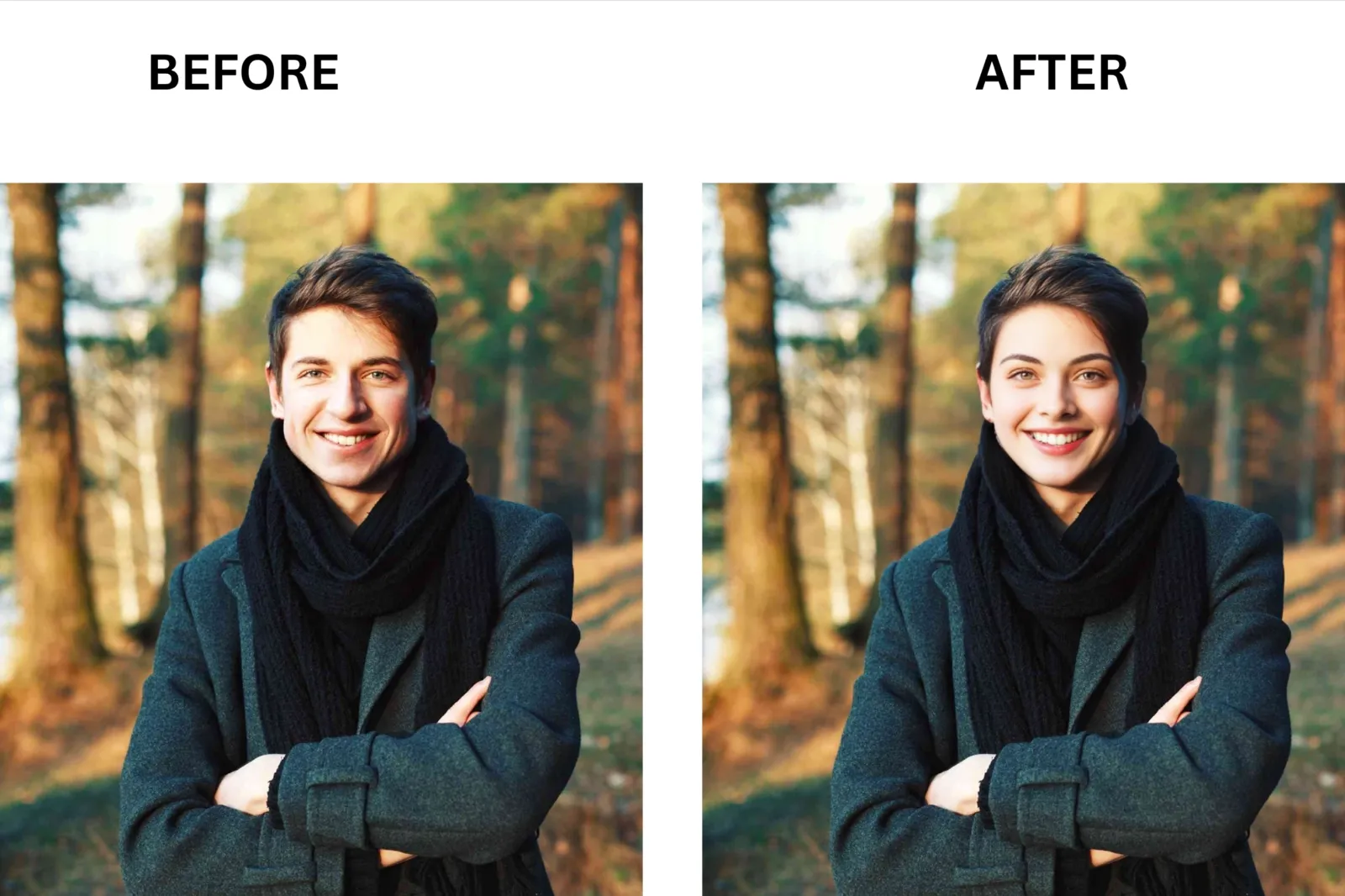
Reface (Unboring): Best for Casual Social GIFs
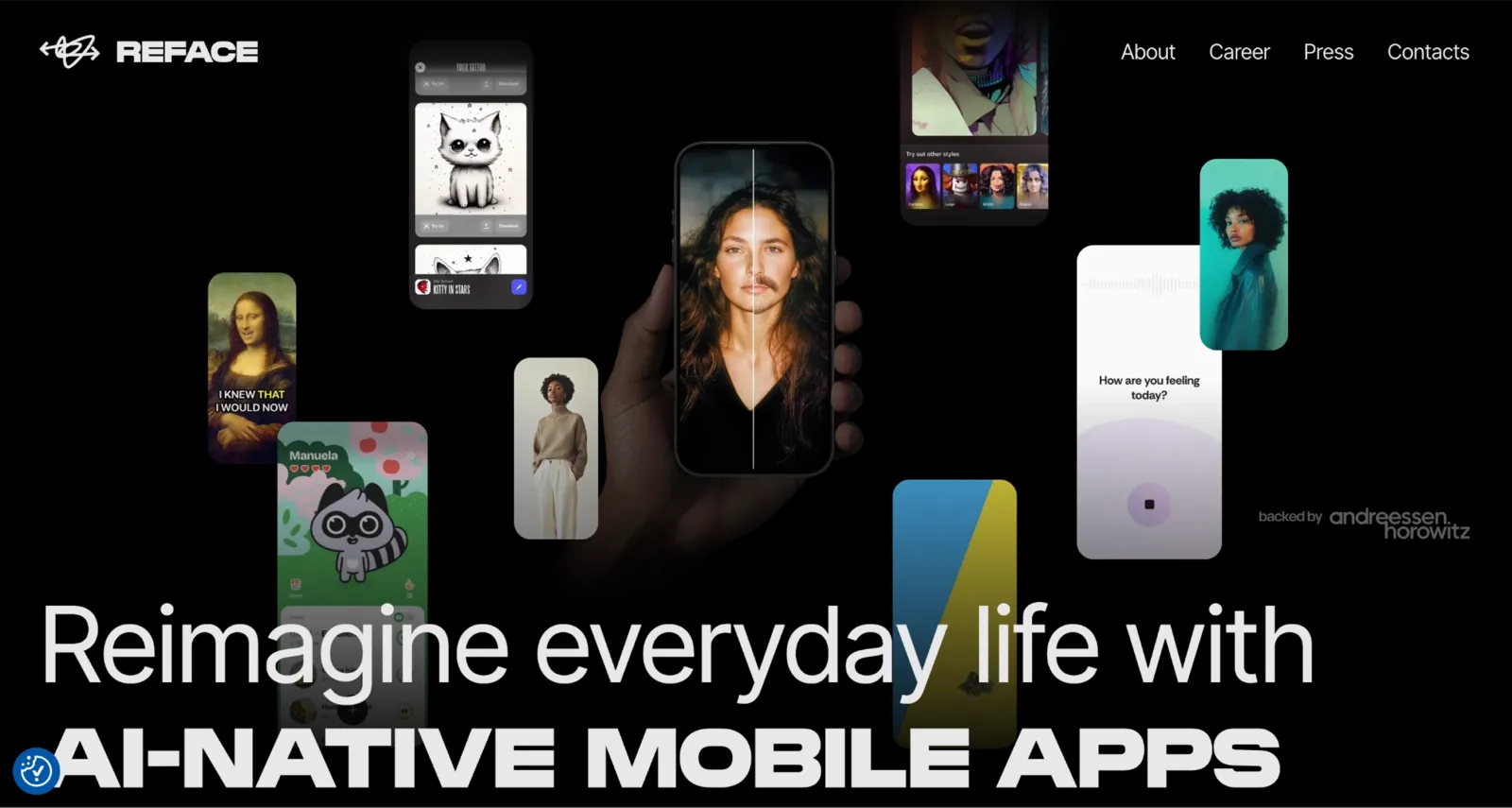
Reface operates as a web app through its Unboring platform. You upload a photo, pick from their catalog of hundreds of video clips and images, and get a swapped result back in seconds. The swap quality is reliant on catalog content because the source material is professionally lit and front-facing, which plays to the model's strengths.
What makes Reface great for casual use is the catalog: memes, movie clips, vintage photos, and trending templates are all ready to swap into without sourcing your own target video. If your goal is a face-swapped reaction GIF for Discord or iMessage, Reface gets you there with no install.
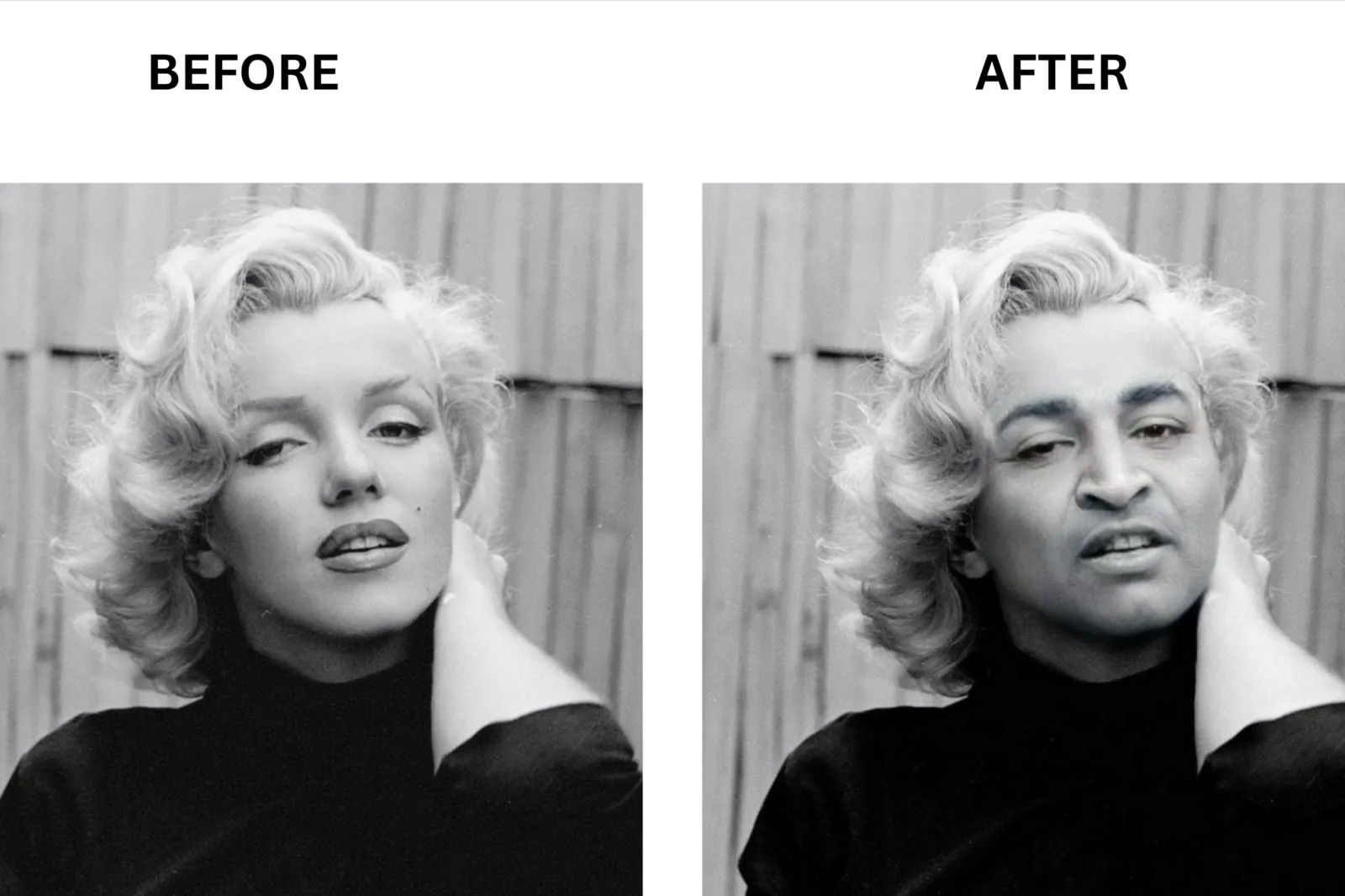
Mac Install Reality Check: Which Picks Need Terminal
Not every Mac face swap app installs with a double-click. Here is the honest breakdown.
| Tool | Install Difficulty | Notes |
|---|---|---|
| VidMage | One-click DMG | Download, open, and start using it. Installs like a standard Mac application. |
| MacFaceSwap | One-click DMG | Download the DMG from GitHub and install. No Python, Homebrew, or additional dependencies required. |
| SwapFace | One-click DMG | Native Mac client with a simple installer. A web version is also available with no installation required. |
| HitPaw FotorPea | One-click DMG | Uses a standard Mac installation process with no extra setup. |
| Reface (Unboring) | Web app | No installation needed. Open it directly in Safari or another browser. |
| FaceFusion | Terminal required | Requires Python, Conda, FFmpeg, and an Apple Silicon-compatible build. Dependencies must be installed manually, often through Homebrew. |
| Faceswap.dev | Conda/Python required | Requires Python, Conda, virtual environments, and TensorFlow configuration. The Pinokio launcher can simplify setup but adds another installation step. |
Tips for Better Face Swap Results on Mac
Even the best face-swapping software can produce poor results if your inputs are poor. These practical tips improved realism, render speed, and overall output quality across every Mac app we tested.
Use a high-resolution, front-facing source photo. Clear images give the AI more facial detail to work with and improve overall realism.
Match the face angle of your source image to the target photo or video. Similar poses usually produce cleaner swaps.
Keep your Mac plugged in during longer renders. This can help maintain performance and reduce processing time.
For video calls, pair a Mac face swap app with OBS Studio's virtual camera. This lets you use the swapped face in Zoom, Google Meet, and similar platforms.
If privacy is important, choose local processing and keep your original photos stored on your Mac rather than repeatedly uploading them to cloud services.
Export at 1080p or higher whenever possible. Higher resolutions make face swaps look sharper and reduce visible artifacts.
Common Mistakes and Troubleshooting on Mac
Most face swap failures come down to a handful of avoidable mistakes. During testing, these were the issues that most often caused distorted faces, slower performance, or disappointing results on Apple Silicon Mac.
Mistake 1: Using a side-angle source image
Side profiles give the model too little to work with. It tries to reconstruct frontal geometry from partial data, and the result looks warped. Use a front-facing or near-frontal source photo.
Mistake 2: Wearing glasses in the source image
Reflections and lens edges confuse most face detection models. I tested this specifically with Faceswap.dev and FaceFusion. Both produced edge artifacts around the glasses' frames. Remove glasses from the source image if possible.
Mistake 3: Downloading an Intel build on an M-series Mac
FaceFusion and Faceswap.dev both have separate Intel and ARM builds. Running the Intel version under Rosetta 2 works, but runs significantly slower. Check the release notes for "Apple Silicon" or "arm64" before downloading.
Mistake 4: Using a low-resolution input and expecting 4K output
Upscaling happens after the swap. If your source frame is 480p, the swap model can work with it. HitPaw FotorPea's enhancement step helps, but it cannot recover details that were never there.
Troubleshooting
| Problem | Fix |
|---|---|
| Live Face Swap drops below 30 FPS | Close other GPU-heavy apps (video editors, browsers with hardware acceleration). On battery, plug in. |
| Output looks washed out or low contrast | Export at 1080p or higher. Below that, compression flattens the result. |
FAQ: Free, M1 to M3, Group Photos, Privacy
Is there a free face swap on Mac?
Yes. Several options exist. MacFaceSwap and FaceFusion are fully free and open source without daily caps. VidMage offers 15 photos, 20 seconds of video, and 2 GIFs per day, all at no cost and without a watermark. Reface and SwapFace have credit-based free tiers that run out quickly.
Does it run on Apple Silicon M1, M2, and M3?
VidMage, MacFaceSwap, and SwapFace all have native Apple Silicon builds tested on M1 and M2. FaceFusion and Faceswap.dev run on Apple Silicon with the correct ARM conda environment, but setup is more involved. HitPaw FotorPea installs via DMG and runs on Apple Silicon. Reface runs in the browser, so Apple Silicon is not a variable.
Can I face-swap multiple people in the same photo on a Mac?
Yes, but check the feature list before committing. VidMage supports up to 4-face simultaneous swaps via its multi face swap video feature. For a 4-person family group photo, VidMage is the only tool in this list with confirmed multi-face handling at that scale. MacFaceSwap handles single-face swap only. FaceFusion supports multiple faces with configuration.
Is my photo uploaded to a server?
It depends on the tool. VidMage's Mac client processes on-device. MacFaceSwap and FaceFusion processes are entirely local. HitPaw, FotorPea, and Reface upload to cloud servers for processing. SwapFace uses a hybrid approach. If data privacy matters to you, use a tool with an on-device or local-only label.
Do I need an account or coding to start?
MacFaceSwap requires no account or coding. VidMage's free tier works without an account on the Mac client. FaceFusion and Faceswap.dev require a Terminal setup, but no account. HitPaw FotorPea requires a license for use. Reface requires an account for more than a few swaps.
Is Face Swap on Mac safe and legal?
The technology is legal for personal creative use, parody, and entertainment. Creating deepfakes of real people without consent for deceptive purposes is a different matter and may violate platform terms of service or local laws, depending on your region. All the tools in this list include terms of service that prohibit malicious use.
Can I use Face Swap on a Zoom or Google Meet call?
Yes. Pair a real-time Mac app (MacFaceSwap or VidMage Live Face Swap) with OBS Studio's virtual camera. Select the OBS virtual camera as your input in your meeting app. This works on M1 and above.
Does it work offline?
MacFaceSwap, FaceFusion, and Faceswap.dev work fully offline after installation. VidMage's Mac client works on-device. HitPaw, FotorPea, and Reface require an internet connection because they process in the cloud.
The Bottom Line: Our Top Pick for Face Swap on Mac
After four days of testing on Apple Silicon, VidMage stood out as the most well-rounded Mac face swap tool in this list. It combines on-device processing, a clean one-click install, and the most accurate expression and motion transfer I saw across all 7 apps, including microexpression retention and consistent multi-face handling that other tools could not match at the same ease-of-use level.
That said, your use case matters. If you stream live on Twitch and need 60+ FPS output, MacFaceSwap is a strong free option. If you want deep model-level control, FaceFusion rewards the Terminal setup.
For users who prioritize realistic face swap results, accurate expression retention, and multi-person video swaps on Mac, VidMage stood out most consistently during testing.